The web app user interface explained
The Paperpile web app is organized into a few main areas that help you manage your references efficiently. Understanding these interface elements will help you navigate and customize your library.
Toolbar menu

The toolbar runs across the top of the web app and gives you quick access to the most common actions:
- Select button: Click to select all references in the current view to perform bulk actions or to clear your selection.
- Folder menu: Add selected references to a folder. You can add references to multiple folders at once and create new folders directly from this menu. See Organize your library with folders.
- Label menu: Add labels to references or remove labels from selected references. You can add references to multiple labels at once and create new labels directly from this menu. See Organize your library with labels for more details.
- Trash button: Trash selected references. References in Trash can be restored or permanently deleted. See Trash and delete references for more details.
- Edit button: Edit metadata of selected references. If multiple references are selected, you can edit common fields across all of them. See Edit metadata of multiple references in bulk for more details.
- Cite button: Copy formatted citations to your clipboard. Choose from different citation styles. See Copy bibliography and Set citation style for more details.
- Share button: Create private share links to share references with colleagues. See Share references with a private link or email for more.
- Ask AI menu: Send PDFs to your preferred chat apps (currently in beta). See Send PDFs to AI assistants with Ask AI for more details.
- More menu: Access additional actions:
- Update metadata automatically
- Find and download PDFs automatically
- Export selected references
- Bulk download PDFs and other files
- Make copies of references in your library
Selecting multiple references
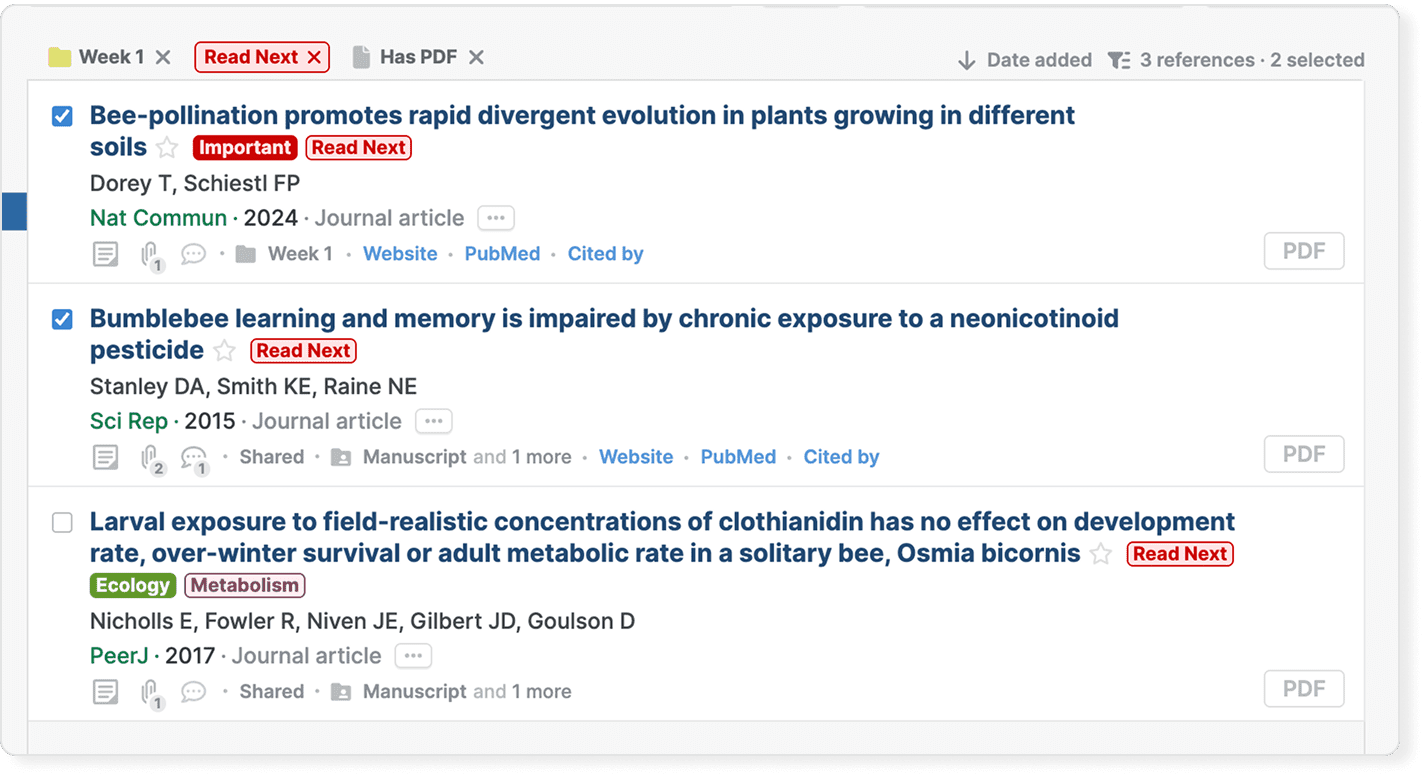
You can select multiple references to perform bulk actions:
- Click the selection box on the left side of any reference to select it.
- Hold Shift and click another reference to select all references between the first and last click.
- Press Cmd/Ctrl+A to select all references in the current view.
- Once selected, use toolbar buttons to perform actions on all selected references at once.
Search box

Use the search box to search your library and to search for articles and books online.
You can:
- Search for references in your current view (library, folder, or label)
- Use Quick lookup to filter your library by authors, journals, folders, and labels
- Use advanced search options to find references.
See Search your library for more details.
Add menu
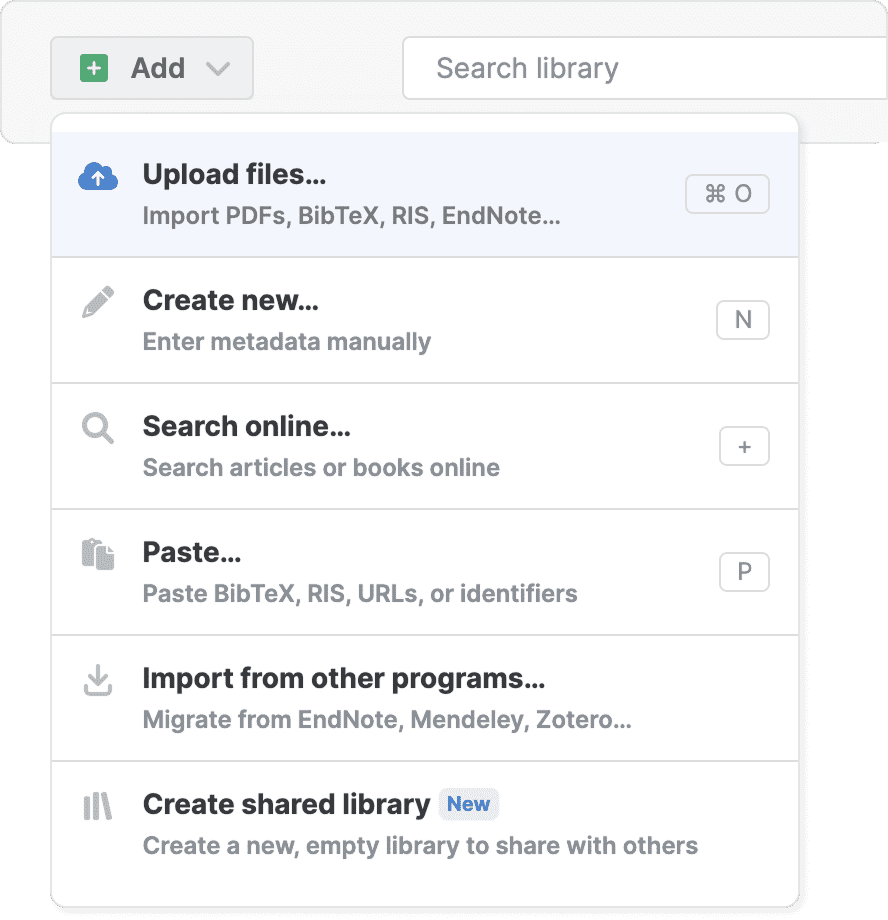
Click Add on the top left to add new references to your library:
- Upload files: Add PDFs or other files
- Enter reference data manually: Type in reference information yourself
- Search online: Search articles or books online
- Paste reference data: Paste citations in plain text, BibTeX and RIS formats
- Import from other programs: Migrate your library from other reference managers
- Create a shared library: Set up a new shared library for your team
Sidebar
The sidebar on the left shows all your libraries, folders, and labels. You can customize how the sidebar works:
Show or hide the sidebar
Click the close button at the top left of the sidebar to hide it completely. Click it again to show it.
Expand or collapse sections
Click any section header (like My Library, Shared with me, or Labels) to show or hide that section in the sidebar. This helps you focus on what you need.
Show or hide subfolders
If you have a large hierarchy of folders and subfolders in a library, you can collapse or expand all subfolders at once. Press Option+Click (macOS) or Alt+Click (Windows and Linux) on the triangle next to your library's name.
Resize the sidebar
Drag the right edge of the sidebar to make it wider or narrower.
Hide reference counts
By default, the sidebar shows the number of references next to each folder, label, and library. To hide these numbers, go to Settings > General, find the Appearance section, and turn off Show number of references in the sidebar.
Profile menu
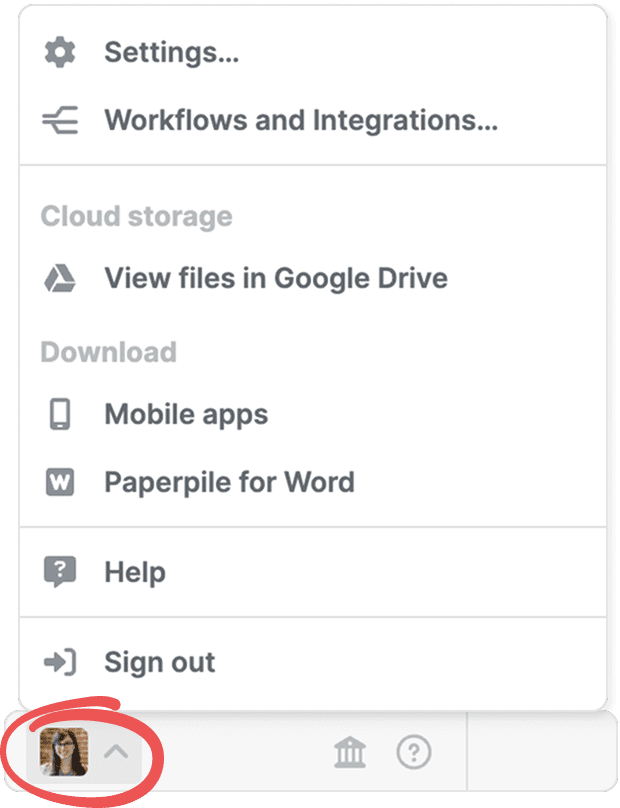
Click your profile picture in the bottom left of the sidebar to access Settings, Workflows and Integrations, cloud storage options, download options, the help menu, and sign out.
Help menu
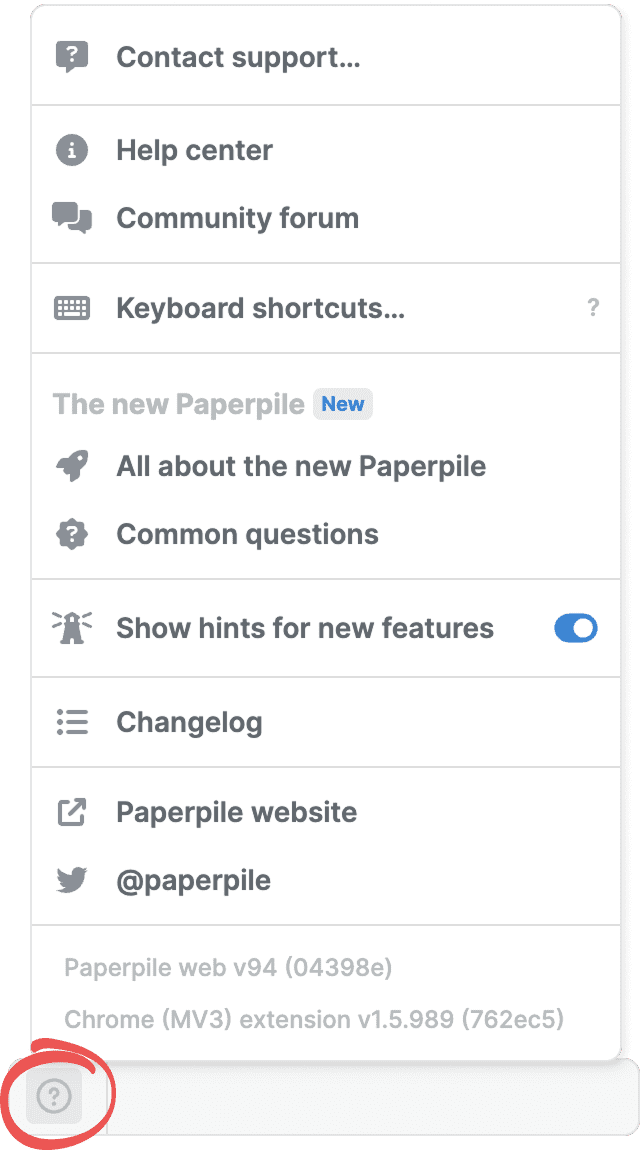
Click the question mark in the bottom left of the sidebar to access the Help Center, Changelog, Community Forum, keyboard shortcuts, and to contact support.
Filter menu
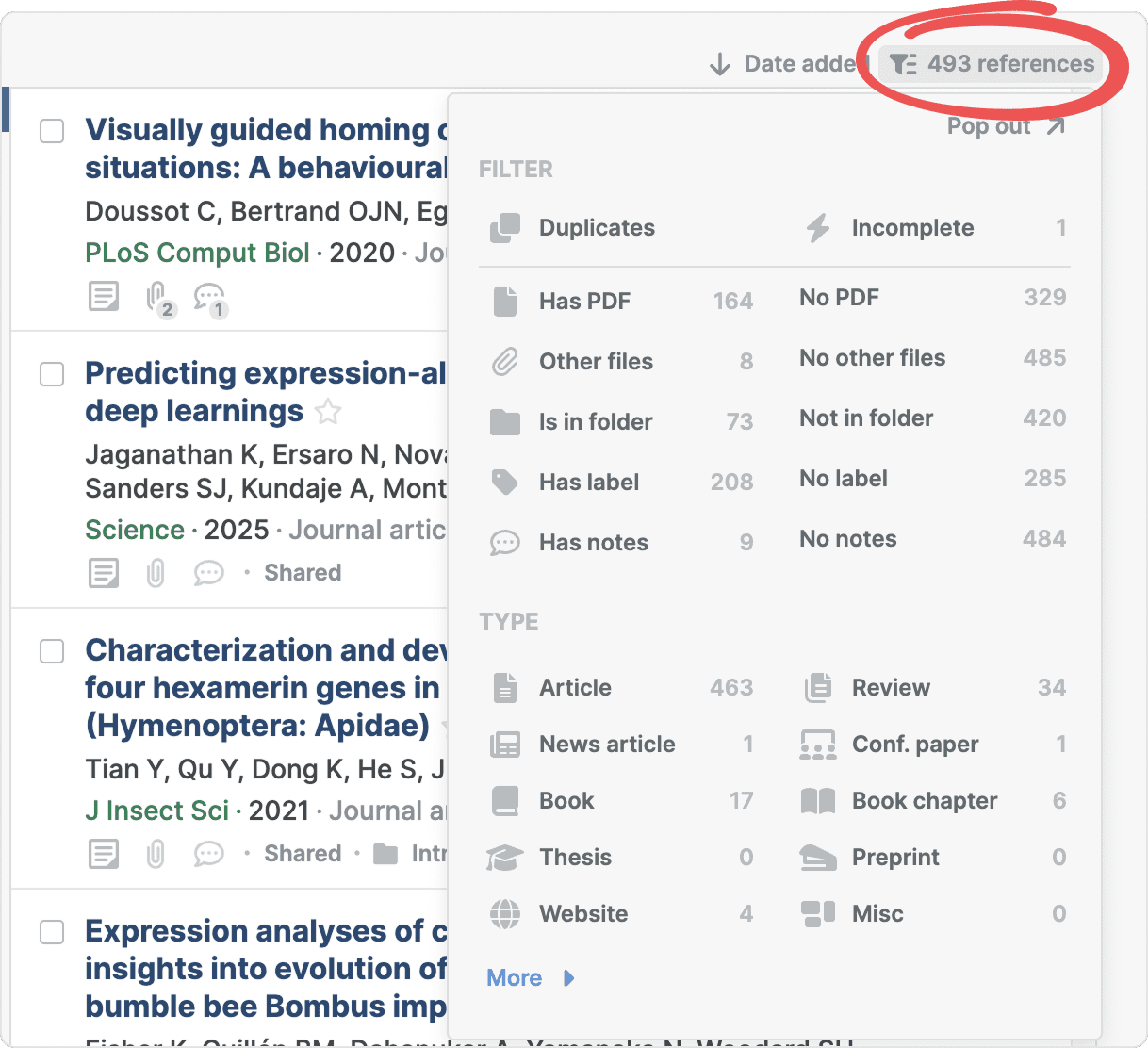
The filter menu lets you filter references by various criteria like publication type, “Has PDF”, or “Is in folder”.
To show or hide the filter menu, click the filter button in the reference list header.
Click Pop out at the top of the filter menu to open it in a separate panel to the right of the reference list. See Filter references for more details.
Selecting multiple folders, labels, and filters
When you click a folder and then click a label, Paperpile shows only the references that are in both that folder and have that label. This helps you narrow down your view to find exactly what you need.
Select multiple folders or labels at once
To select multiple folders or labels at once, hold Cmd (macOS) or Ctrl (Windows and Linux) and click each folder or label you want to include. You can also click the three-dot menu next to any folder or label and select Add to multiple selection.
Combine with other filters
You can combine folder and label selections with filters from the filter menu like "Has PDF", "Has notes", or reference type). All filters work together to narrow your results.
Progress window
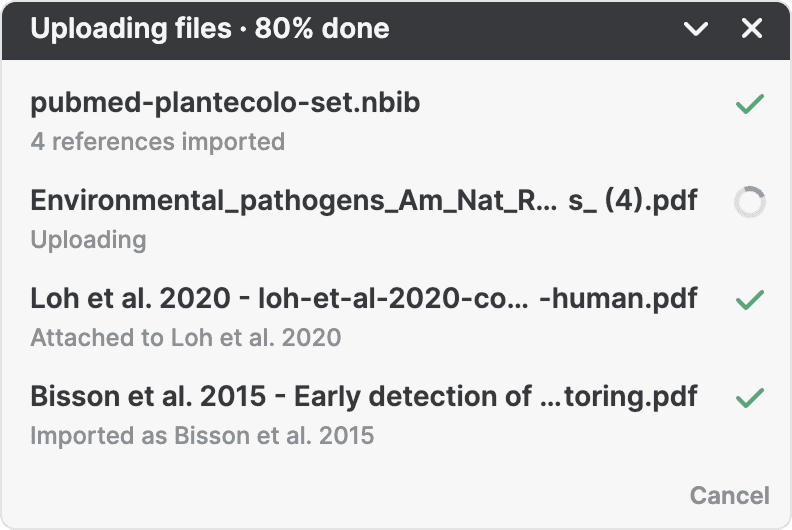
When you perform actions that take time (like uploading references or syncing files), the progress window appears at the bottom of the screen. It shows the progress of background tasks and lets you cancel operations if needed.
You can minimize the progress window by clicking the arrow, but tasks will continue running in the background.
Common questions
Can I use the web app in dark mode?
Not yet, but dark mode for the web app is planned. We’ve already added PDF night mode for comfortable reading. You can follow feature announcements in our Changelog and our blog for updates.
How do I access keyboard shortcuts?
Click the question mark in the bottom left to open the help menu and select Keyboard shortcuts, or press ? to see all available shortcuts.
Can I rearrange the toolbar buttons?
The toolbar buttons are fixed, but you can use keyboard shortcuts as an alternative way to access most actions quickly. See Keyboard shortcuts.
Why doesn't the sidebar show numbers next to my folders?
Go to Settings > General and in the Appearance section, turn on the option to show reference counts in the sidebar.