View and navigate your library
The reference list is the main view in Paperpile where you can see, organize, and work with your references. Understanding how to navigate this view helps you find what you need quickly and work more efficiently.
Reference list header and navigation
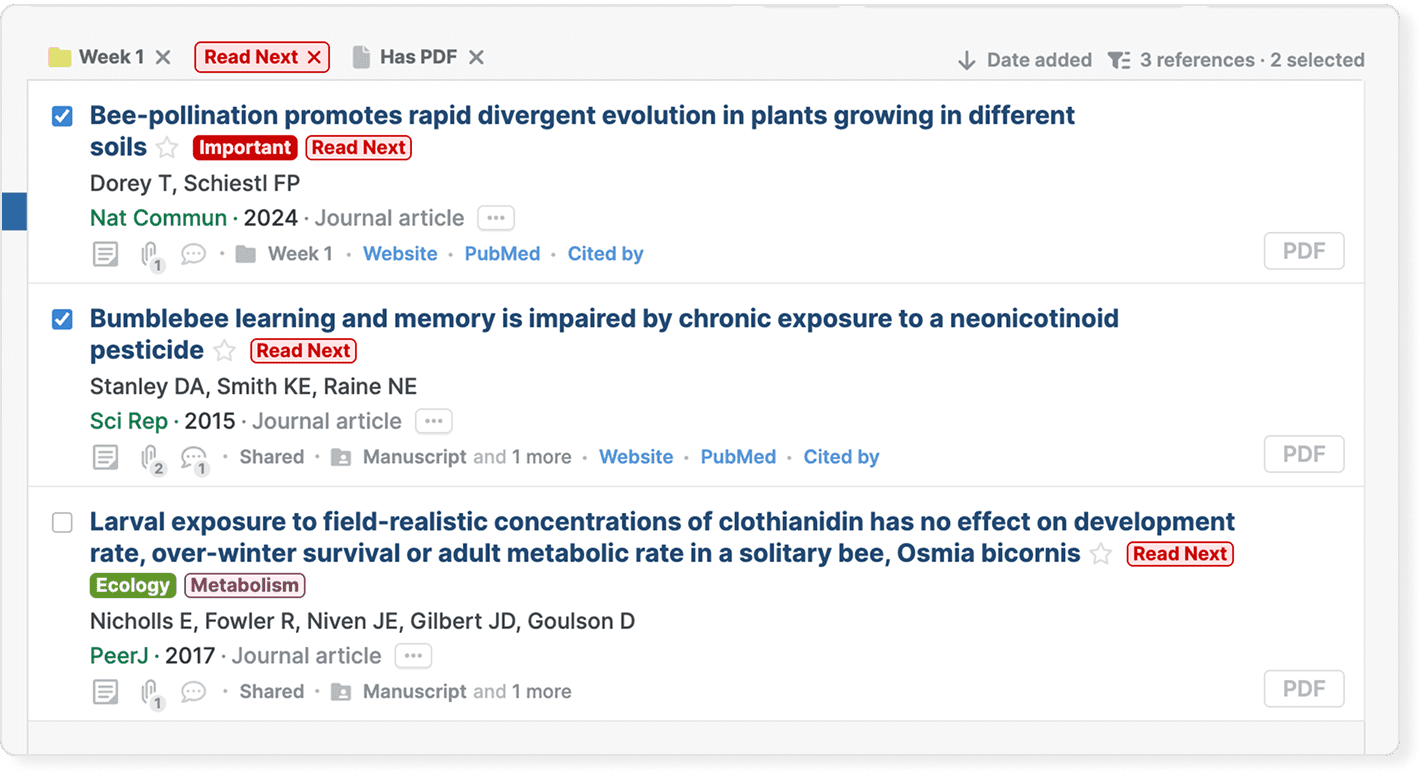
The list header at the top of the reference list shows information about what you're currently viewing:
- Folders, labels, or filters you're viewing
- Number of references in the current view (for example, "42 references")
- Number of references currently selected
Select references
To select multiple references, click the checkbox on the left side of any reference. You can also select a range by clicking the first reference, holding Shift, and clicking the last reference. The list header updates to show how many references you've selected.
See Select references for more ways to select references.
Clear your view
To clear a folder, label, or filter from the current view, click the clear button ( x ) next to its name in the list header.
If you've applied filters like “Has PDF” or are viewing a specific folder or label, you can return to viewing all references by clicking All in the sidebar.
Reference information
Each reference in your list displays key information and tools for working with that reference at a glance.
Title and metadata
- Title: The full title of the reference, which you can click to open the abstract.
- Authors: Names of the authors (truncated if there are many).
- Year: Publication year appears after the authors.
- Reference type: Journal article, Book, Preprint, and more.
- Three-dot button: Click the three-dot button next to the reference type to show all reference details. See below for more information.
Labels

Labels appear on the right side of each reference title. Click a label to view all references with that label. See Organize your library with labels for more information about labels.
Star

Click the star next to a title to mark a reference as important. Starred references can be filtered in the sidebar. See Star references for more details.
Sharing menu
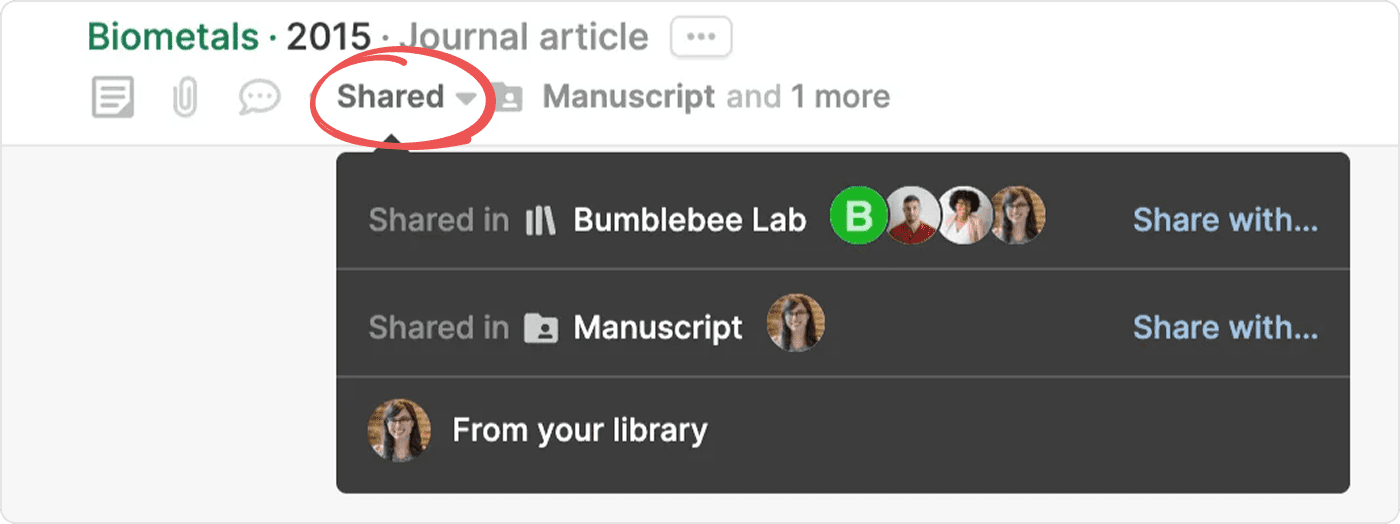
If a reference is shared with others, you will see a Shared button opening the sharing menu. The sharing menu shows where a reference is shared (which shared folder(s) or shared libraries contain the reference) and who has access.
Click Share with to share the reference with other users.
Folders
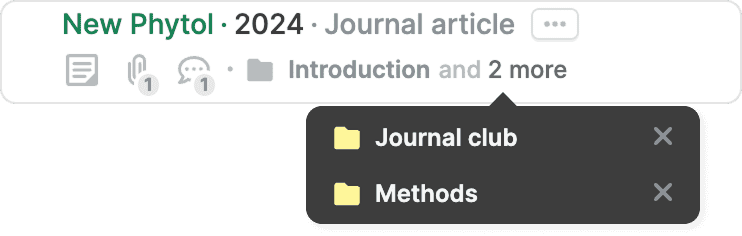
Displays the names of the folders in your library that contain the reference. Click on a folder name to go to that folder. See Organize your library with folders for more details.
Website

Click the Website link or press W to open the web link for a reference in a new tab. The Website link only shows if the reference’s URLs field is non-empty.
PubMed

Click the PubMed link to open the PubMed entry of the reference in a new tab.
Cited by

Click the Cited by link to open a reference’s Cited by webpage in Google Scholar in a new tab.
Associated paper

Click the Associated paper link to open the associated published paper of a preprint in a new tab.

Click PDF in the bottom right to open the PDF of a reference in a separate tab.
Checkbox

Click the checkbox on the left to select the reference. Once selected, you can perform actions with it from the toolbar menu and the three-dot menu.
Drag handle

The drag handle (six dots on the left) lets you drag references to folders, labels, and shared libraries in the sidebar.
Three-dot menu
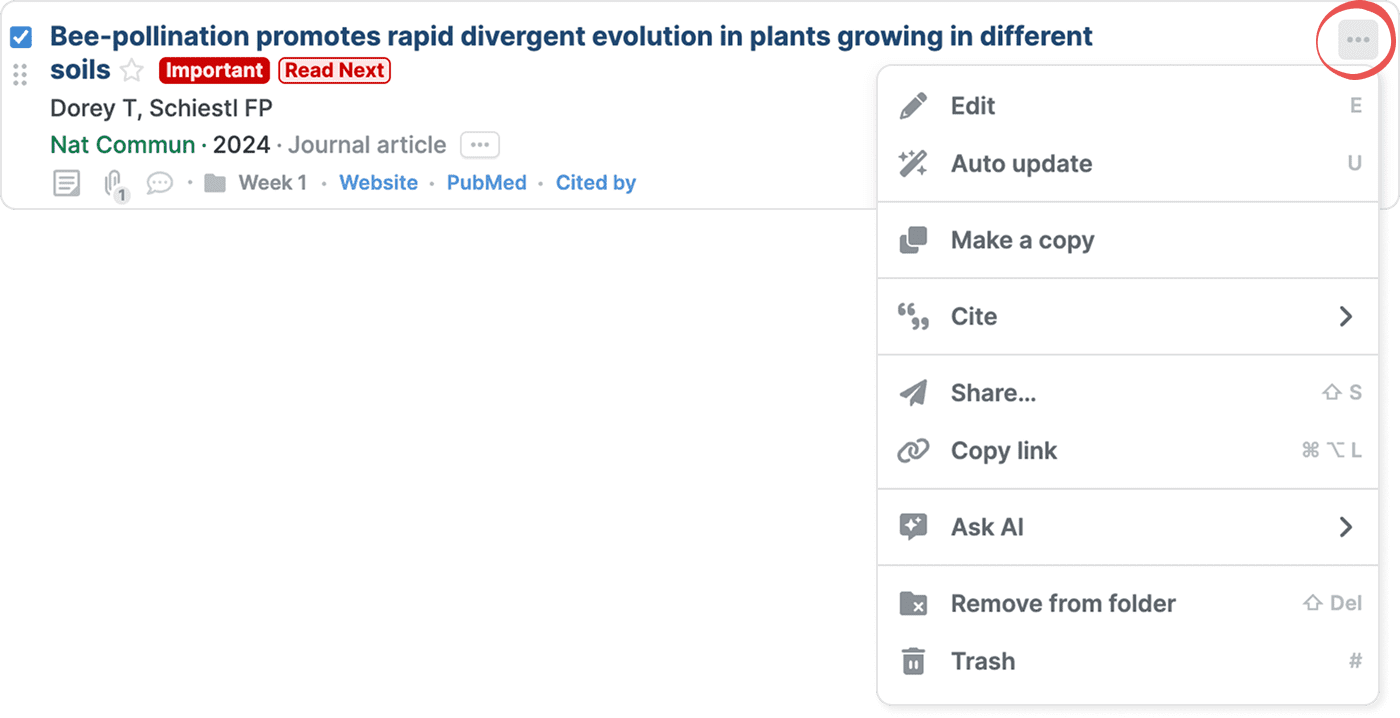
The three-dot button to the right of the title opens a menu with additional actions like editing, citing, and trashing the reference.
Reference details panel
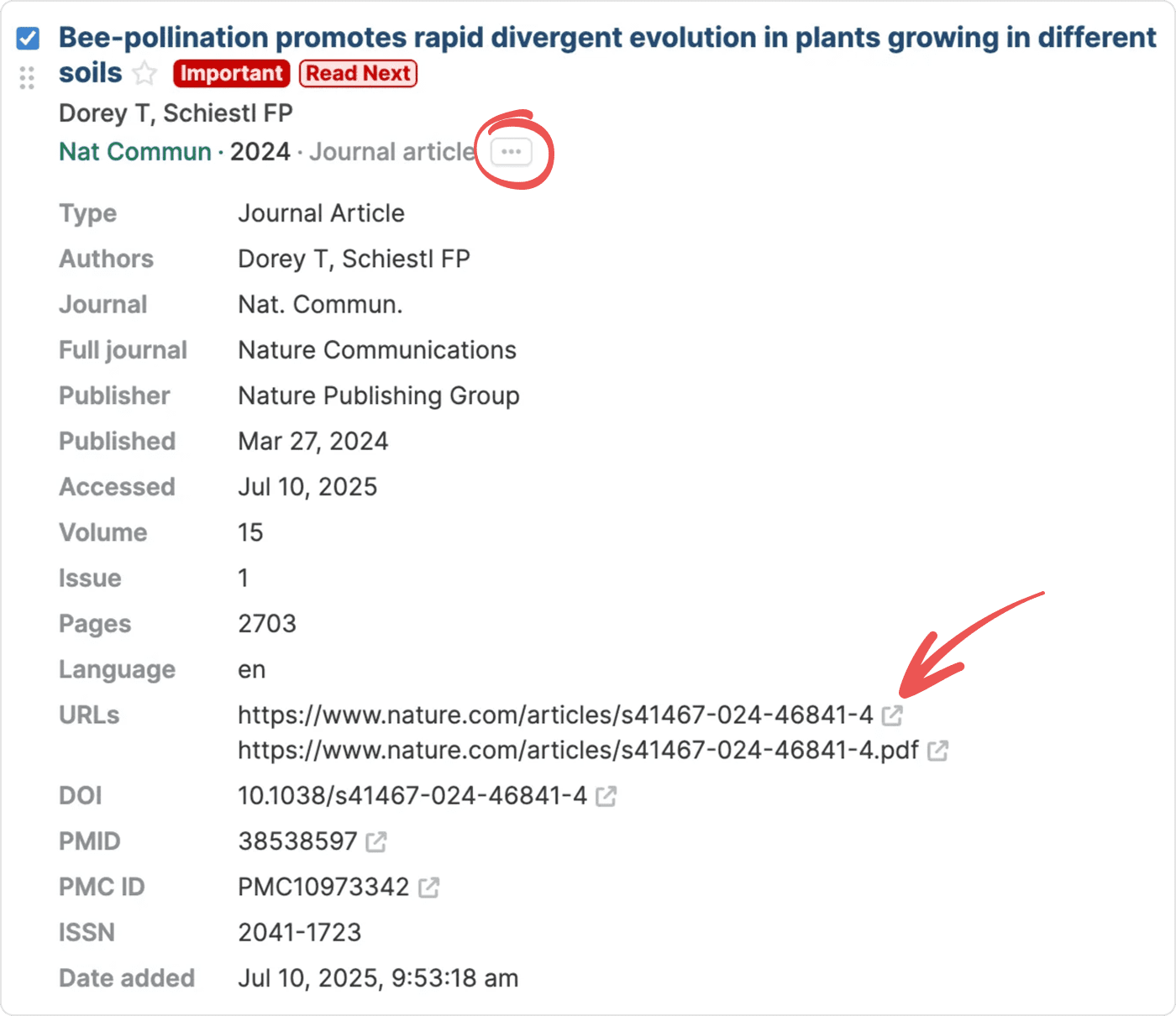
Click the three-dot button to show all reference details. You'll see complete metadata including title, authors, journal, date published, and identifiers (DOI, URLs, ISBN,…).
Abstract panel
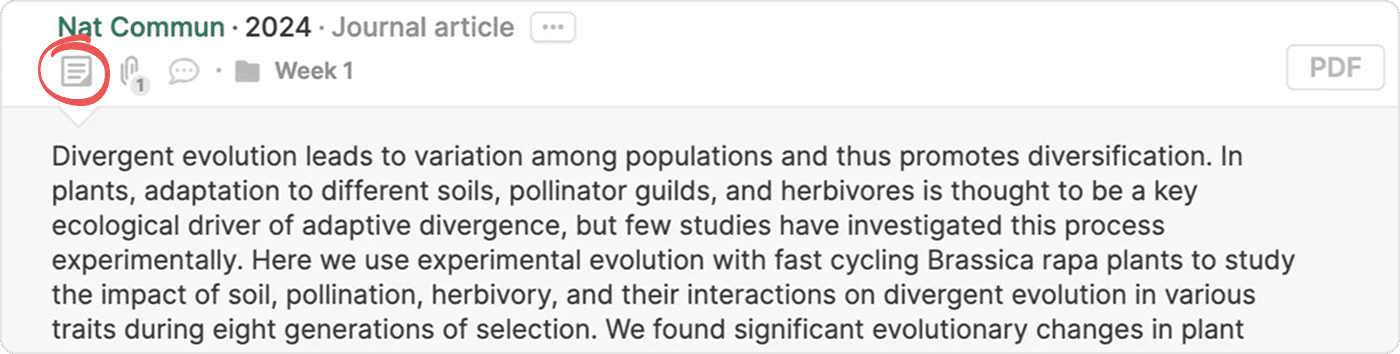
The abstract button displays the reference's abstract if available. Click it, press A, or click the reference title to show or hide the abstract. The abstract appears below the reference item, making it easy to scan the content without opening the full details.
Files panel
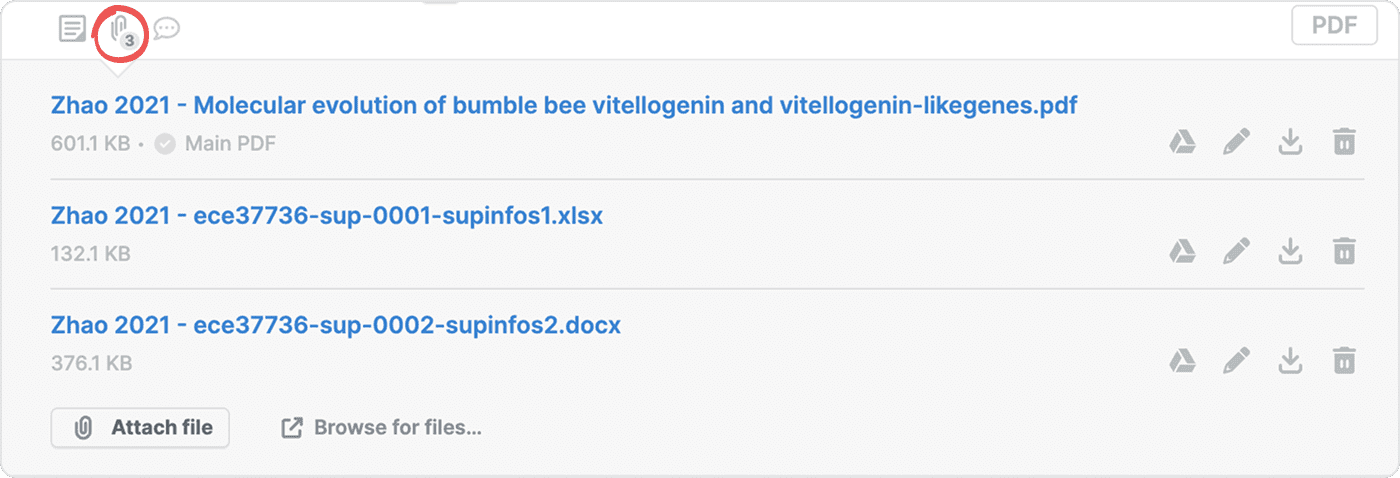
The files panel shows all PDFs and other files attached to the reference. Click the paperclip to show or hide the files panel.
In the files panel you can open PDFs in the PDF viewer, download files to your computer, add and remove files, and more. See Work with files for more information.
Notes panel

The notes panel displays any notes you've added to the reference. Click the speech bubble to show or hide the notes panel.
Navigate your library
Use the sidebar to navigate through your library:
- All: View your entire library
- Starred: View only starred references
- Folders: Click folders to see references organized by topic or project
- Labels: Click labels to filter by label
- Trash: View and restore trashed references
Search and filter your library
- You can use the search box at the top to find specific references by title, author, or other fields. See Search your library for more details.
- You can use the filter menu on the right to view only references that match specific criteria, for example, by reference type, or by attribute (like “Has PDF”, “In a folder”, or is “Incomplete”). See Filter references for more details.