Open PDFs
Open and read PDFs attached to your references directly from Paperpile. You can view PDFs in a new browser tab using your preferred PDF viewer.
Open a PDF from the reference list

To view the main PDF of a reference:
- Click the PDF button, or
- Select or hover over the reference and press V, or
- Select or hover over the reference and press the Enter/Return key.
By default, the PDF opens in Paperpile's PDF viewer in a new browser tab where you can read and annotate the document.
Control which PDF opens

When you open a PDF, Paperpile opens the main PDF attached to the reference. If a reference has multiple PDFs, you can choose which one is the main PDF.
Click the paperclip to open the files panel, find the PDF you want to set as the main PDF, and click Set as main PDF. The main PDF appears at the top of the file list.
Open a PDF from the browser extension
From the browser popup
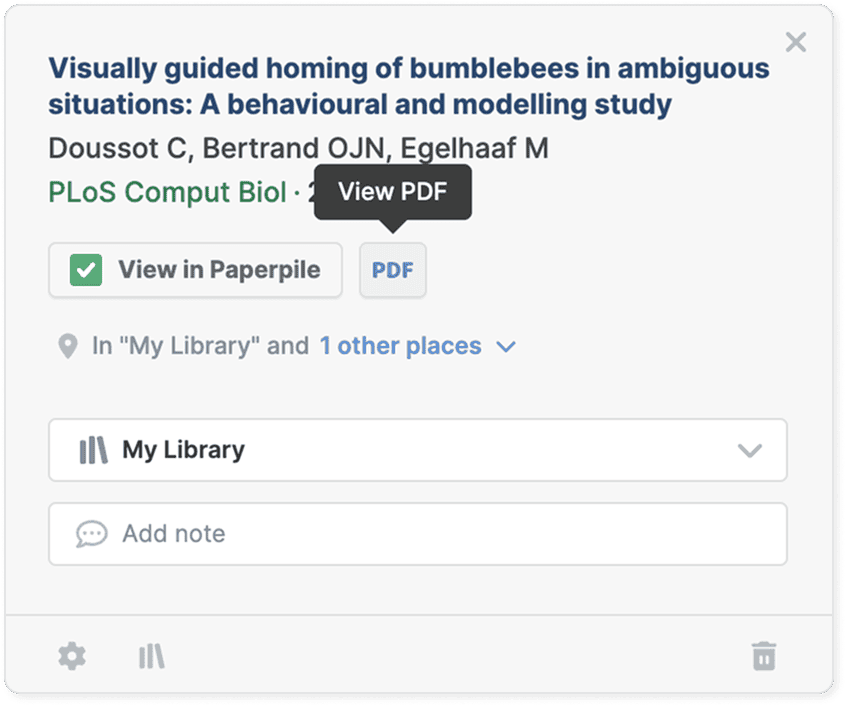
View PDFs from references already in your library using the extension popup. Click the PDF button in the browser popup to open the PDF directly.
See Save to Paperpile with the extension popup for more information.
From the Paperpile buttons

The Paperpile extension adds buttons to search results on academic websites. Click the Paperpile button to save a reference to your library, then click PDF on the button to open it.
See Save from supported databases and websites with the Paperpile buttons for more details.
Next steps
After opening a PDF, you can: