Setup workflows and integrations
Automate how Paperpile syncs your references to external tools and services. You can create workflows to export references to BibTeX files, connect to Overleaf projects, and set up other integrations to keep your research tools in sync.
Add a workflow
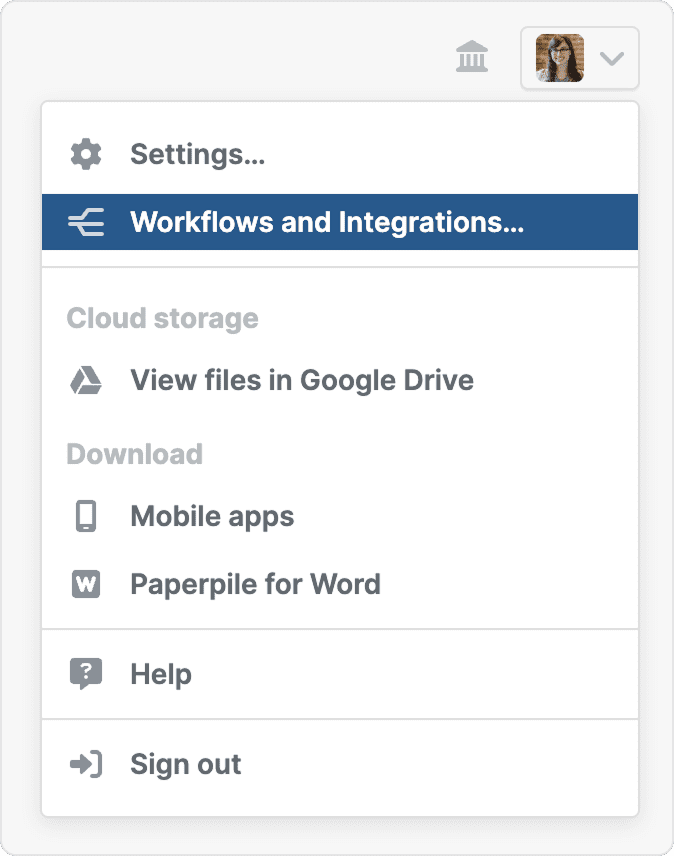
- Click your profile picture on the top right and select Workflows and Integrations.
- Click the Add button for the workflow type you want to create (for example, BibTeX export or Overleaf integration).
- Follow the setup steps to configure your workflow.
Available workflow types include BibTeX export workflows for syncing to Google Drive, GitHub, or download links, and Overleaf integration workflows for connecting directly to your Overleaf projects.
Add a workflow from a folder or label menu
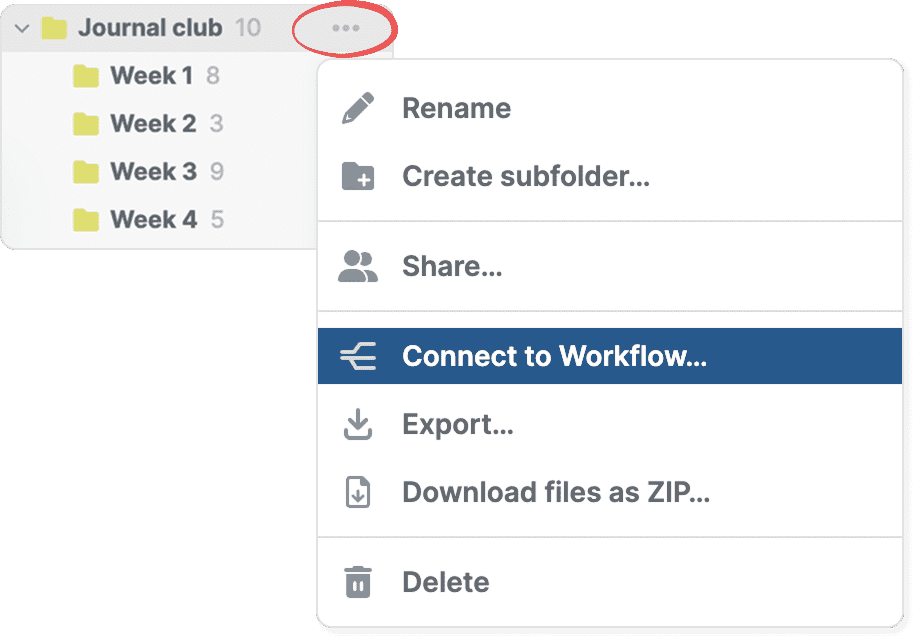
- In the sidebar find the folder/label and click its three-dot menu.
- Select Connect to Workflow.
- Click the Add button for the workflow type you want to create (for example, BibTeX export or Overleaf integration).
- Follow the setup steps to configure your workflow.
Manage workflows
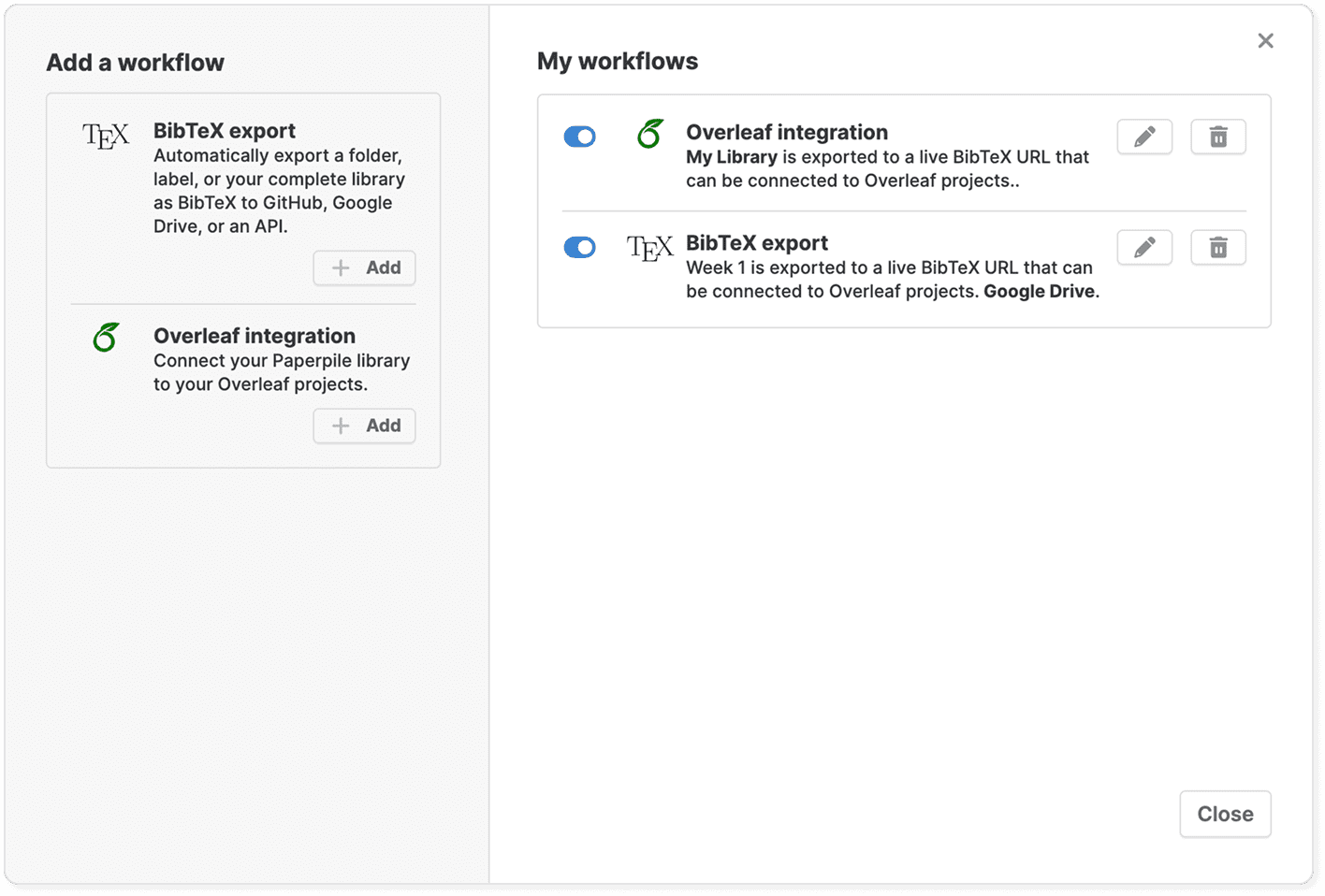
All your workflows appear in the Workflows and Integrations window in the My workflows section. From here you can manage existing workflows:
Edit a workflow: Click the pencil to modify the workflow's settings, such as changing the source for export or the export destination.
Turn a workflow on or off: Use the switch to turn on or off a workflow without deleting it. Workflows that are turned off won't sync until you turn them back on.
Delete a workflow: Click the trash button to delete a workflow. Deleting the workflow moves files exported to Google Drive to the Trash and will inactivate download links.
Error handling
If a workflow encounters an error during syncing, Paperpile will automatically turn it off to prevent repeated failed attempts. Check the Workflows and Integrations window for error messages in the My workflows section, and resolve the issue by clicking Reconfigure this workflow.
If the error continues to persist, contact our support team by email at support@paperpile.com.
Common workflows
See Automatically sync BibTeX files to learn how to export references to BibTeX format in Google Drive, GitHub, or as a downloadable link.
See Use Paperpile with Overleaf to connect your library directly to Overleaf projects for seamless LaTeX writing.