Make changes to your subscription
In Settings > Billing you see a summary of your current subscription. It also allows you to make changes to your subscription.
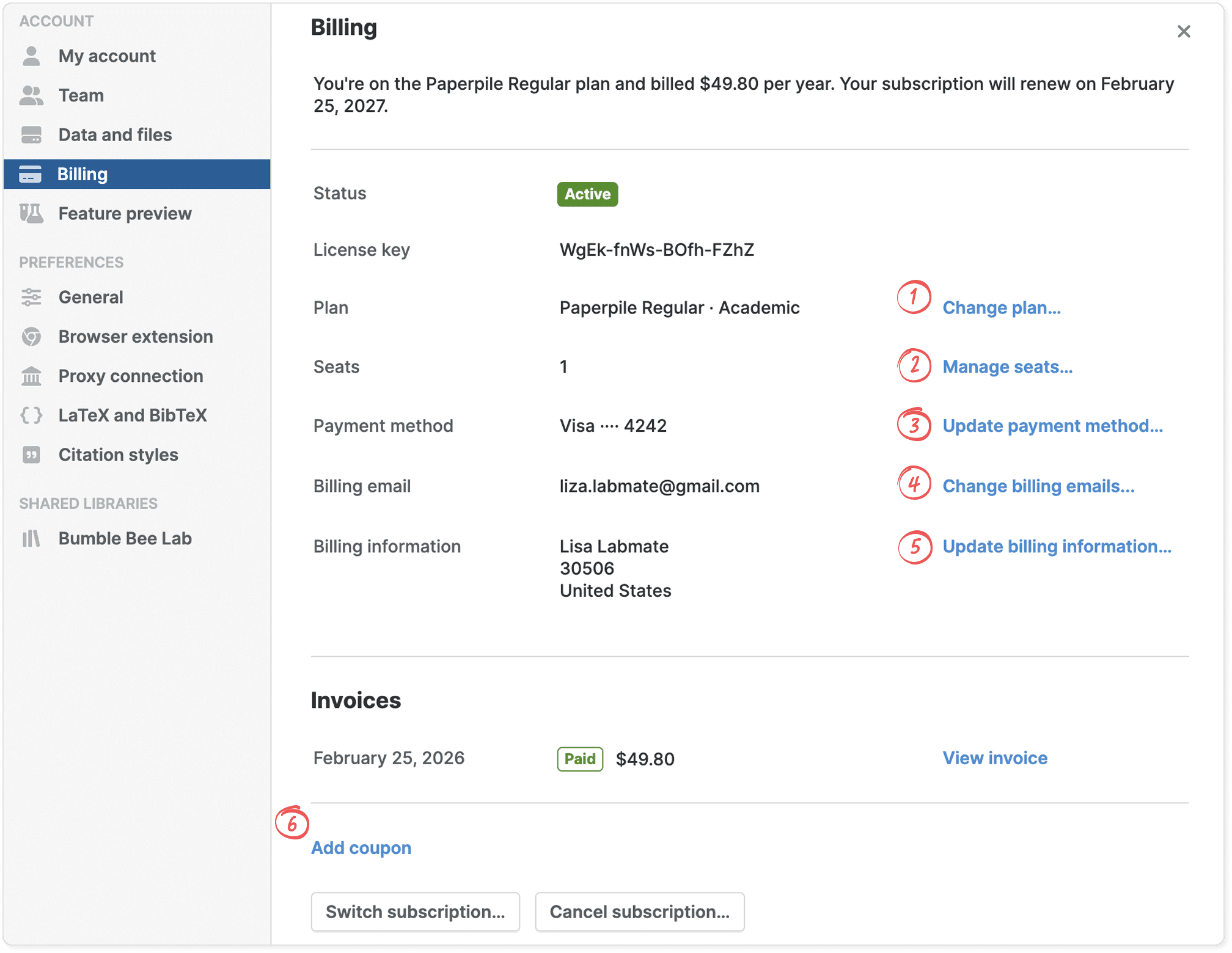
1. Change plan
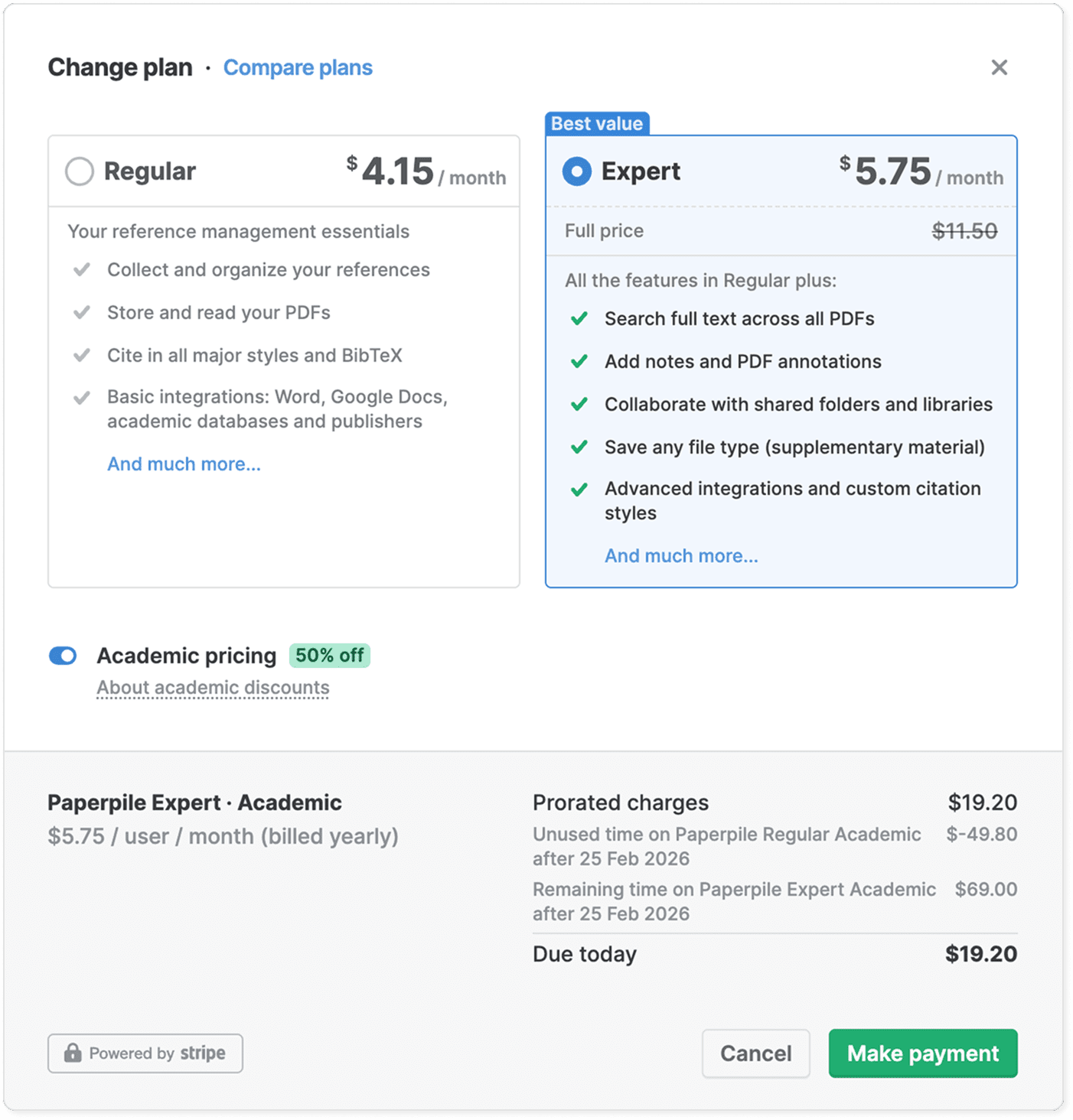
In Settings > Billing click Change plan. You can then choose a different plan and will see the pro-rated charges that this change will cause.
If you have chosen a less expensive plan that will result in a credit, no payment is due.
If you have chosen a more expensive plan, finish the payment by clicking Make payment. Your credit card will be charged or if you are paying by invoice, a new invoice will be sent to you and your billing contacts.
To learn how your features and access change when you move to a plan with fewer features, see What happens when I downgrade my plan?.
2. Add or remove users from your subscription
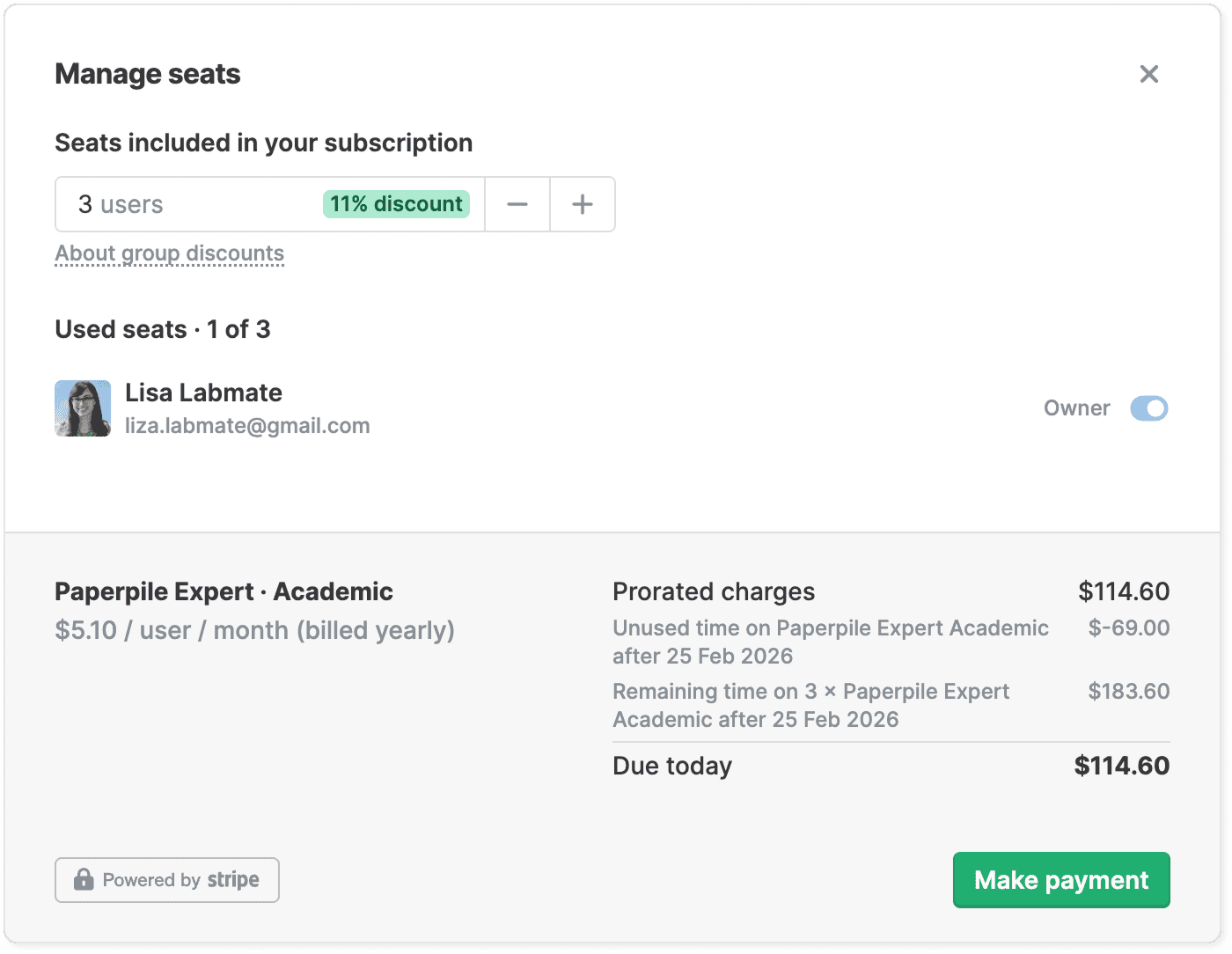
To add or remove additional users from your subscription, go to Settings > Billing and click Manage Seats. See Manage users and seats in your team.
3. Update payment method
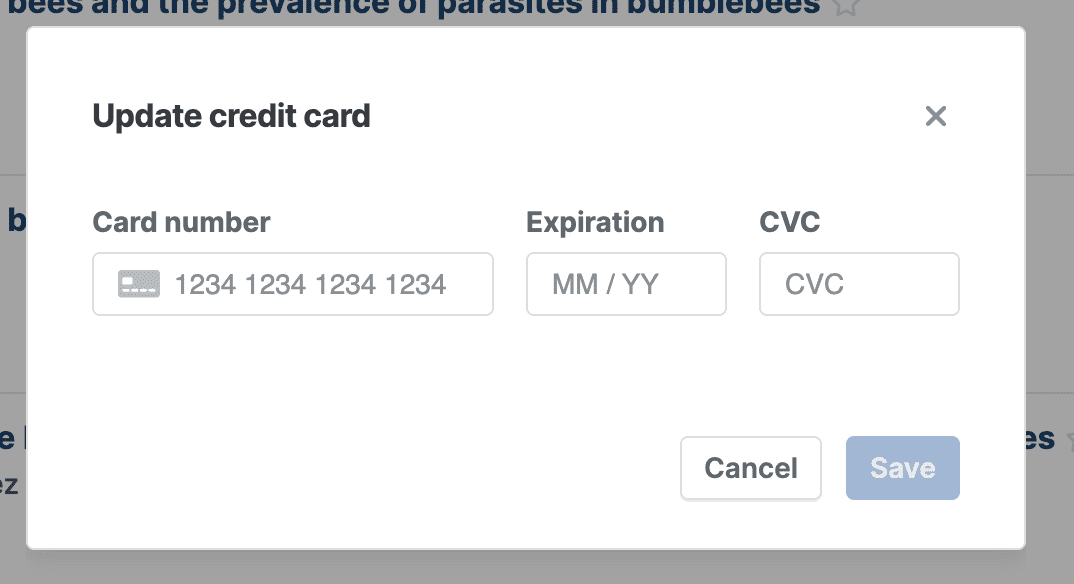
In Settings > Billing, click Update payment method and enter new credit card details.
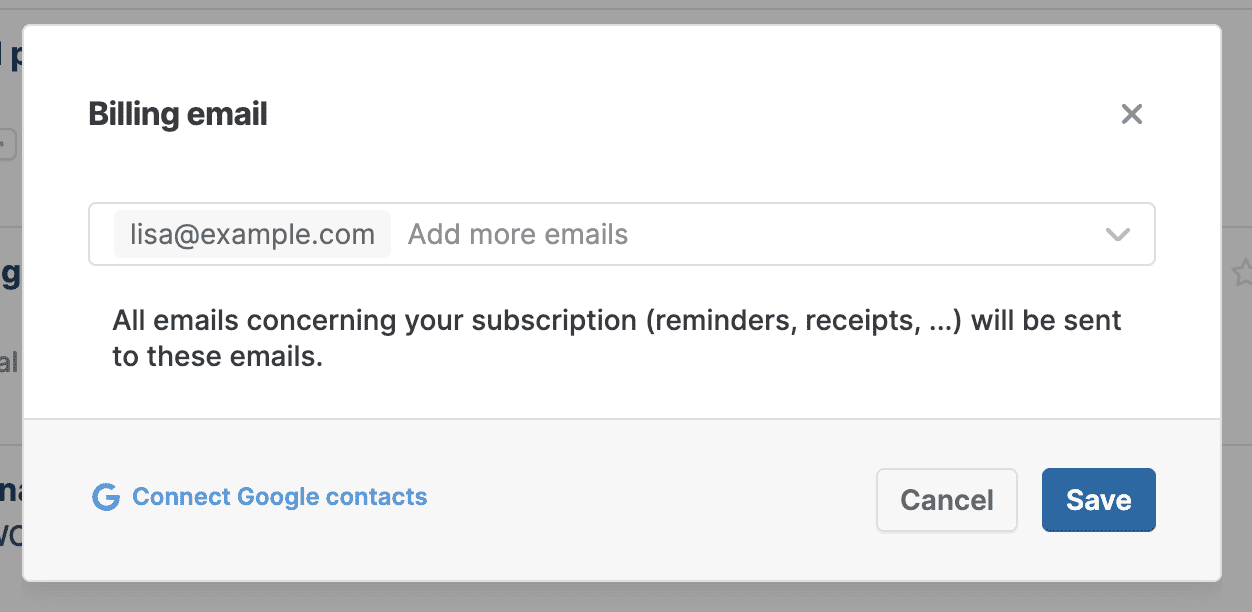
4. Change billing emails
In Settings > Billing, click Change billing emails to add or remove billing contacts. Any email address included here will receive all emails related to this subscription. Note: The owner of the subscription always will be included.
5. Update billing information
In Settings > Billing, click Change billing information. You can enter your billing address and other information you want to appear on your invoices and receipts. For more information see Invoices and receipts.
6. Add a coupon
In Settings > Billing, click Add coupon. For more details, see Coupons.