Create a shared library
Create a shared library to establish a central literature repository for a research group, company, or large collaborative project. Shared libraries are separate from your personal library and have their own folders, labels, notes, and annotations.
Create a shared library from the Add menu
- Click the Add menu on the top left.
- Select Create shared library.
- Enter a name for your library and click Create.
- Click Invite user and enter email addresses of people you want to invite.
- Choose permissions for each user (”Editor” (default), “Admin”, or “Viewer”).
- Click Done.
The shared library appears in the sidebar.
Create a shared library from Settings
- Click your profile picture in the top right.
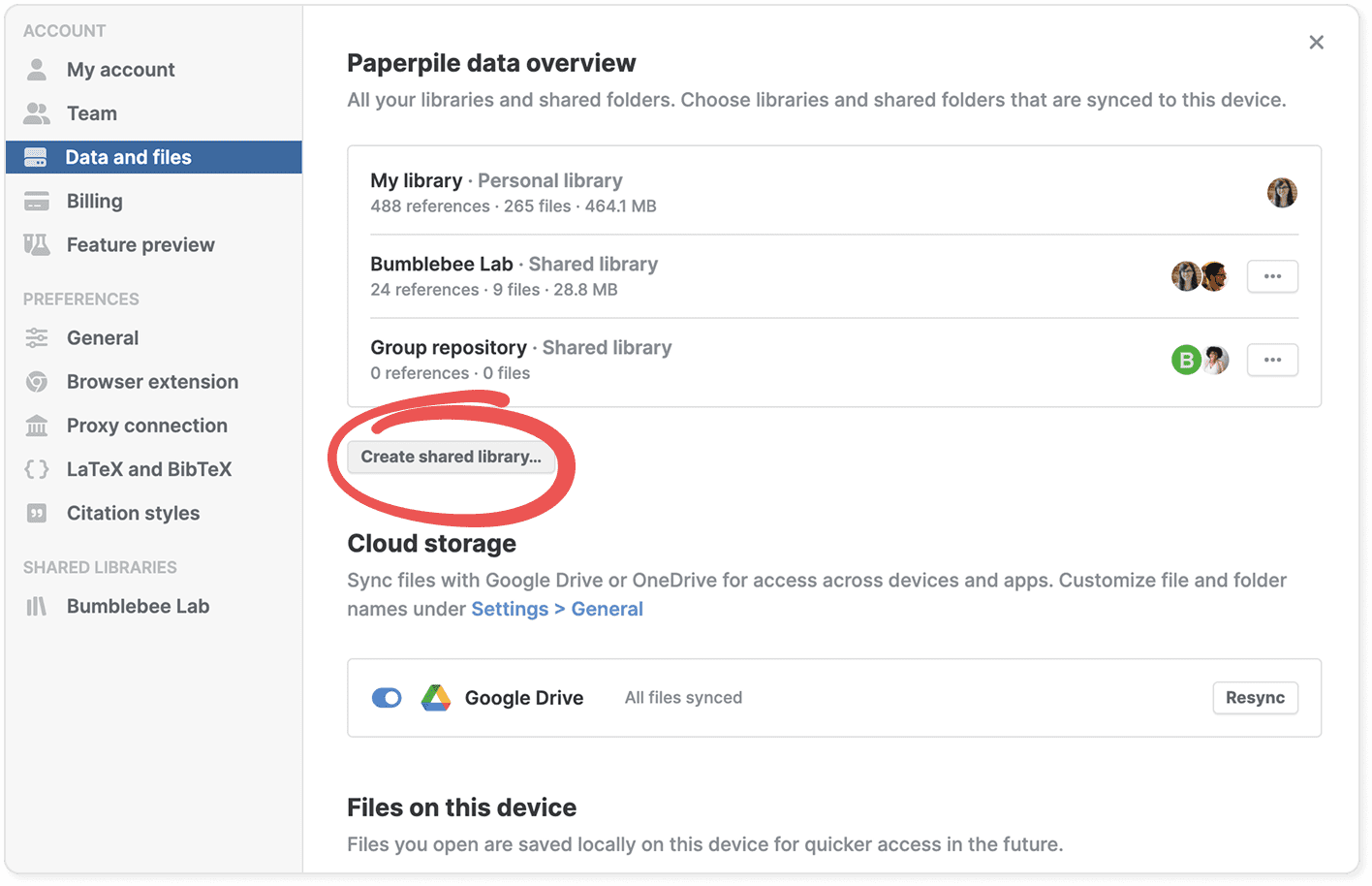
- Go to Settings > Data and files.
- Click Create shared library.
- Choose a name for your new library.
- Enter a name for your library and click Create.
- Click Invite user and enter email addresses of people you want to invite.
- Choose permissions for each user (”Editor” (default), “Admin”, or “Viewer”).
- Click Done. The shared library appears in the sidebar.
Create a shared library for teams and organizations
If you create a team or organization, you'll be prompted to set up a shared library automatically. This happens when you:
- Create a team in Settings > Team
- Purchase a subscription with two or more seats in Settings > Billing
See Create a team and Teams and organizations explained for more details.
Next steps
After creating your shared library, you can:
- Add references from your personal library or import new ones
- Create folders and labels to organize content
- Invite additional users and manage permissions
- Start collaborating on references and PDFs
- Manage your shared library Manage shared libraries.
See Work with shared libraries for more details.
Common questions
What's the difference between shared libraries and shared folders?
Shared libraries are complete, independent libraries separate from your personal library. They're ideal for organizations or large collaborative projects.
Shared folders are folders within your personal library that you share with specific people—better for one-off collaborative projects.
Use shared libraries when you need a centralized repository that multiple people can access and manage independently of their personal libraries. Use shared folders for selective sharing from your personal library.
Who can I invite to a shared library?
You can invite anyone by entering their email address. If they have a Paperpile account, they'll receive an invitation to accept. If they don't have an account yet, they'll be invited to sign up first.
Can I change user permissions and invite users after creating a shared library?
Yes. In the sidebar, click the three-dot menu next to the library name and select Share. In the sharing dialog you can change user permissions, remove users, or invite additional users at any time. See Manage shared libraries for more details.