Work with shared libraries
Work with shared libraries to collaborate on research with colleagues. Add references, organize content with folders and labels, and annotate PDFs together.
Accept invitation to a shared library
When someone invites you to a shared library, accept the invitation in Paperpile or follow the link in the invitation email. Once accepted, the library appears in the sidebar.
Find and navigate shared libraries
All shared libraries you own or have access to appear in the sidebar. Click All under a library name to view its contents.
When viewing a shared library, all folders, labels, and references belong to that library, not your personal library. To return to your personal library, click All under My Library in the sidebar.
To see all shared libraries you have access to, go to Settings > Data and files.
View references in a shared library
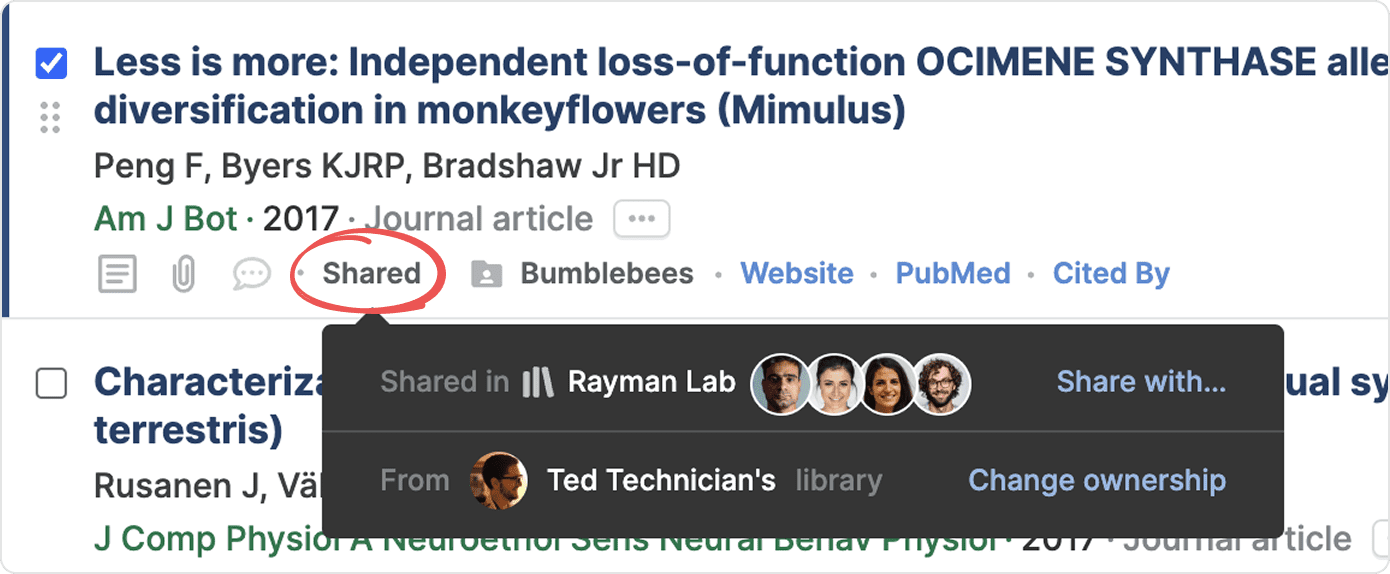
Every shared reference shows where it's shared and with whom. Click the Shared menu in a reference to see this information.
Understand your permissions in a shared library
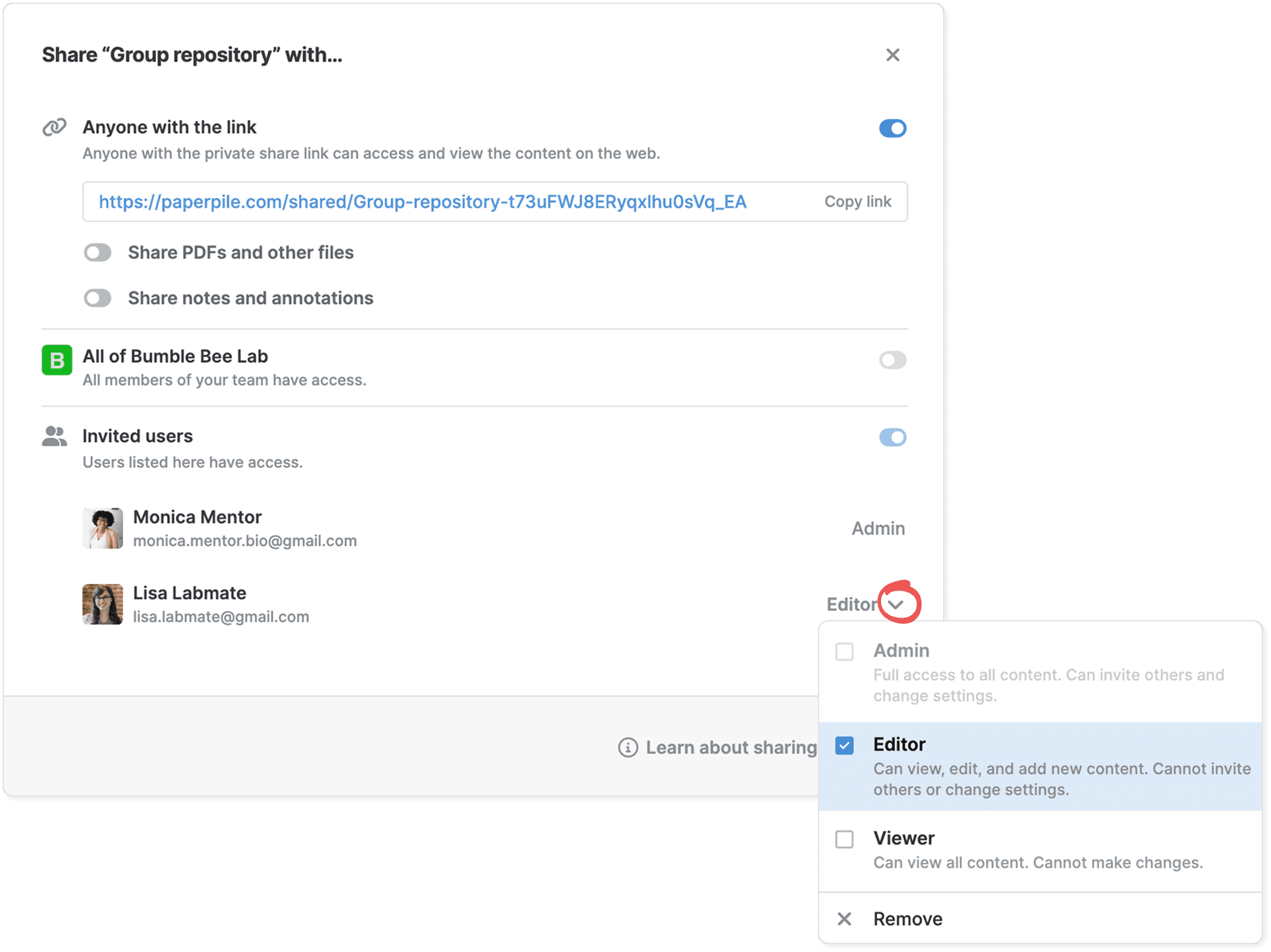
Your permissions (whether you are “Admin”, “Editor” or “Viewer”) determine what actions you can take in a shared library. To check your permissions, click the three-dot menu next to the library in the sidebar and select Share. The list at the bottom shows all users and their permissions. See Permissions in shared folders and libraries
| Action | Admin | Editor | Viewer |
|---|---|---|---|
View and search all content | 🟢 | 🟢 | 🟢 |
Export references and download files | 🟢 | 🟢 | 🟢 |
Copy citations | 🟢 | 🟢 | 🟢 |
Add shared references to your personal library | 🟢 | 🟢 | 🟢 |
Remove yourself from a shared library | 🟢 | 🟢 | 🟢 |
Add and edit content | 🟢 | 🟢 | ❌ |
Annotate PDFs | 🟢 | 🟢 | ❌ |
Create folders and subfolders | 🟢 | 🟢 | ❌ |
Create labels | 🟢 | 🟢 | ❌ |
Trash and delete references | 🟢 | 🟢 | ❌ |
Invite others | 🟢 | ❌ | ❌ |
Change user permissions | 🟢 | ❌ | ❌ |
Rename library | 🟢 | ❌ | ❌ |
Delete library | 🟢 | ❌ | ❌ |
Can change advanced sharing settings | 🟢 | ❌ | ❌ |
Permission levels
- Admin: Full control. Can invite users, manage permissions, and change settings. See Manage shared libraries for more details.
- Editor: View, edit, and add content but cannot invite others or change settings.
- Viewer: View content only, cannot make changes.
Add references from your personal library to a shared library
Select references in your personal library and drag them into the shared library in the sidebar. Only users with “Admin” or “Editor” permissions can add references to shared libraries.
By default, references you add from your library are live copies. Changes you make to the reference in your personal library appear in the shared library, and vice versa. See Manage shared libraries for information about changing this behavior.
Add new references to a shared library
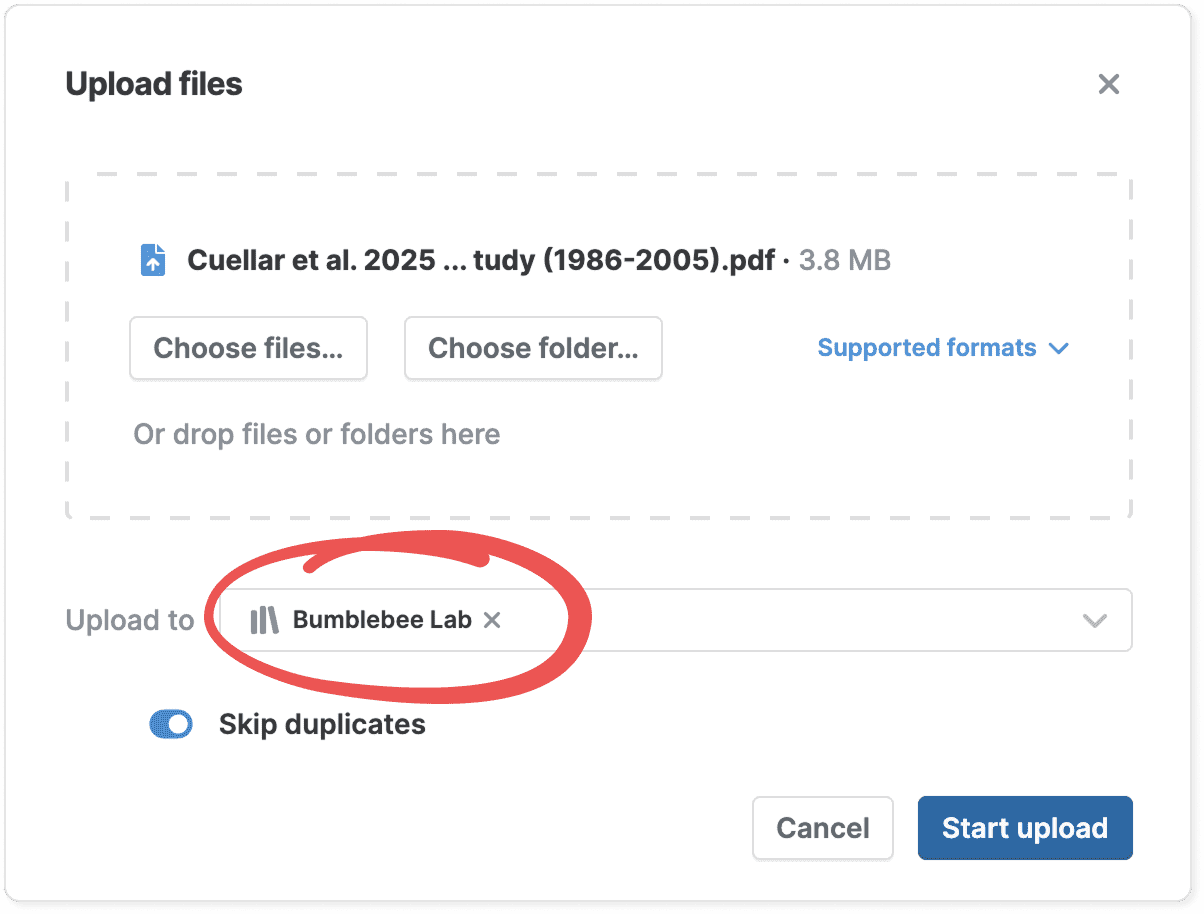
If you're an Admin or Editor, you can add references directly to a shared library:
- Start adding references using the browser extension, by uploading files, or by pasting reference data.
- Click the import destination box to choose where to save the references.
- Select a shared library from the list. You can also select a folder or subfolder within a shared library.
- Complete the import.
The imported references appear in the shared library and will be visible to all users with access.
See Add references while browsing using the browser extension, Upload files, and Paste reference data for detailed instructions.
Add new references while viewing a shared library
When you view a shared library as “Admin” or “Editor”, you can add references directly by searching online or entering reference data manually.
Add references from a shared library to your library

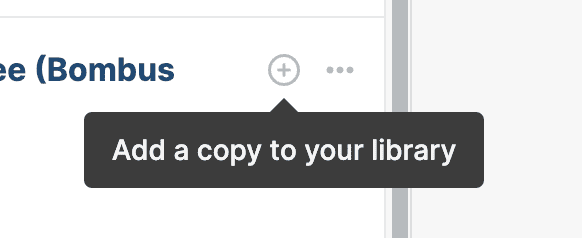
Every reference in a shared library has a button on the top right showing its status:
- Plus: You don’t have a copy of this reference in your personal library. Click the button to add a copy. You can also drag the reference to your personal library.
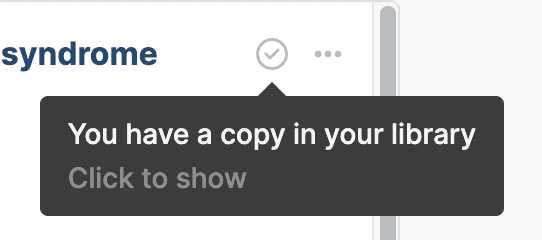
- Check: You have a copy of this reference in your personal library. Click the button to show your copy in your personal library.
- Dot: The reference is a “live” copy from your personal library. Click the button to show the reference in your library.

Collaborate with shared notes and annotations
If you have “Editor” or “Admin” permissions, you can add notes to references and annotate PDFs in shared libraries. All notes and annotations are visible to users with access to the library.
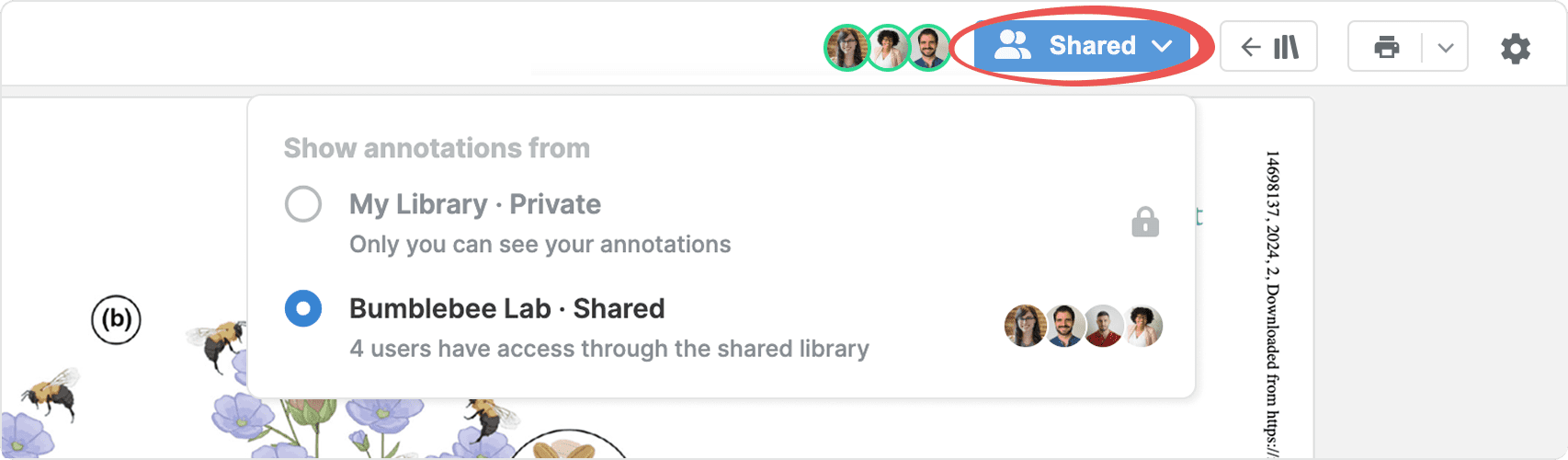
Notes and annotations in shared libraries are separate from those in your personal library or other users' personal libraries.
Annotate PDFs in a shared library
Annotate PDFs to highlight key passages, add comments, and discuss findings with collaborators. Annotations include highlights, underlines, strikethroughs, shapes, and sticky notes.
See Annotate PDFs collaboratively with others for details.
Add notes to references in a shared library
Add notes to references to track thoughts, ideas, or next steps. Click the speech bubble below a reference in the list to add or view notes.
Organize shared libraries with folders and labels
Create folders and labels to organize references in a shared library. All users with access can see folders and labels. Editors and Admins can create, apply, and manage them, while Viewers can only view them.
See Organize your library with folders, Organize your library with labels, and Manage folders and labels in bulk for more details.
Use folders
Use folders to group related references. Create folders using the folder button in the toolbar or the plus button in the sidebar next to the shared library name.
All folders and subfolders share the same users and permissions as the library—you cannot set different permissions for individual folders.
Use labels
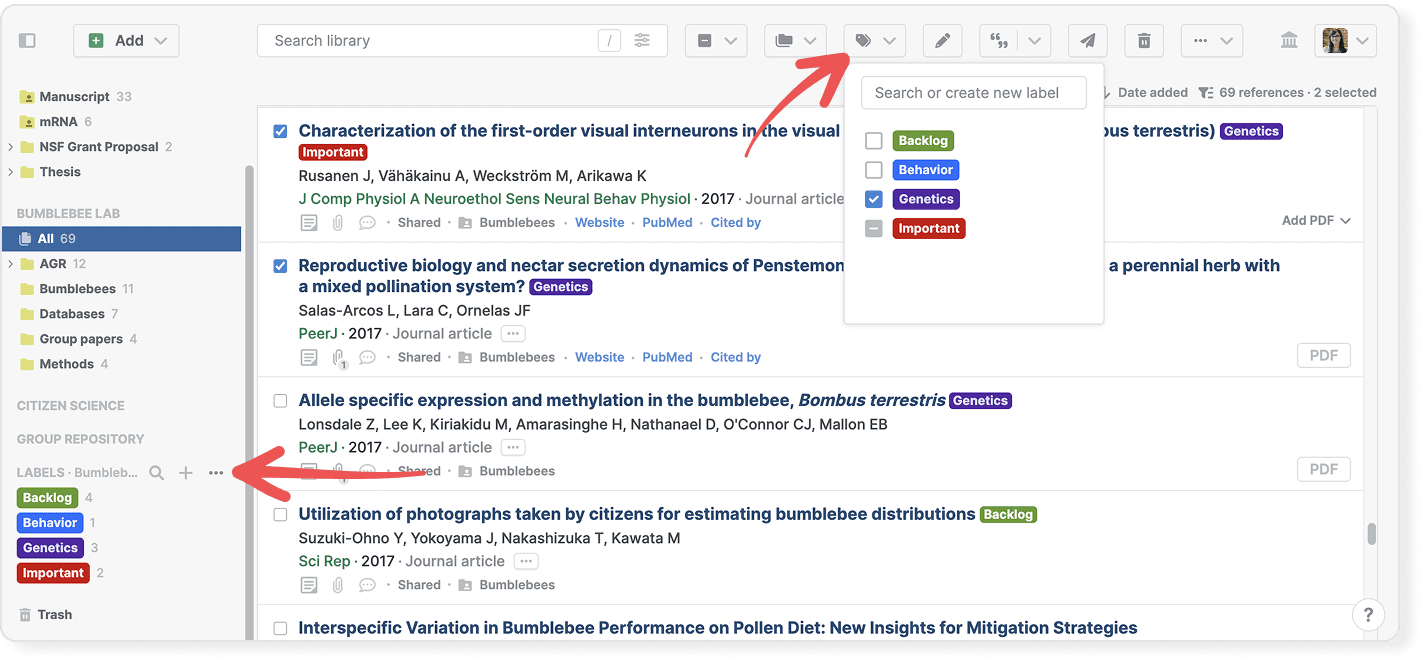
Use labels to tag references by topic or status. Create labels using the label button in the toolbar or the plus button next to Labels in the sidebar.
Labels in a shared library are specific to that library and separate from labels in your personal library.
Edit references in shared libraries
If you have “Admin” or “Editor” permissions, you can edit references in shared libraries just like in your personal library. You can:
All users with access to the library see your changes.
Trash references in shared libraries
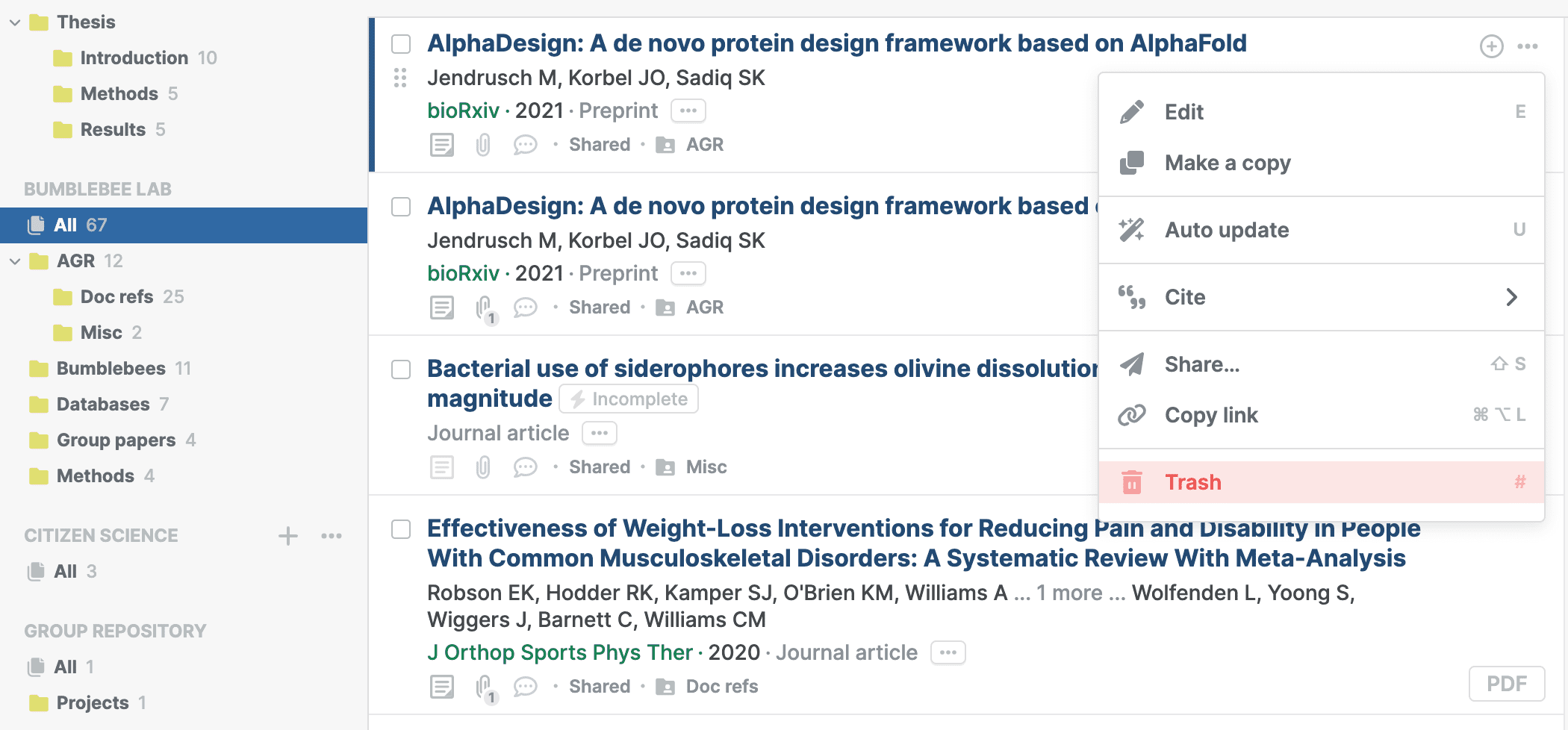
To trash references from a shared library:
- Select the references you want to trash.
- In the three-dot menu, click Trash, or click the trash button in the toolbar, or press Delete/Backspace.
This sends the references to the shared library Trash.
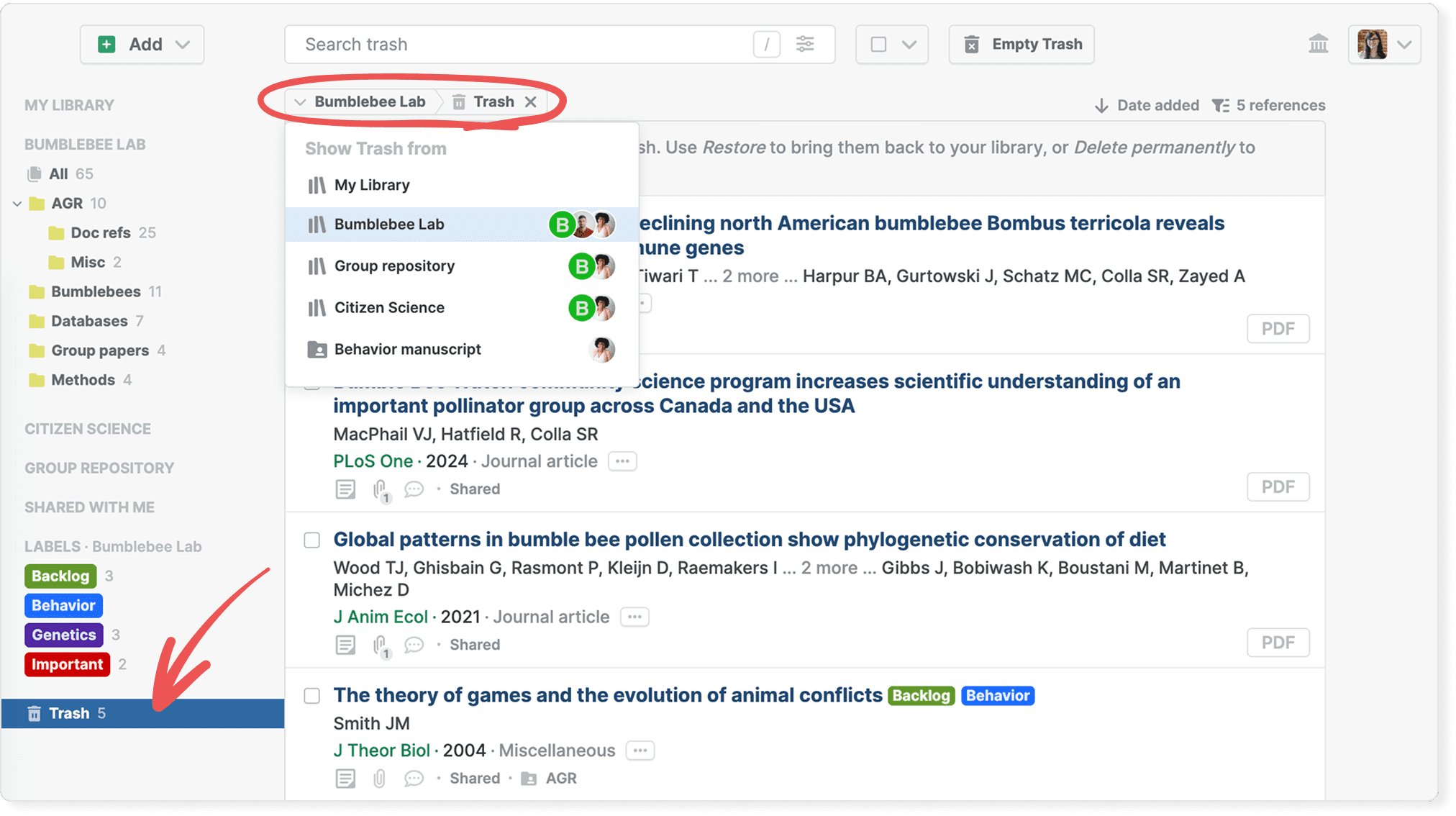
Each shared library has its own Trash that appears in the sidebar when you open the shared library. The trashed references will move to the Trash for that specific shared library.
To view or restore trashed references, click Trash in the sidebar under the shared library. See Trash and delete references for more details.
You need “Admin” or “Editor” permissions to trash references.
Remove yourself from a shared library
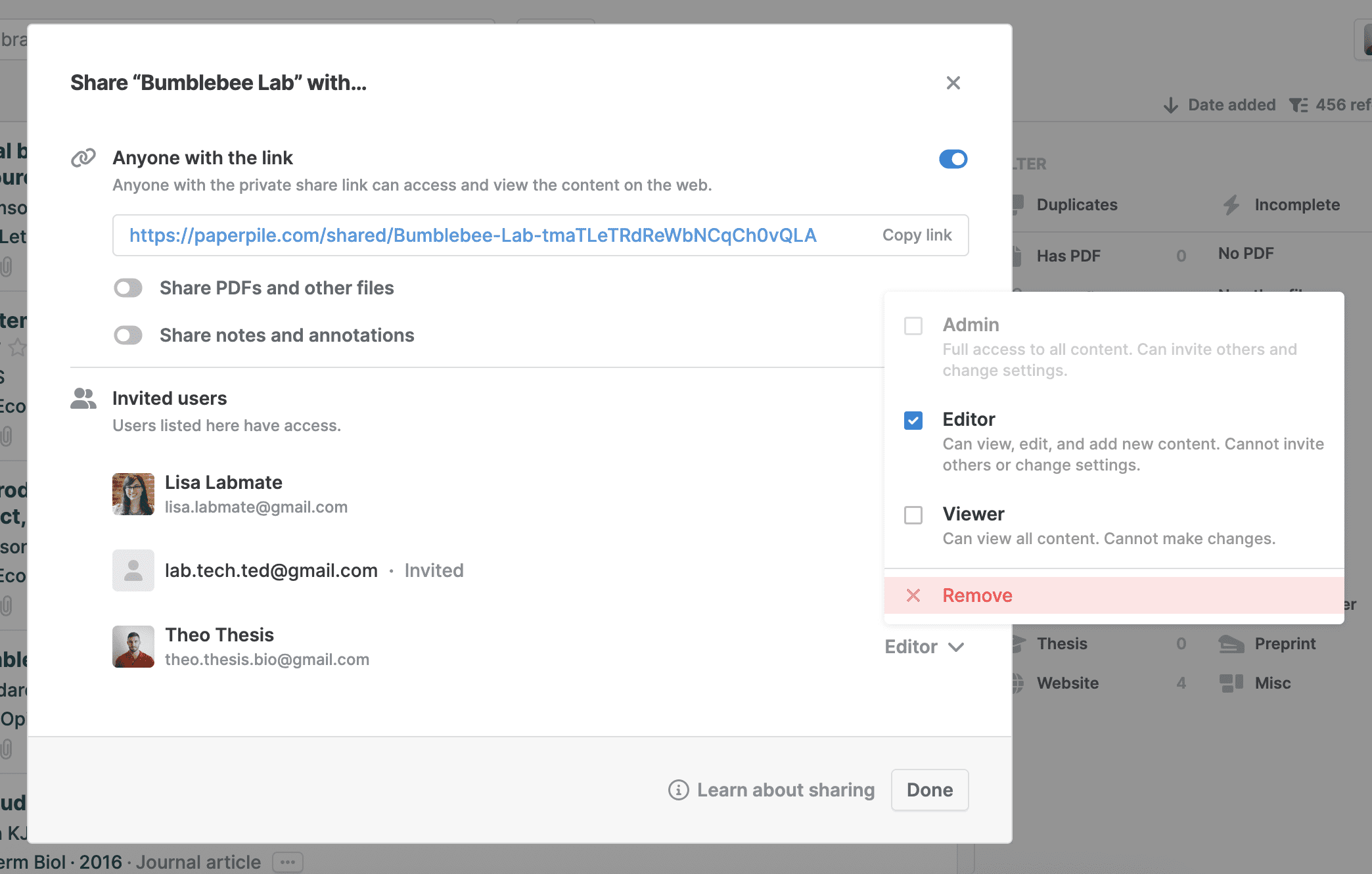
If you want to leave a shared library, find it in the sidebar, click its three-dot menu, and select Share. Find your name in the list, click your permission level, and click Remove.
Common questions
Can I cite from shared libraries in Google Docs and Word?
Not yet. You need to import a reference to your personal library first before you can cite it. We are working on updated versions of our word processor plugins that will seamlessly integrate with shared libraries so you can cite from wherever you want.
Can I sync shared libraries to Google Drive?
No, it is not currently possible to synchronize shared libraries with Google Drive. Only your personal library can sync to Google Drive. See Sync with Google Drive for more details.
What happens when I add a reference to a shared library?
By default, it becomes a “live” copy linked to your personal library. Changes in either location update both. Users with “Admin” permissions can change this to setting to “independent” copies in the advanced sharing settings. See Manage shared libraries for more details.
How many references can I add from one library to another at once?
You can add up to 100 references at a time from your personal library to a shared library, or vice versa. To add more than 100 references, repeat the process in batches.
Who can create share links in shared libraries?
By default, users with “Editor” and “Admin” permissions can create private share links. Admins can change this setting in the library's advanced sharing settings to:
- Allow all users (including Viewers) to create share links
- Restrict share link creation to Admins only
- Disable share links entirely so nobody can share content outside the library
Only Admins can change these permission settings. See Manage shared libraries for more details.
Can I export references from a shared library?
Yes, all users with access to a shared library can export references and download PDFs in bulk from a shared library. See Export your library data and Bulk download PDFs and other files for more details.
Can I star references in shared libraries?
You can't add stars to references in shared libraries. Stars are only available in your personal library. See Star references for more details.