View references and PDFs shared via link
A private share link opens a dedicated web page where you can view shared references along with their metadata and abstracts. PDFs and notes will also be visible if enabled by the sharer. No Paperpile account is required—anyone with the link can open it in any browser.
All shared content is view-only. To create your own share links, see Share references with a private link or email and Share a folder with a private link .
View the shared reference list
The shared reference list is a simplified version of Paperpile's main reference list. Here you can view:
- Reference metadata – Click the three-dot button to show all reference details including authors, publication date, and journal information.
- Abstract – Click the abstract button to show or hide the abstract.
- Files – Click the paperclip to show the files panel, or click the PDF button to download the main PDF. All attached files can be downloaded.
- Notes – Click the speech bubble to show the notes panel.
Folder structure and subfolders
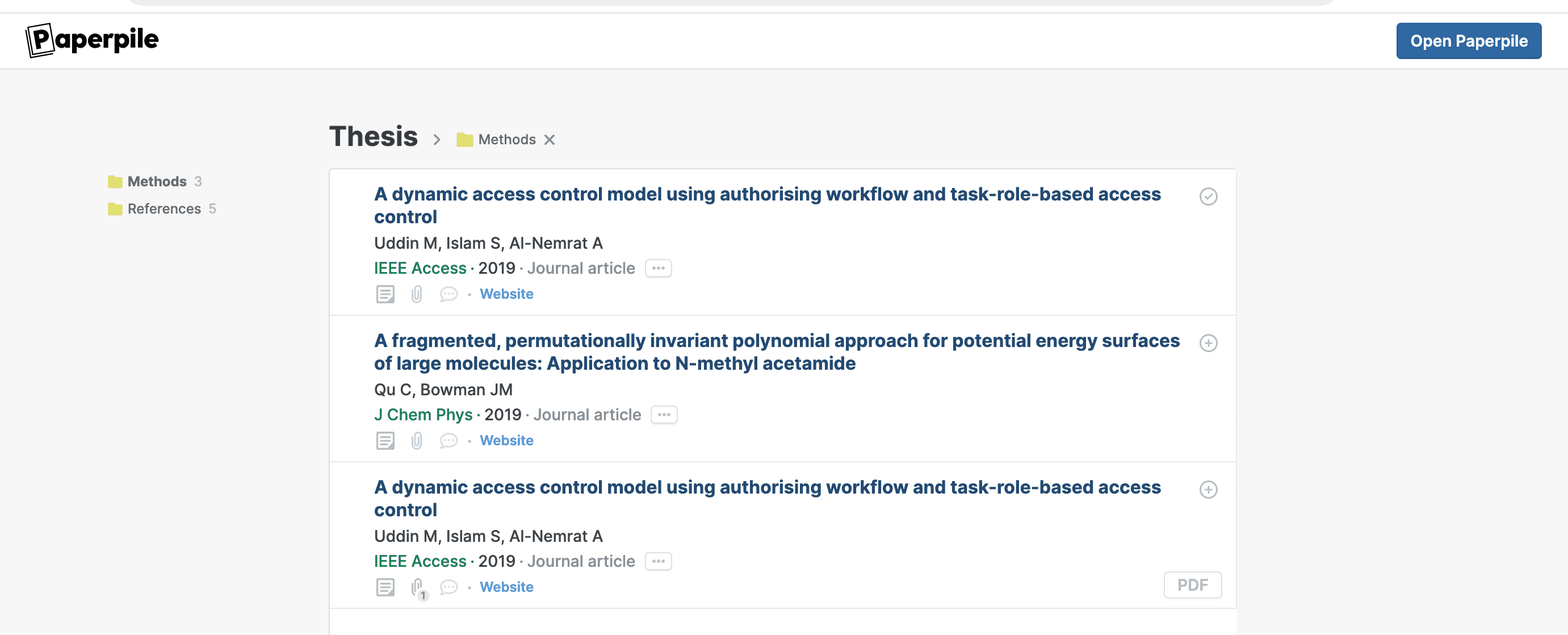
If the link is for a shared folder or library, its name appears as the title at the top of the page.
- All references in the shared folder/library and its folders/subfolders are displayed.
- Folders and subfolders are listed in a side panel on the left and can be used to filter the reference list.
- References are sorted by date added.
Add references to your library
If you have a Paperpile account, you can add shared references directly to your library. Each reference displays a plus button on the right. Click it to add a copy of the reference to your library. Once added, the button changes to a check to indicate the reference is already in your library. Click the check button to show the reference in your library.
To view your library, click Open Paperpile in the top right corner.