View and navigate PDFs
Navigate through PDFs using the built-in viewer's tools and keyboard shortcuts. The viewer includes zoom controls, page thumbnails, document outlines, and search to help you find and read content quickly.
View options
Zoom
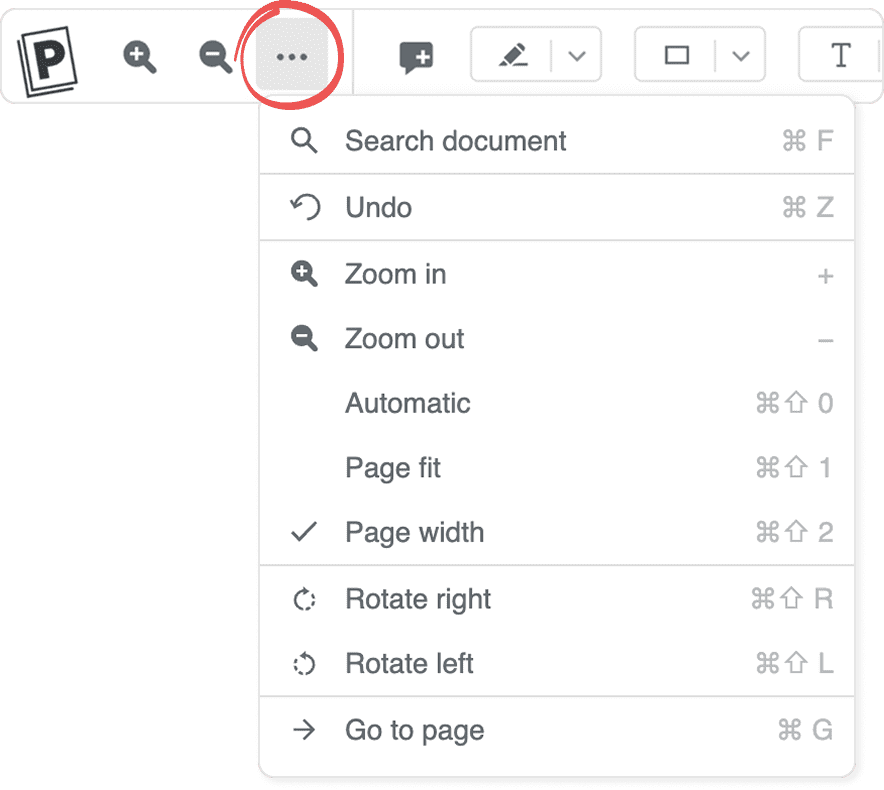
In the toolbar, click the three-dot menu to control how the PDF displays on your screen:
- Zoom in: Increase the size of the PDF
- Zoom out: Decrease the size of the PDF
- Automatic: Adjust zoom automatically based on your screen size
- Page fit: Fit the entire page in the viewing area
- Page width: Fit the page width to the viewing area
Rotate
In the toolbar, click the three-dot menu to rotate the PDF view if pages appear sideways:
- Right: Rotate clockwise
- Left: Rotate counterclockwise
Night mode
Click the gear menu in the top right of the toolbar and select Light theme > Night.
Turn on night mode to turn white pages to black for more comfortable reading.
Dark mode
In the toolbar click the gear menu and select Light theme > Dark.
Turn on dark mode to display PDFs with a dark background. This reduces eye strain when reading in low light.
Show or hide left navigation sidebar
Click the sidebar button on the left side of the viewer to show or hide the navigation sidebar.
Show or hide right comments panel
Click the speech bubble on the right side of the viewer to show or hide the comments panel.
Navigate PDFs
Go to page
Click the page indicator button at the bottom right of the viewer to open the Go to page dialog, or in the toolbar click the three-dot menu and select Go to page. Enter a page number to jump directly to that page.
You can also use the arrow keys to move forward or backward one page at a time.
Search in document
In the left sidebar, click the magnifying glass or press Cmd/Ctrl+F to search within the PDF. Enter your search term to find all occurrences in the document. Search results are highlighted in the PDF and in the sidebar.
Search finds exact phrases and ignores capitalization. For example, "machine learning" finds only that complete phrase, not the words separately.
Search results appear in the sidebar with context from each match. Click the forward and back arrows in the sidebar to jump between results.
Click the clear button ( x ) to clear search results in the sidebar.
Annotations
In the left sidebar, click the pencil to go to your annotations. See Add notes and annotate PDFs for more details.
Outline
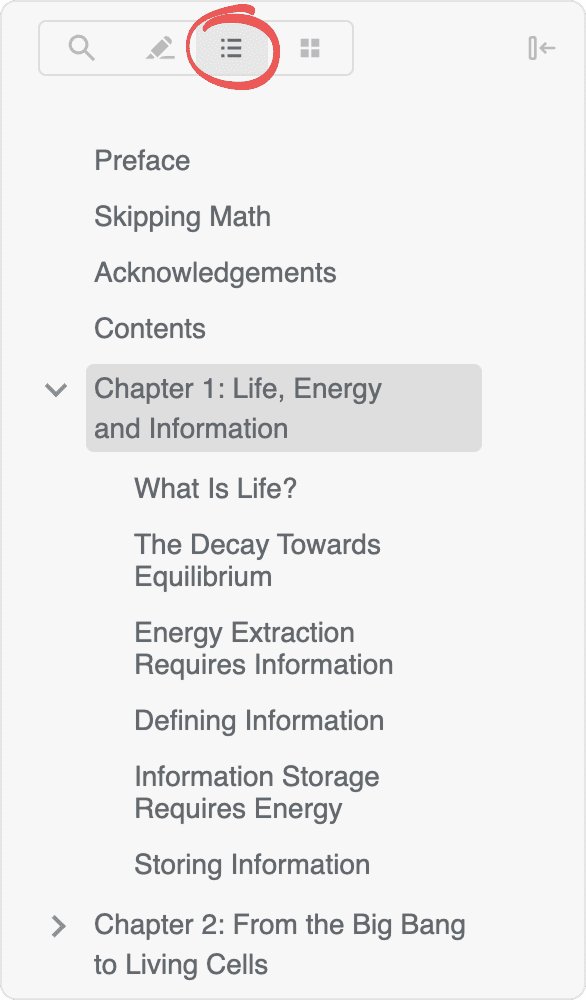
Click the outline button to show the PDF's table of contents if one is available. Not all PDFs include an outline—this depends on how the PDF was created.
Click any section in the outline to jump to that page in the document. Click the arrow next to a section to expand or collapse subsections.
Thumbnails
The thumbnails button shows preview images of all pages in the PDF. Click any thumbnail to jump directly to that page.
Additional options
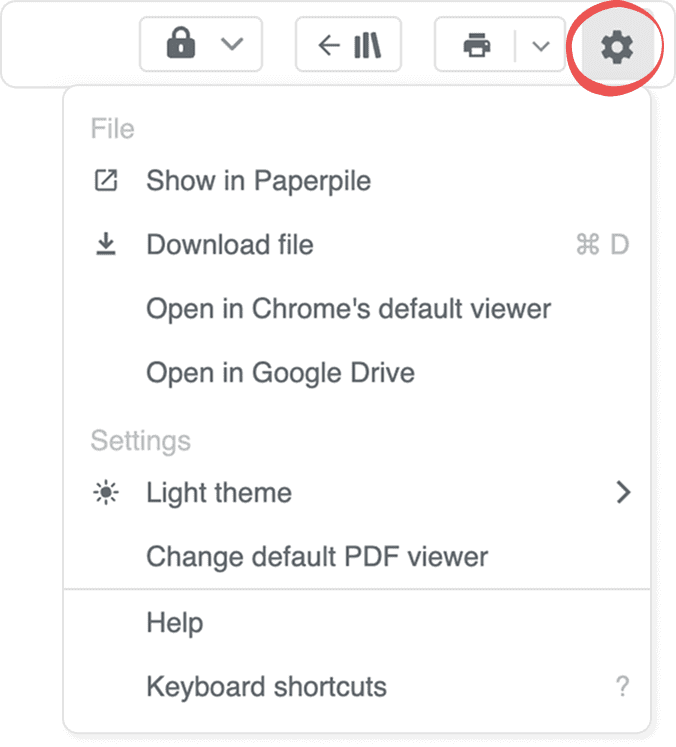
Click the gear menu in the top right of the toolbar to access more options and settings:
Show in Paperpile
Click Show in Paperpile to go to the reference details in your library. This helps you quickly find reference details while reading its PDF.
Download file
Click Download file or press Cmd/Ctrl+D to save the PDF and its annotations to your computer.
Open in Chrome's default viewer
Click Open in Chrome's default viewer to view the PDF in Chrome’s built-in PDF viewer instead of Paperpile's viewer.
Open in Google Drive
Click Open in Google Drive to view the PDF in Google Drive's viewer. This option is available if you have Google Drive sync enabled.
Change default PDF viewer
Click Change default PDF viewer to switch to a different default PDF viewer for opening all your PDFs.
Light theme
Click Light theme to choose from Light (default), Dark, and Night modes for the PDF viewer.
Go back to Paperpile

In the top right of the toolbar, click the library button to return to your library.
Keyboard shortcuts for PDF navigation and control
Use keyboard shortcuts to navigate and control the PDF viewer quickly. In the toolbar click the gear menu and select Keyboard shortcuts, or press the ? key to open the PDF viewer shortcuts.
Search and view shortcuts
| Action | macOS | Windows and Linux |
|---|---|---|
Search document | Cmd+F | Ctrl+F |
Search annotations | Cmd+K | Ctrl+K |
Show or hide sidebar | Cmd+Option+B | Ctrl+Alt+B |
Show or hide comments | Cmd+M | Ctrl+M |
Annotation summary | Cmd+Shift+A | Ctrl+Shift+A |
Go to page | Cmd+G | Ctrl+G |
Page shortcuts
| Action | macOS | Windows and Linux |
|---|---|---|
Zoom: Automatic | Cmd+Option+0 | Ctrl+Alt+0 |
Zoom: Page fit | Cmd+Option+1 | Ctrl+Alt+1 |
Zoom: Page width | Cmd+Option+2 | Ctrl+Alt+2 |
Zoom in | + | + |
Zoom out | - | - |
Rotate left | Cmd+Option+L | Ctrl+Alt+L |
Rotate right | Cmd+Option+R | Ctrl+Alt+R |