Manage shared libraries
Manage users, permissions, and settings for shared libraries you've created or on which you have “Admin” permissions. Control who has access, configure sharing options, and maintain your library.
Invite users to a shared library
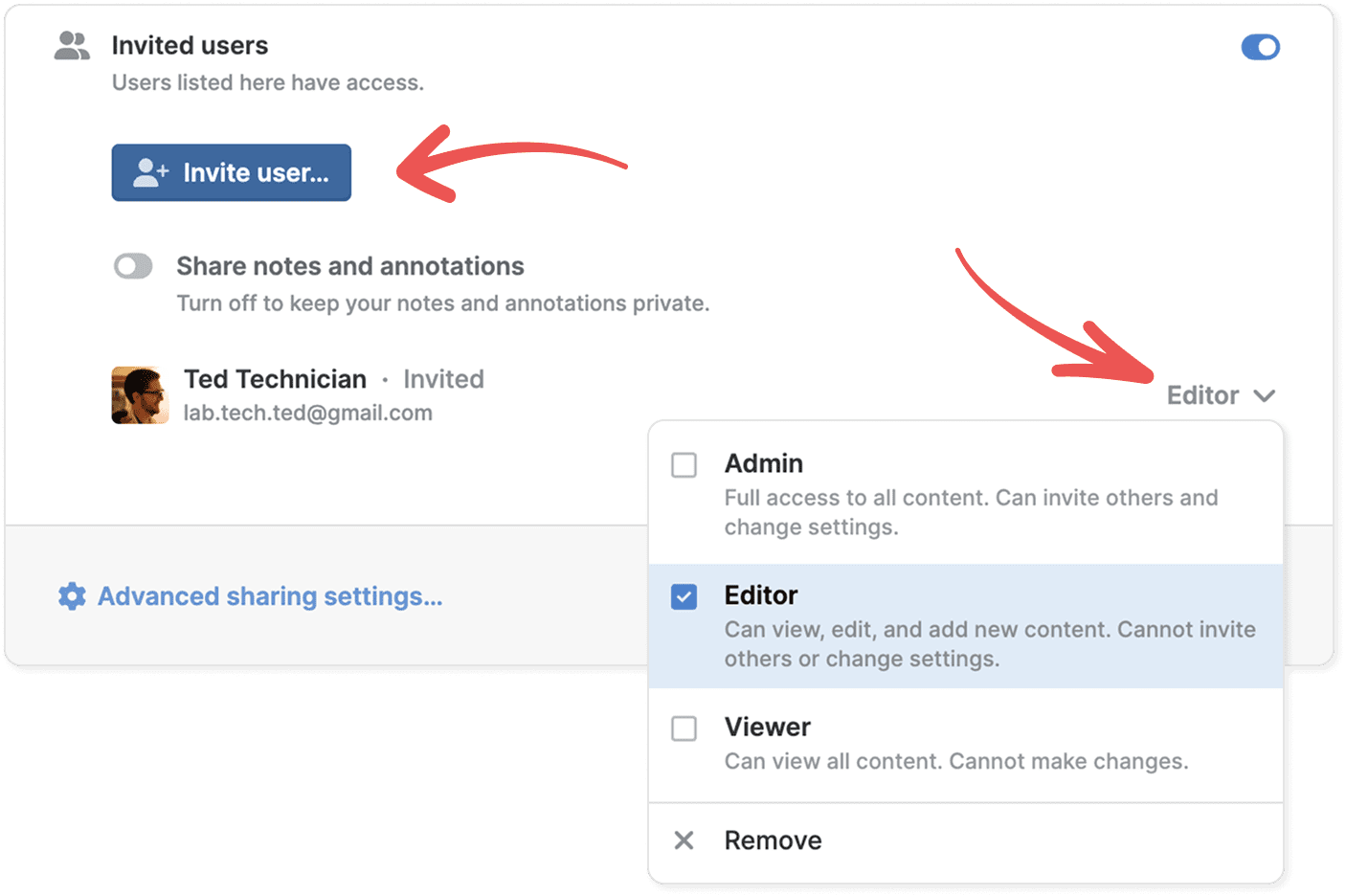
To invite users to a shared library:
- Find the library in the sidebar.
- Click its three-dot menu and select Share.
- Click Invite user.
- Enter email addresses.
- Choose permissions for each user.
- Click Done.
Invite your team to a shared library
If you have “Admin” permissions and are a member of a team, you can invite all members of your team to a shared library:
- Find the library in the sidebar.
- Click its three-dot menu and select Share.
- In the sharing dialog, turn on the All of [Team Name] switch.
- Choose permissions for your team.
- Click Done.
The shared library will be shared with all members of your team.
Change user permissions in a shared library
To change permissions for an existing user:
- Find the library in the sidebar.
- Click its three-dot menu and select Share.
- Find the user in the list at the bottom of the sharing dialog.
- Click the permissions dropdown next to their name.
- Select a new permission level (”Viewer”, “Editor”, or “Admin”).
Remove users from a shared library
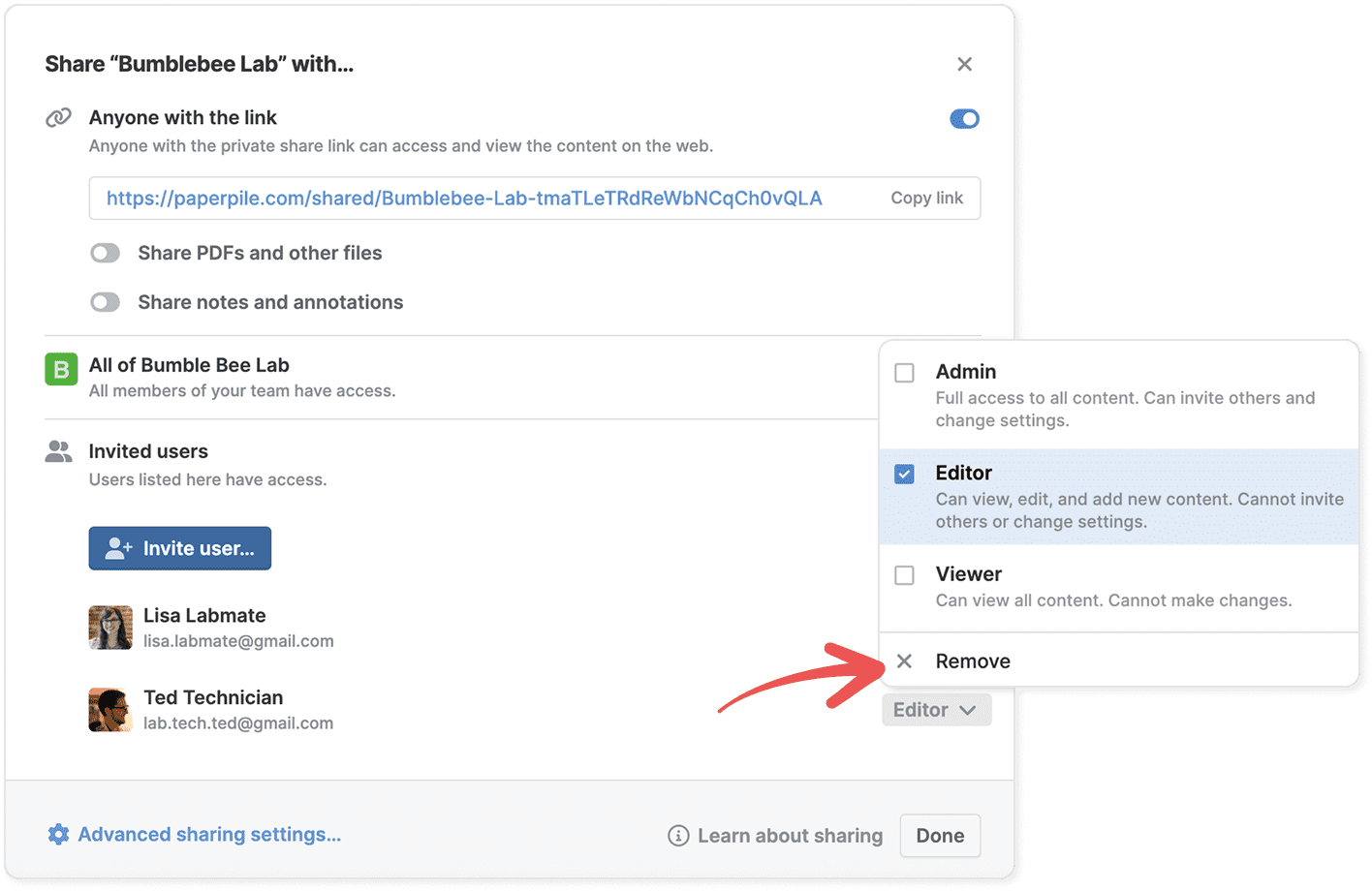
To remove a user:
- Open the sharing dialog from the library's three-dot menu.
- Find the user in the list at the bottom of the sharing dialog
- Click the permissions dropdown next to their name.
- Select Remove.
To stop sharing the library entirely, remove all invited users, turn off the Invited users switch, or turn off the All of [Team Name] switch.
Configure sharing mode in a shared library
Live vs independent copies
Paperpile offers two sharing modes:
- Live copy: The reference remains linked to your personal library. Changes made by anyone automatically update across all instances where it's shared.
- Independent copy: The reference in your personal library and the shared copy are completely separate. Changes to one don't affect the other.
By default, shared libraries use live copies to keep references synchronized between your personal library and shared libraries.
Change the default sharing mode
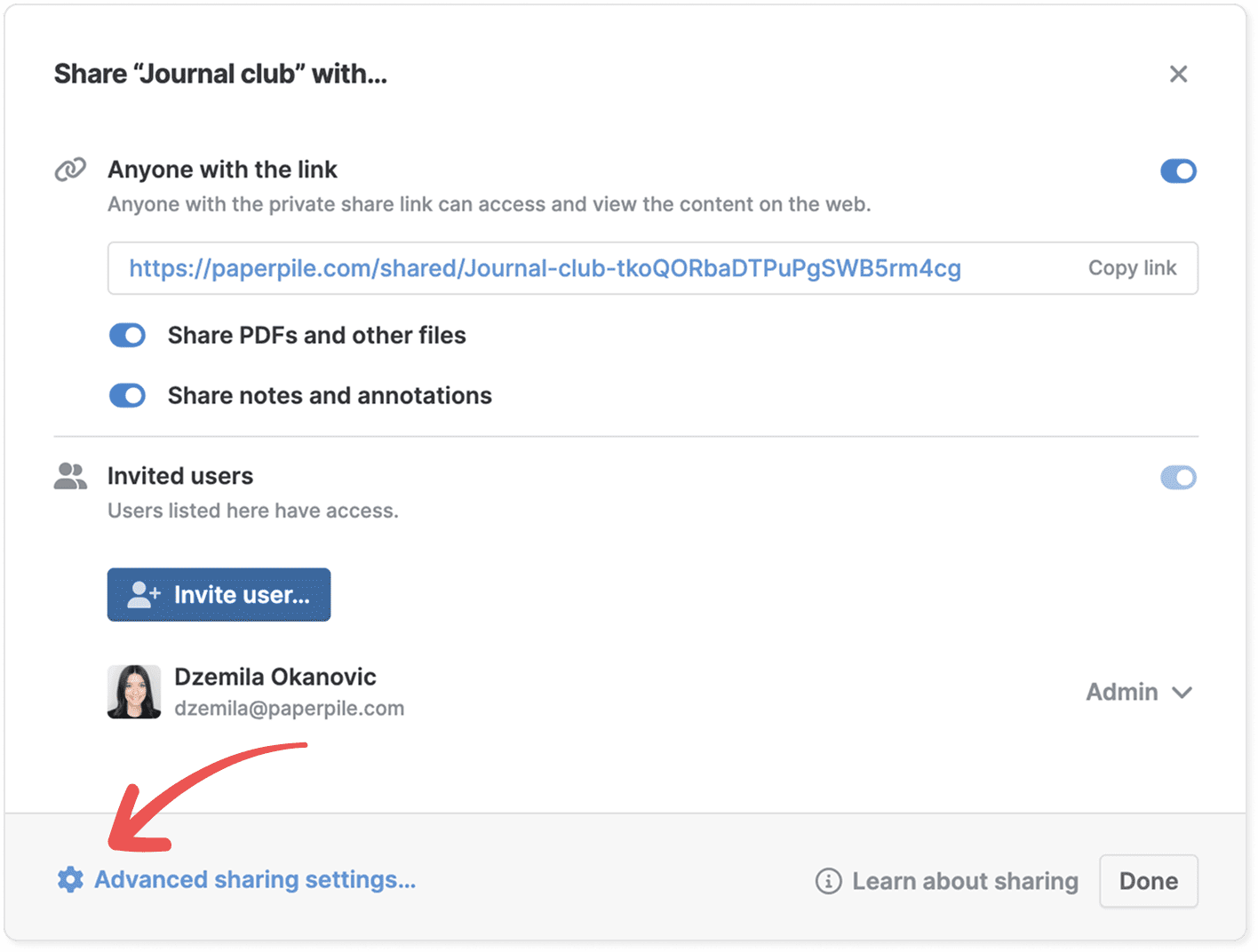
To change the sharing mode for the entire library:
- Find the library in the sidebar and select Share from its three-dot menu.
- Click Advanced sharing settings in the bottom left.
- Select Live copies from users’ personal libraries or Independent copies.
- In the confirmation dialog click Apply changes.
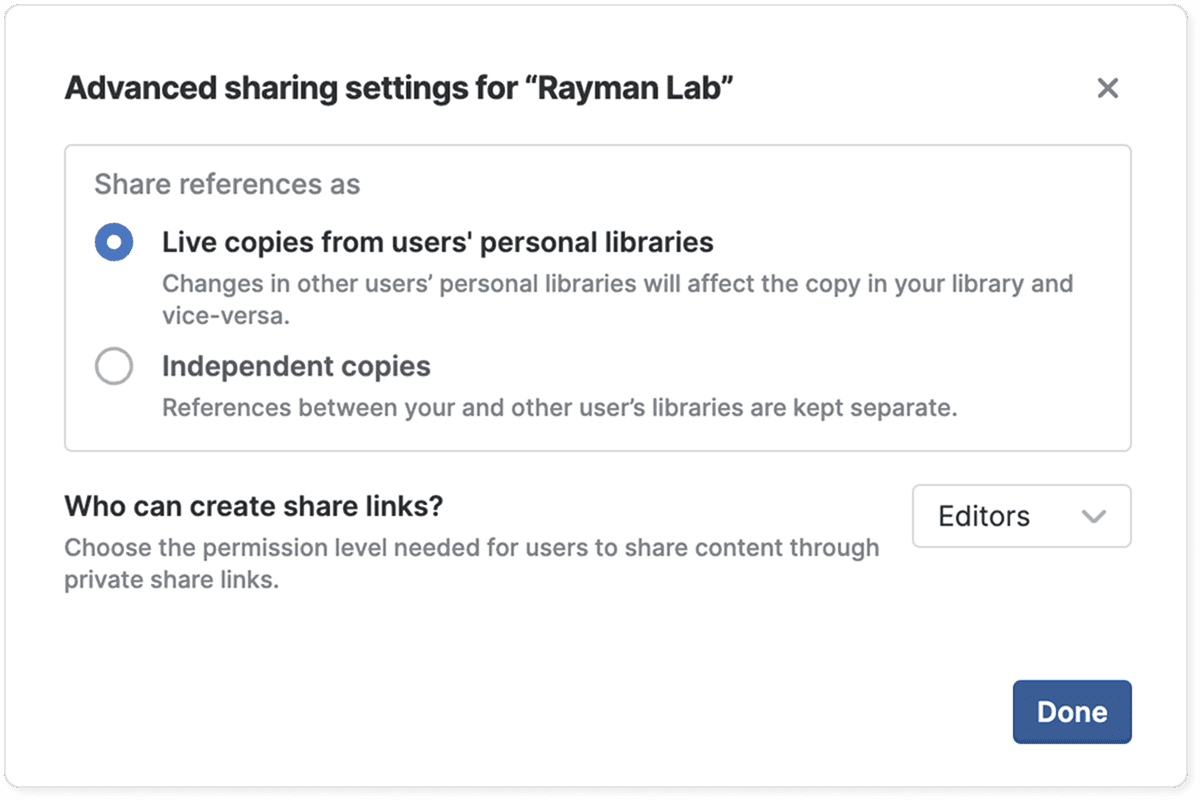
Only users with “Admin” permissions can change the sharing mode for a shared library.
Change permissions for private share links
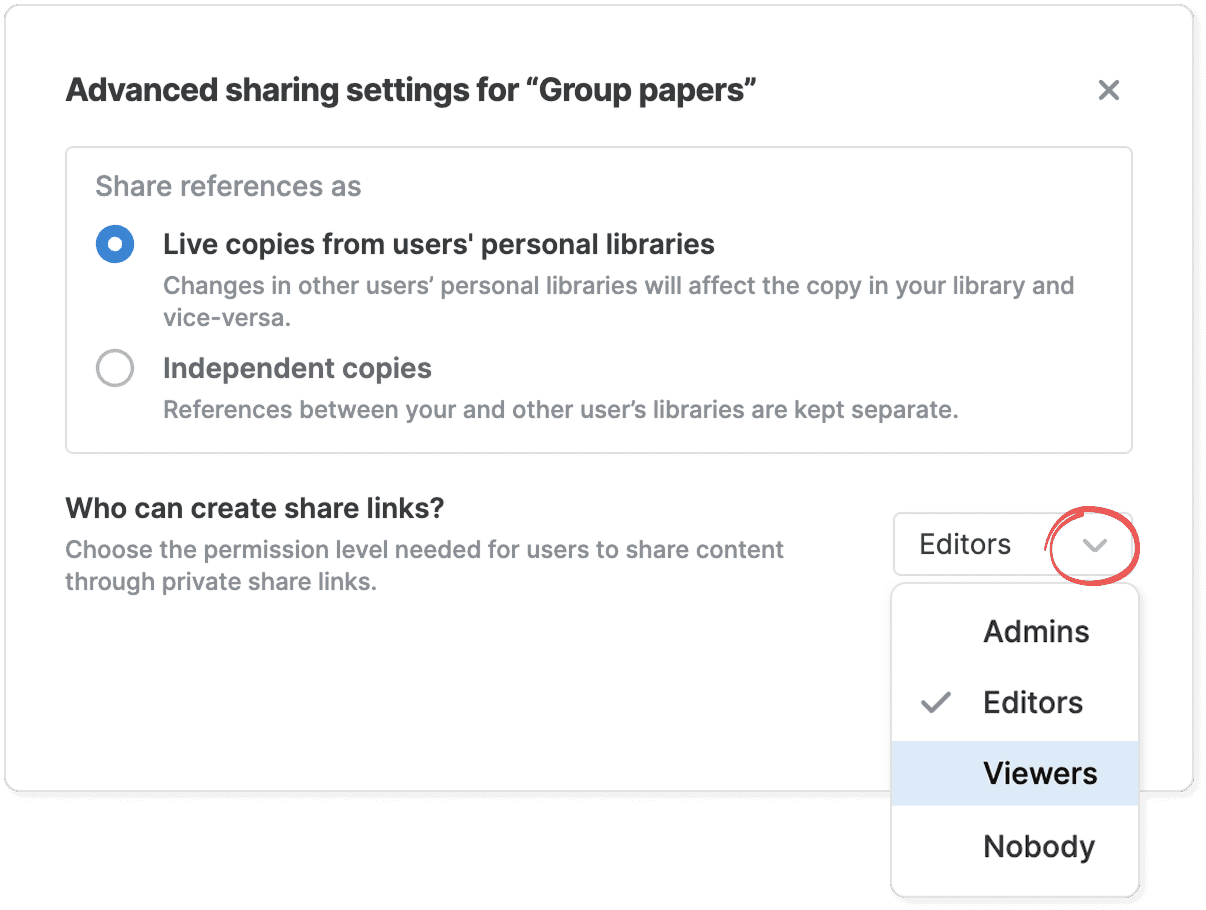
- Find the library in the sidebar and select Share from its three-dot menu.
- Click Advanced sharing settings in the bottom left.
- In the Who can create share links? section, select the permission level from the dropdown menu (the default setting is ”Editors”). You can choose to allow all users (including Viewers) to create share links, restrict share link creation to Admins only, or disable share links entirely so nobody can share content outside the library.
- In the confirmation dialog click Apply changes.
Only users with “Admin” permissions can change the permission level for users to share content through private share links. See Share references with a private link or email for more details about private share links.
Access library settings
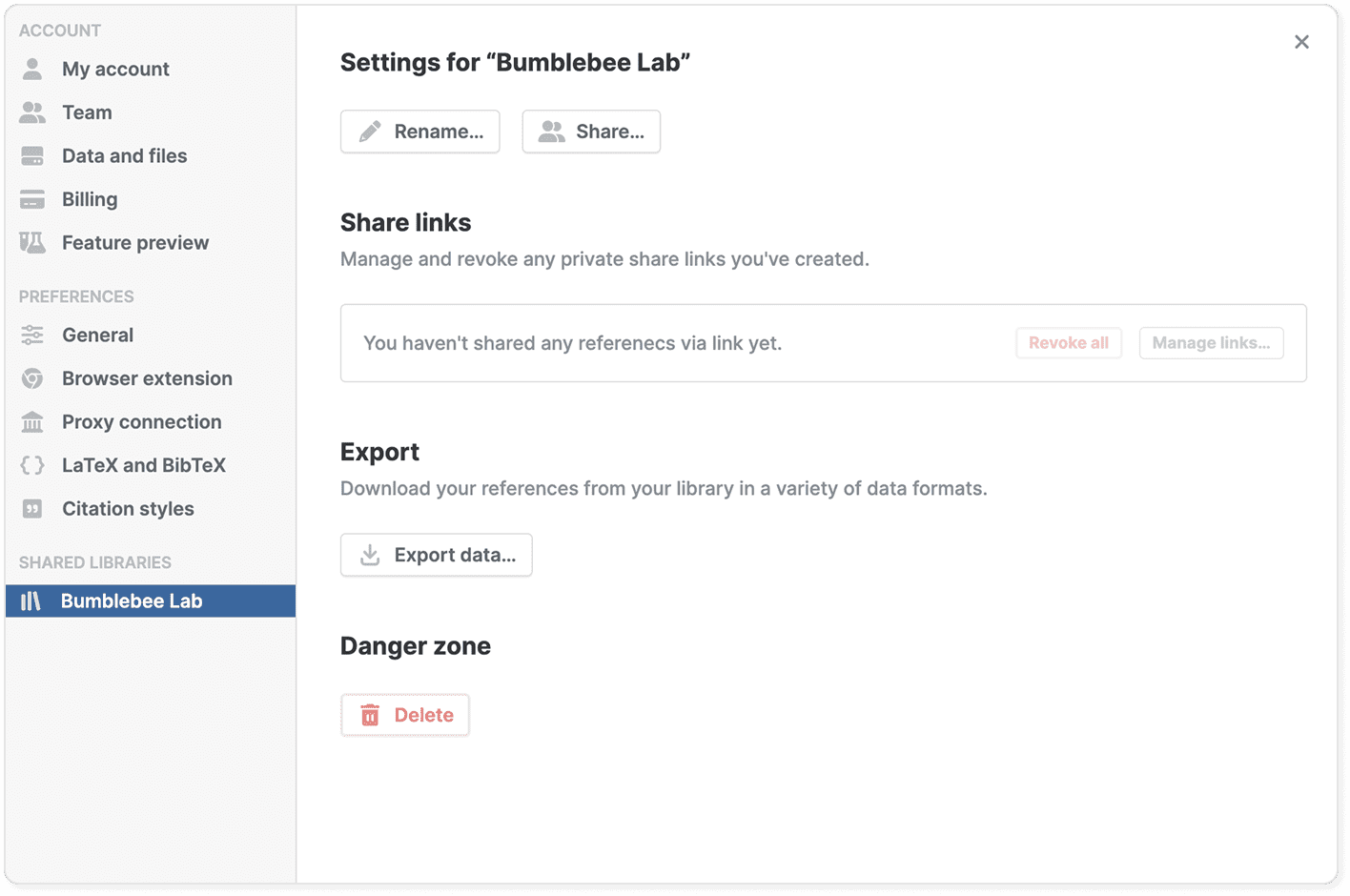
To access the settings for a shared library:
- Click your profile picture on the top right and select Settings from the menu
- In the settings window sidebar, click the name of the shared library to open its settings.
Or:
Find your shared library in the sidebar, click the three-dot menu, and select Library settings.
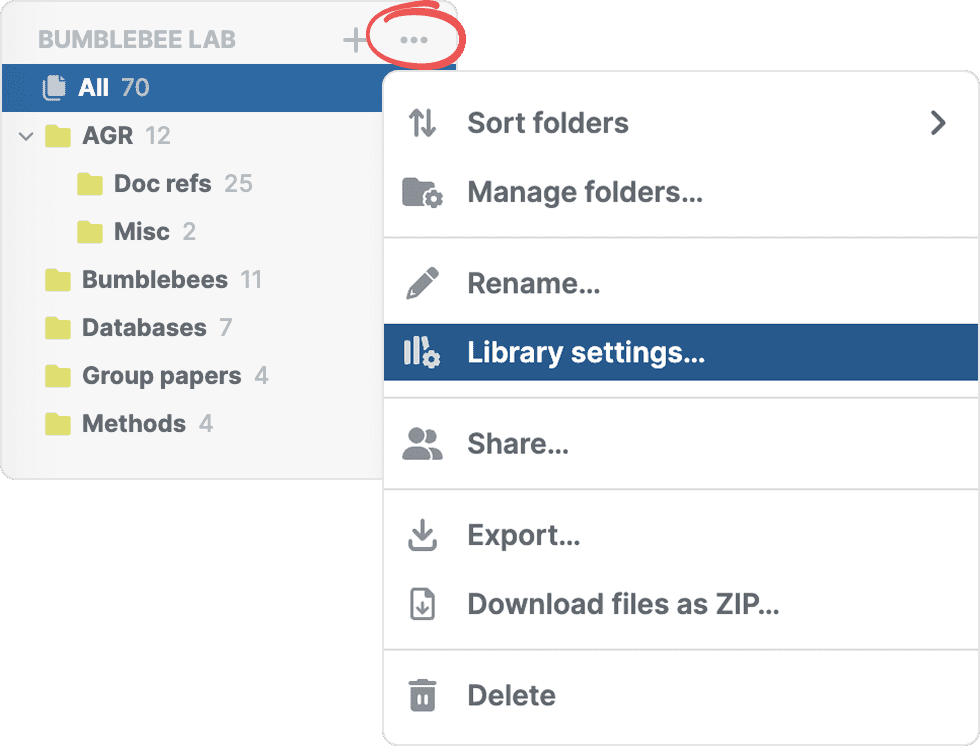
You need “Admin” permissions to access and change library settings.
Rename a shared library
To rename a shared library, find it in the sidebar, click its three-dot menu, and select Rename. Enter the new name and click Rename.
You need “Admin” permissions to rename a library.
Manage share links
Share links let you share content from your shared library with people outside the library. You need “Admin” permissions to manage these links.
To view and manage all share links in a shared library:
- Find the library in the sidebar and click its three-dot menu.
- Select Library settings.
- Click Manage links to view all active share links, or click Revoke all to revoke all share links at once.
See Manage and revoke share links for more details about working with individual share links.
Delete a shared library
To delete a shared library:
- Find the library in the sidebar.
- Click its three-dot menu and select Delete.
- Confirm the deletion.
Only users with “Admin” permissions can delete shared libraries.
Common questions
How many people can I invite to a shared library?
There's no limit to the number of users you can invite to a shared library, though the number of team members may be limited by your subscription plan.
Can I transfer ownership of a shared library to another user?
You cannot directly transfer ownership, but you can give another user full control by making them an Admin and then downgrading or removing yourself.
To transfer control:
- Find the library in the sidebar and select Share from its three-dot menu.
- Find the user in the list at the bottom of the sharing dialog.
- Click the permissions dropdown next to their name and select Admin.
- Click the permissions dropdown next to your own name and select Editor, Viewer, or Remove to downgrade or remove yourself.
Once you downgrade or remove yourself, the other user has full control of the library.
What happens if the shared library owner leaves my team?
If the person who created a shared library leaves your team or Paperpile, other users with “Admin” permissions can still manage the library. However, if there are no other Admins, the library settings and user permissions can’t be changed.
To prevent this, always have at least two people with Admin permissions for each shared library. This ensures the library can still be managed if someone leaves.
Should I have multiple Admins for a shared library?
Yes. Always have at least two people with “Admin” permissions for each shared library. If the only user with “Admin” permissions leaves your team or Paperpile, other users can’t invite new users, manage the shared library settings, or change permissions.
Can I change sharing settings and permissions for folders in shared libraries?
All the folders and subfolders of a shared library are shared with the same users and permissions. It is not possible to change permissions for individual folders and subfolders.