Install and use the Firefox add-on
The Paperpile add-on for Firefox lets you save references directly to your library while browsing the web. Instead of copying and pasting references or switching back to Paperpile, you can add papers from PubMed, arXiv, Google Scholar, journal websites, and thousands of other sources in one click.
Installing the Firefox add-on also helps you:
- Find PDFs online. See Find and download PDFs automatically.
- Update reference details automatically. See Update metadata automatically.
Install the Firefox add-on
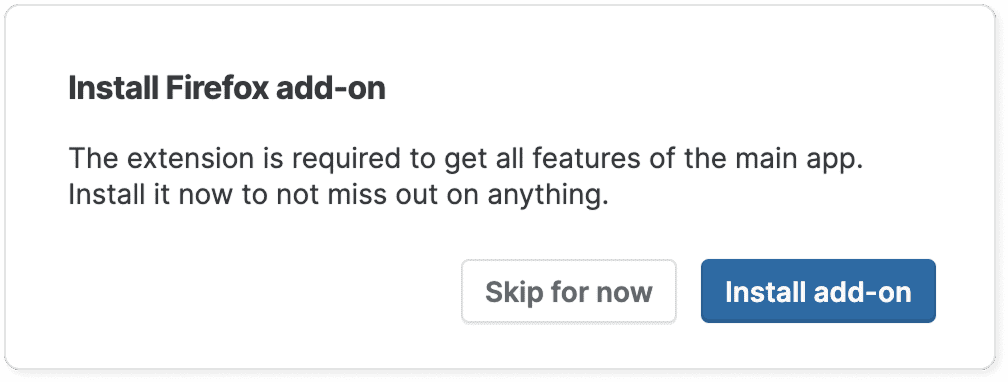
When you first sign up for Paperpile, you'll see an Install Firefox add-on prompt in your library encouraging you to add the Firefox add-on to get all the features of Paperpile.
Click Install add-on to go directly to the Firefox Browser add-ons page and complete the installation.
From the Firefox browser add-ons page
- Go to the Firefox browser add-ons page.
- Click Add to Firefox.
- In the confirmation dialog, click Add.
How to use the Firefox add-on
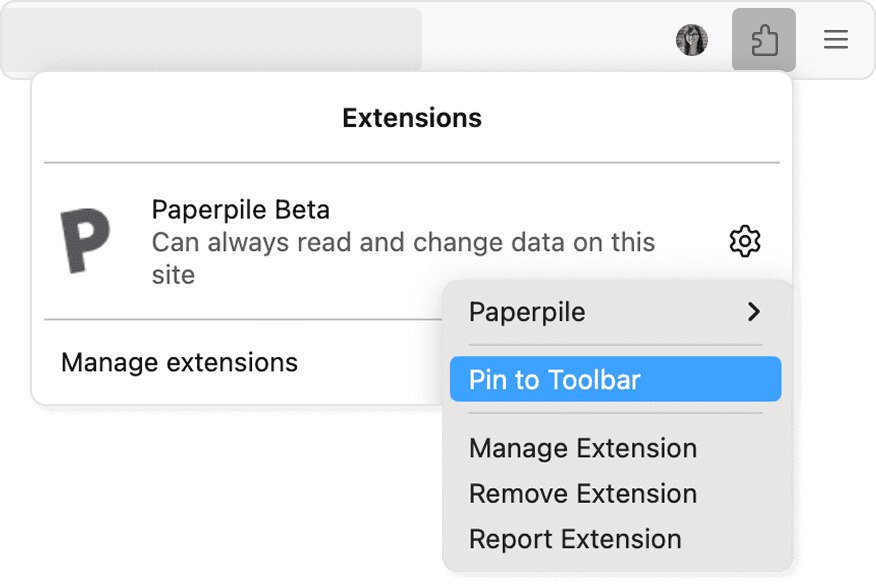
After installation, pin the Paperpile button to your browser's toolbar to keep it always visible. This lets you see the page status and save references with one click.
To pin the extension, click the puzzle piece in your Firefox toolbar, then click the pin next to Paperpile.
You'll see Paperpile in a few key places:
- The Paperpile ('P') button: The Paperpile button in your toolbar shows the status of the current page and opens the browser popup. Click the Paperpile button on any publisher webpage to save the reference to your library. See Save to Paperpile with the extension popup.
- PDF saving: When viewing PDFs in your browser, the extension can detect and save both the PDF file and its metadata. See Save to Paperpile with the extension popup.
- Buttons on academic sites: The extension automatically adds Paperpile buttons next to search results on supported websites like PubMed, Google Scholar, arXiv and others. See Save from supported databases and websites with the Paperpile buttons.
- Right-click menu: Right-click on any link and select Paperpile from the context menu. See Save files to Paperpile with the browser context menu.
Update the Firefox add-on
Automatic updates of the add-on are allowed by default. You don't need to manually check for updates or reinstall the extension. Firefox typically updates extensions in the background within a few hours of a new version being released.
If you prefer not to allow automatic updates, in the toolbar right-click the Paperpile button > Manage Extension to open the extension page and turn on the setting Allow automatic updates from there.

Firefox add-on permissions
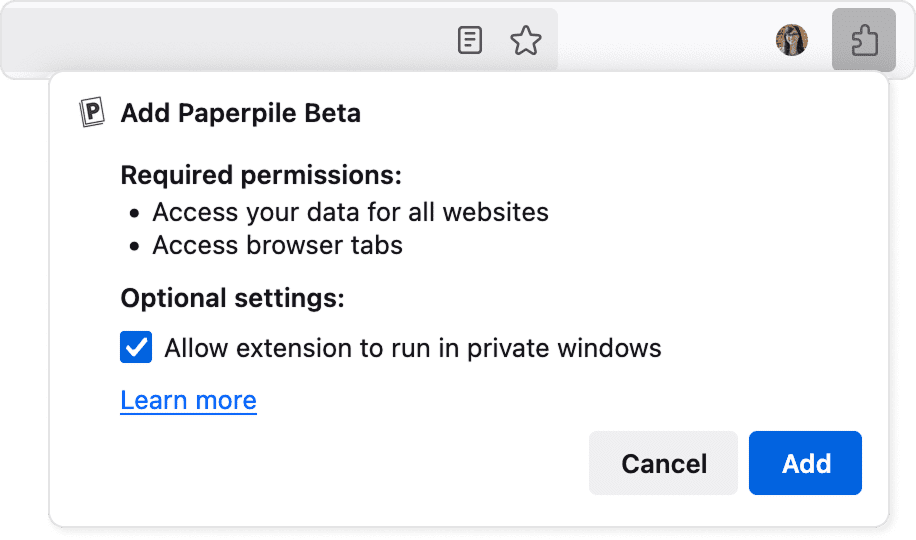
The Firefox add-on requires specific permissions to function properly:
- Access website data. One of Paperpile's core functions is to import bibliographic data and PDF files from websites (for example, PubMed or Google Scholar). That's only possible if Paperpile can read the information on websites you are visiting. No information other than the bibliographic data you want to add to your library is accessed or transmitted to our servers.
- Access browser tabs. To manage the workflow between tabs, Paperpile needs access to the URLs opened in your tabs (for example, switch between the Paperpile web app and the PDF viewer; interact with databases such as PubMed or Google Scholar). Your browsing history remains on your computer and is not transferred to our servers.
- Run in private windows. Optional setting, you can choose not to allow.
These permissions let the Firefox add-on automatically detect citation information and save references seamlessly. Paperpile adheres to our published privacy policy, and uses only the minimum permissions required to provide a high-quality service.
Uninstall the Firefox add-on
To uninstall the add-on, right-click the Paperpile button in the toolbar and select Remove Extension.
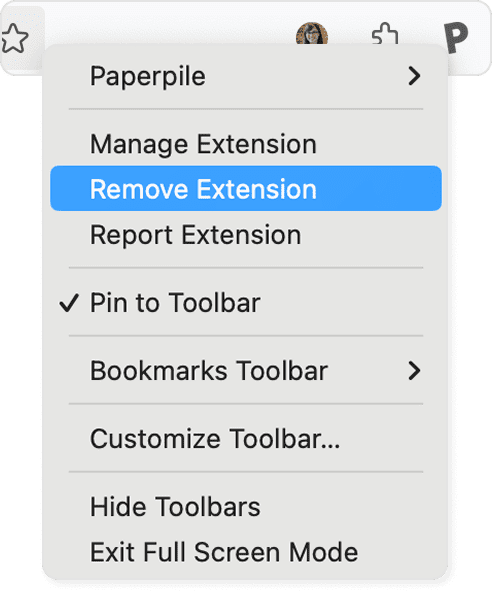
Uninstalling the add-on won't affect your Paperpile library or account—but you'll lose the ability to save references directly from webpages and find and download PDFs automatically.
Firefox add-on error handling
If the Paperpile browser add-on behaves strangely, this might be some temporary glitch that can be fixed easily:
- Reload the Paperpile tab.
- Restart the browser (in Firefox, you can type restart in the address bar and the option to Restart Firefox will appear—click it to restart and reopen all your tabs).
- Sign out of Paperpile and sign in again.
If the extension stops working properly, you can restart the extension:
- Right-click the Paperpile button in the toolbar.
- Click Manage Extension.
- Turn the switch at the top of the page off, then turn on again.
- Refresh any open webpage tabs.