Filter references
Filter your library to show only references that match specific criteria like publication year, journal, author, or reference type. Filters help you quickly narrow down large libraries to find the references you need.
Filter menu
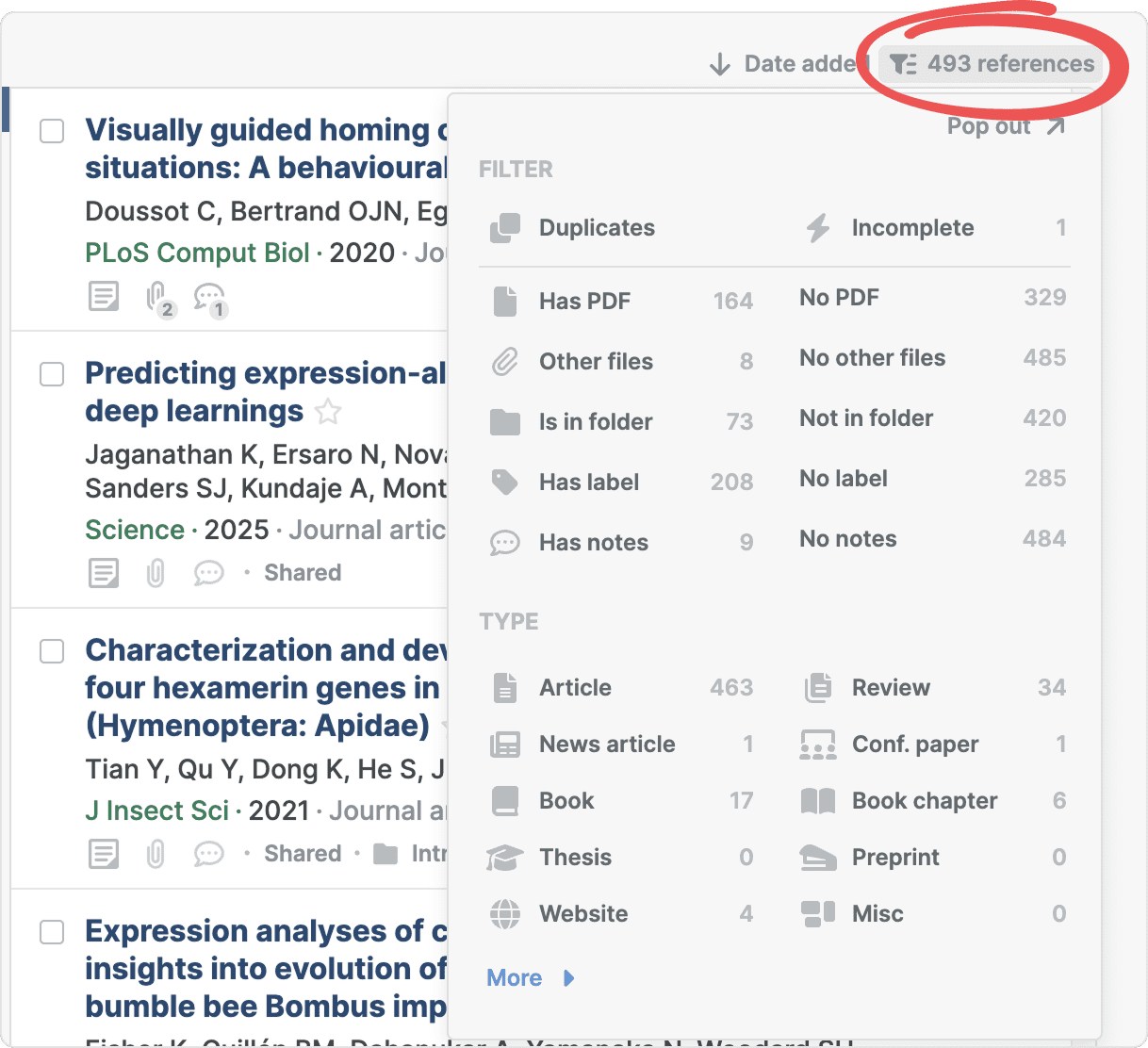
Click the filter button above the reference list to open the filter menu where you can choose which references to display.
Filter options
The filter menu includes these categories:
- Duplicates: Show references marked as duplicates
- Incomplete: Show references with missing details
- Has PDF: Show references with PDFs
- No PDF: Show references without PDFs
- Other files: Show references with files attached in addition to the main PDF
- No other files: Show references without additional attached files
- Is in folder: Show references that are in folders
- Not in folder: Show references that are not in folders
- Has label: Show references with labels
- No label: Show references without labels
- Has notes: Show references with notes
- No notes: Show references without notes
Filter by reference type
You can add one or more reference type filters from the filter menu. Common reference types include:
Article, Review, News article, Conference paper, Book, Book chapter, Thesis, Preprint, Website, Miscellaneous.
Click More in the filter menu to view additional reference type filters like Report, Patent, and Unpublished.
Special filters
Duplicates: Show only references marked as duplicates in your library. Click Duplicates in the filter menu to view the number of duplicates in your library.
Incomplete: Show only references missing important metadata fields.
Apply filters
Click any filter to switch it on. Your library updates immediately to show only matching references. You can apply multiple filters at once to narrow your results further.
The number of references that match the applied filters updates in the filter button.
Click a filter again to switch it off, or click the clear button ( x ) on its chip above the reference list.
Pop out filter menu
Click Pop out at the top of the filter menu to open it in a separate panel next to the reference list. This lets you browse filters while viewing references.
Combine filters with search and folder or label views
Filters work together with your current reference list view and search:
- Filtering in a folder, label or your starred references applies the filter only to references in that collection.
- Filtering while searching applies the filter to your search results.
- You can combine multiple filters, search terms, and folder or label views to create very specific reference lists. Use the keyboard shortcut Cmd/Ctrl+Click to combine multiple filters.
The number shown on the filter button updates based on your current view, search, and other active filters.
Filter by author, year, publisher, and journal
Click any journal name, publication year, author name, or publisher name in the reference list to instantly filter your library to show only references matching that value. The filter appears as a blue chip in the search box.
To remove a filter, click the clear button ( x ) on the filter chip in the search box or click the clear button (x) to clear the search box completely.