Send PDFs to AI assistants with Ask AI
Use Ask AI in Paperpile to send PDFs from your Paperpile library directly to AI assistants like ChatGPT, Claude, Copilot, Gemini, or NotebookLM to analyze papers, summarize research, and answer questions about your references. Paperpile uploads your PDFs and optionally includes high-quality research prompts to help you get better results.
Start Ask AI from Paperpile
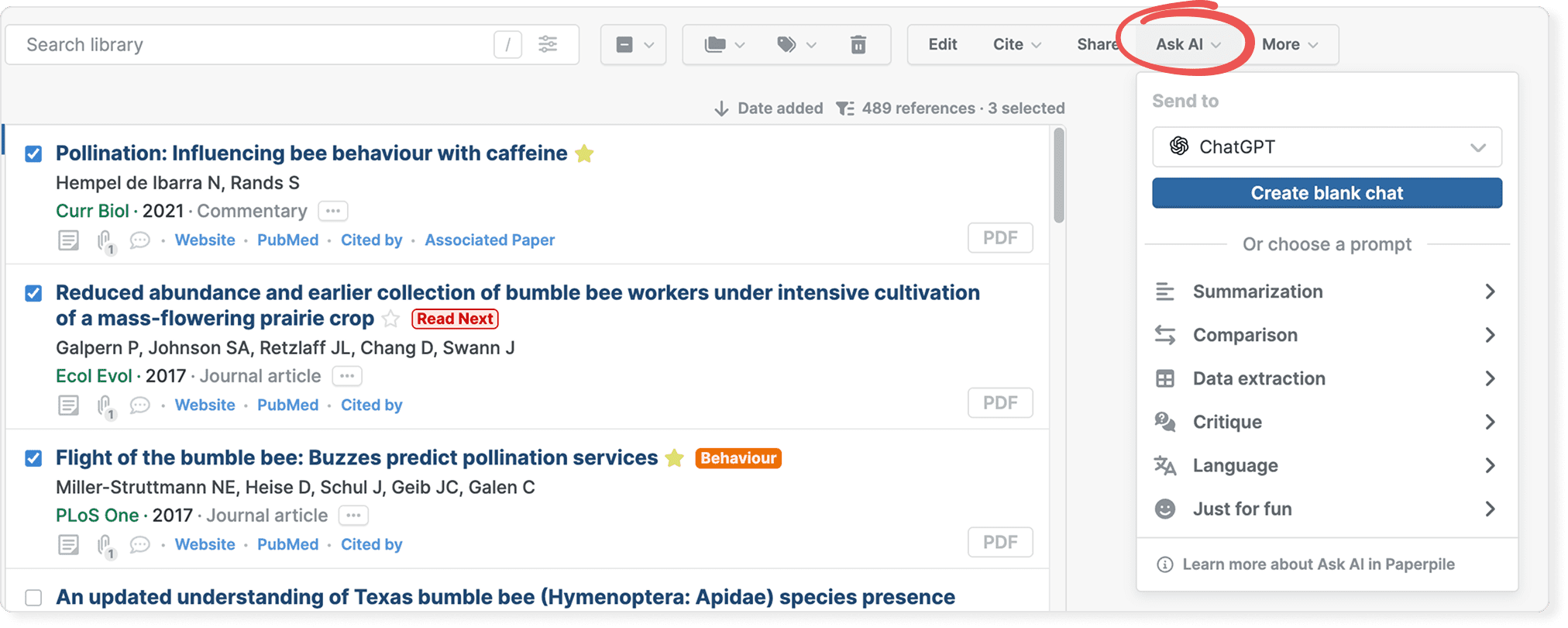
To send PDFs to an AI assistant of your choice:
- Prepare by signing in to your AI assistant in a separate tab.
- In Paperpile, select one or more references with an attached PDF in your library.
- Click the Ask AI button in the toolbar.
- Choose your preferred AI assistant from the dropdown (ChatGPT, Claude, Gemini, Copilot, or NotebookLM).
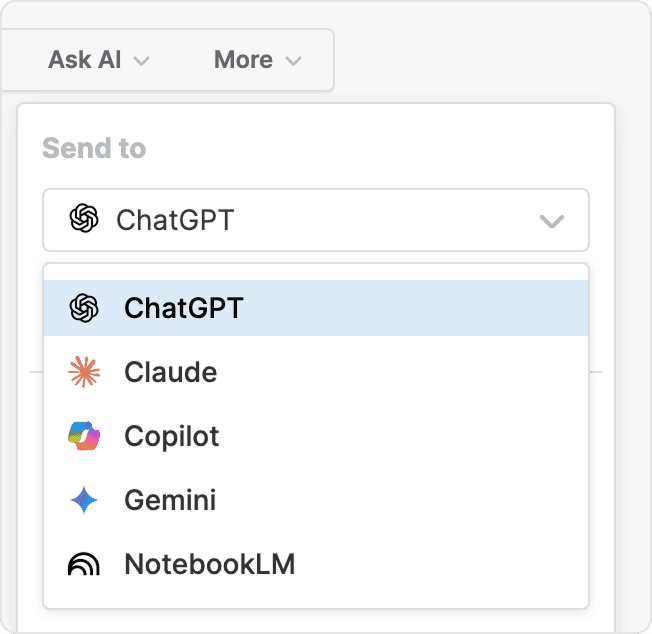
- Choose a prompt from Paperpile's library.
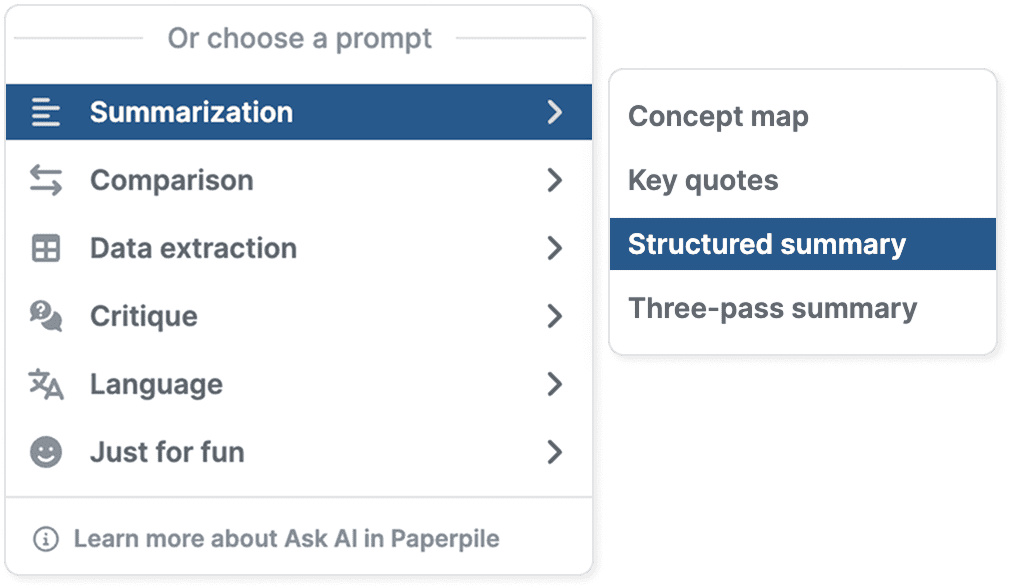
- Or click Create blank chat to ask your own question.
Paperpile will open new tab with your chosen AI assistant, upload PDFs, and set the prompt if you selected one.
Follow Ask AI's progress in a separate tab
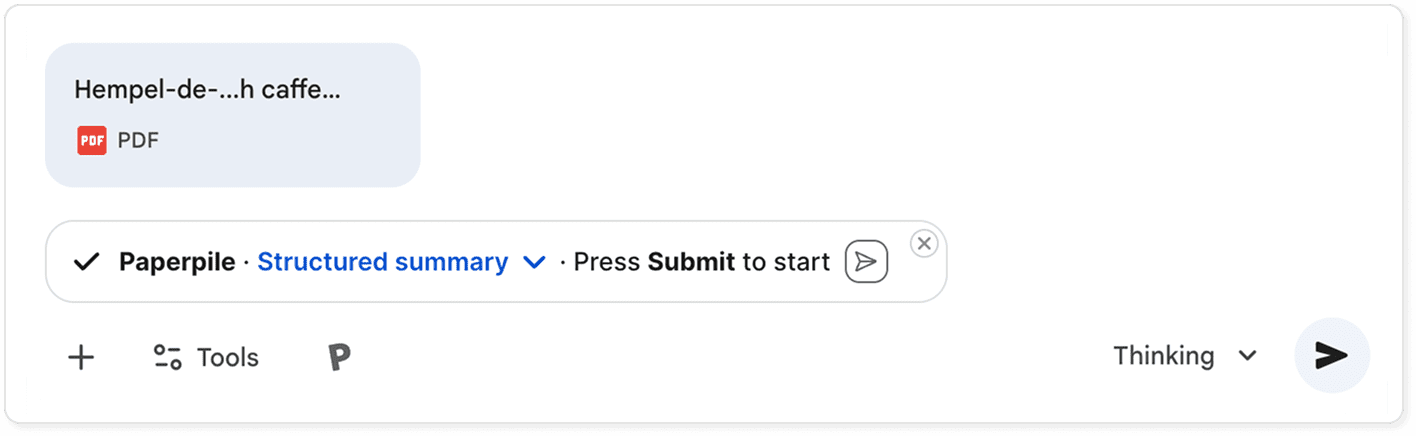
A new tab opens showing the upload progress. Wait for the upload of the files to finish, then click Submit to send your prompt and PDFs to the AI assistant.
If you encounter issues during upload, see Troubleshooting below.
Use Ask AI from your AI assistant
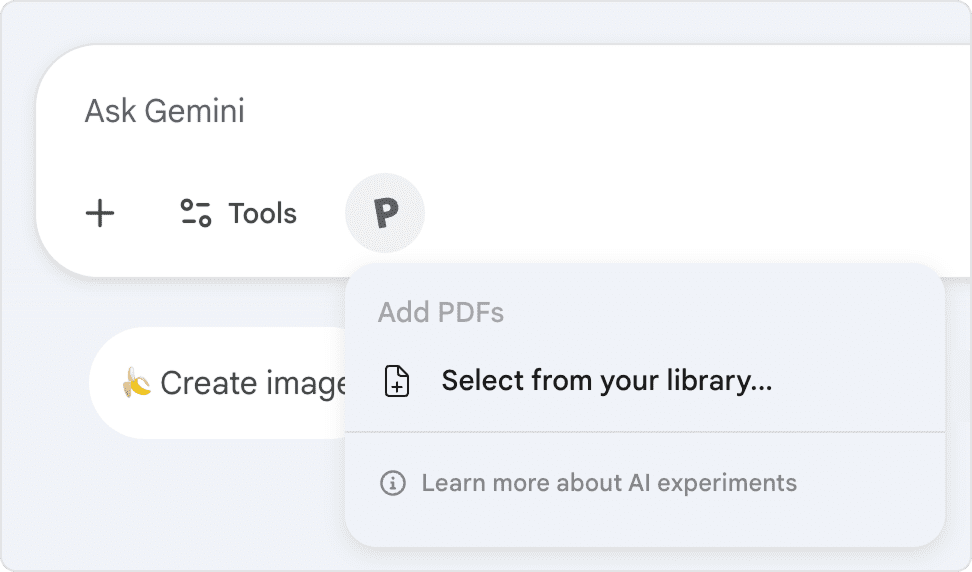
You can also add PDFs from within your AI assistant using the Paperpile button:
- Open your AI assistant (ChatGPT, Claude, Gemini, Copilot, or NotebookLM).
- Look for the Paperpile button in the toolbar.
- Click the button to search and add PDFs from your library.
- Choose a prompt from Paperpile's library, or remove the prompt to ask your own question.
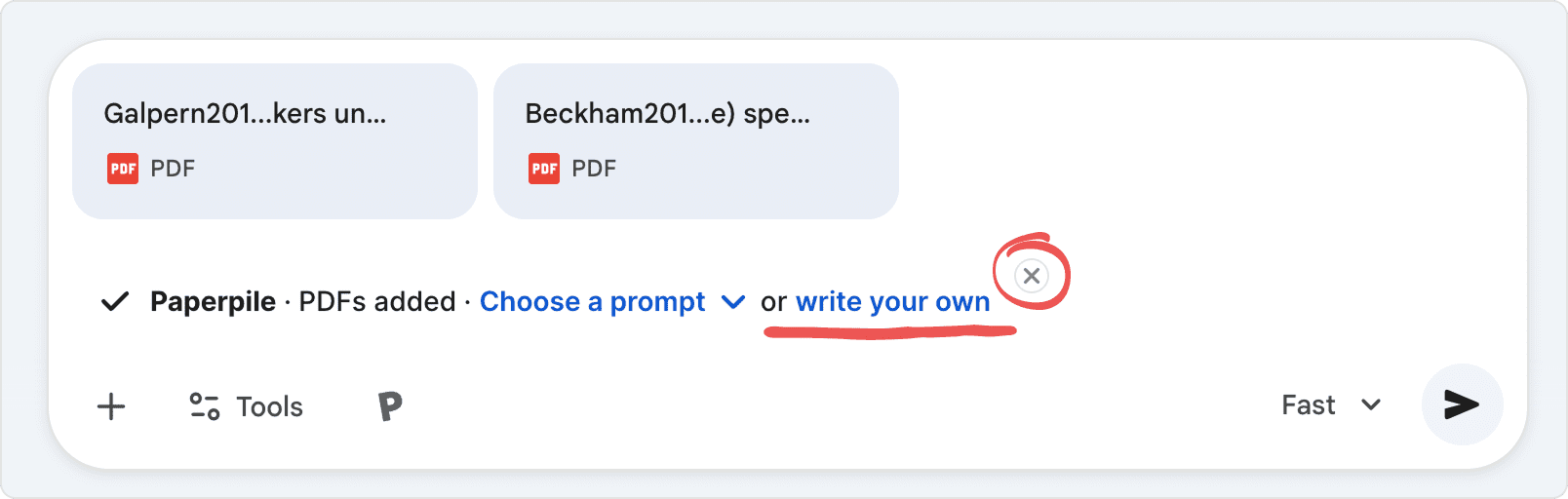
You can add PDFs and prompts from mid-thread, but starting a new thread gives better results.
Get a response in your native language
Ask AI will request a response in the language you’ve selected in the host AI assistant. For example, if you choose Japanese language in your browser or in the ChatGPT settings panel, your chat responses will be in Japanese:

You can easily change your preferred language using the Settings panel in ChatGPT and Claude.


For Gemini, visit https://accounts.google.com > Personal Info > Language to control your account-wide language setting.
Choose from Paperpile's prompts
Paperpile offers high-quality prompts organized by category to help you analyze research papers effectively. Select a prompt that matches your needs, such as summarizing key findings, analyzing methodology, or comparing studies.
| Category | Prompt name | Description |
|---|---|---|
Summarization | Concept map | Construct a hierarchical outline of concepts. |
Summarization | Key quotes | Extract a list of key quotes from each section. |
Summarization | Structured summary | Create a one-page structured summary. |
Summarization | Three-pass summary | Analyze and summarize papers using the three-pass method described by S. Keshav in "How to read a paper". |
Comparison | Annotated timeline | Create an annotated timeline contextualizing papers within their field of study or inquiry. |
Comparison | Compare papers | Provide a detailed comparative analysis highlighting similarities, differences, and relationships between papers. |
Comparison | Meta-analysis table | Construct a detailed table highlighting meaningful differences, similarities, and themes across papers. |
Data extraction | Authors and affiliations | Produce a report of the affiliations and recent academic history of the main authors. |
Data extraction | Figure summaries | Summarize each figure, including in-text references and a rating for centrality to the paper's main contributions. |
Data extraction | Tables | Extract structured data from tables in the main text. |
Data extraction | Works cited | Produce a report with a summary of each work cited, including impact and relatedness assessments. |
Critique | Critical questions | Generate a list of 10-15 critical questions that might be asked at a conference or research talk. |
Critique | Journal club presentation | Produce a journal club style presentation with one heading per slide, in markdown format. |
Critique | Mock peer review | Produce a mock peer review report with pointers to specific sections or statements worth further reflection. |
Language | Define key terms | Identify and define key terms, acronyms, and obscure terms of art for a non-expert reader. |
Language | Translate pages | Produce a page-by-page translation to the user's native language. |
Just for fun | Onion article | Draft a satirical article in the style of 'The Onion', based on the work described in one paper. |
Just for fun | Reviewer #2 | Draft a satirical peer review report in an over-the-top "reviewer #2" style. |
Just for fun | Tweetorial | Write a thread for social media summarizing one paper in an accessible, engaging format. |
Follow links from your AI assistant to source PDFs
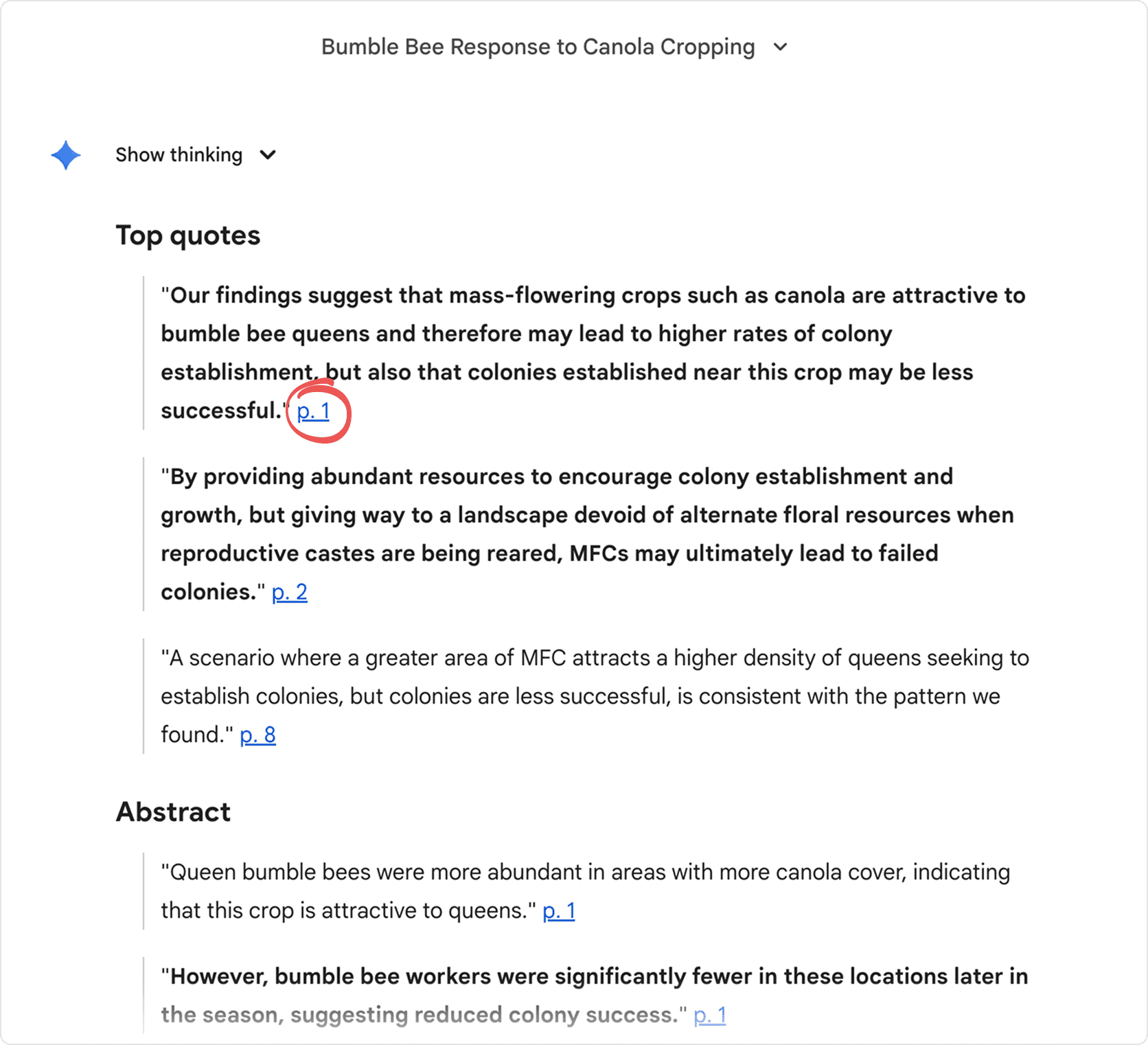
Paperpile encourages AI assistants to link back to your source PDFs in their responses. Look for links with author-year citations, citation keys, or page numbers in the AI's output.
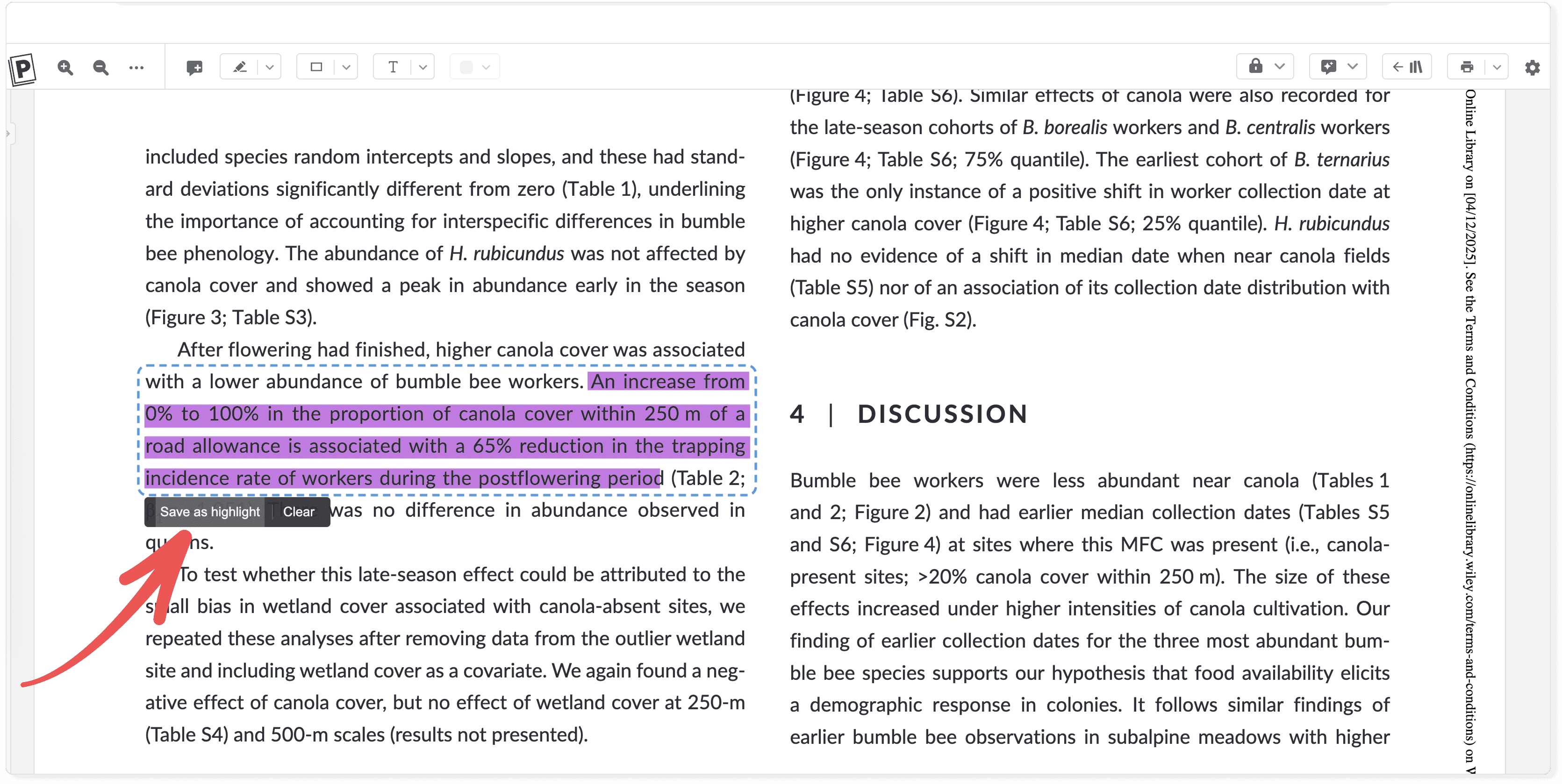
Click any link to open the PDF viewer at the relevant page or quotation. This makes it easy to verify information and read the full context.
Use Ask AI with NotebookLM
NotebookLM works differently from other AI assistants. Instead of short-lived chat threads that support 5-10 PDFs, NotebookLM creates long-lived notebooks that can hold 100-300+ PDFs.
Send PDFs from Paperpile
When you send PDFs to NotebookLM from the Paperpile web app, Ask AI creates a new notebook and uploads your prompt if you selected one.
Add PDFs from NotebookLM
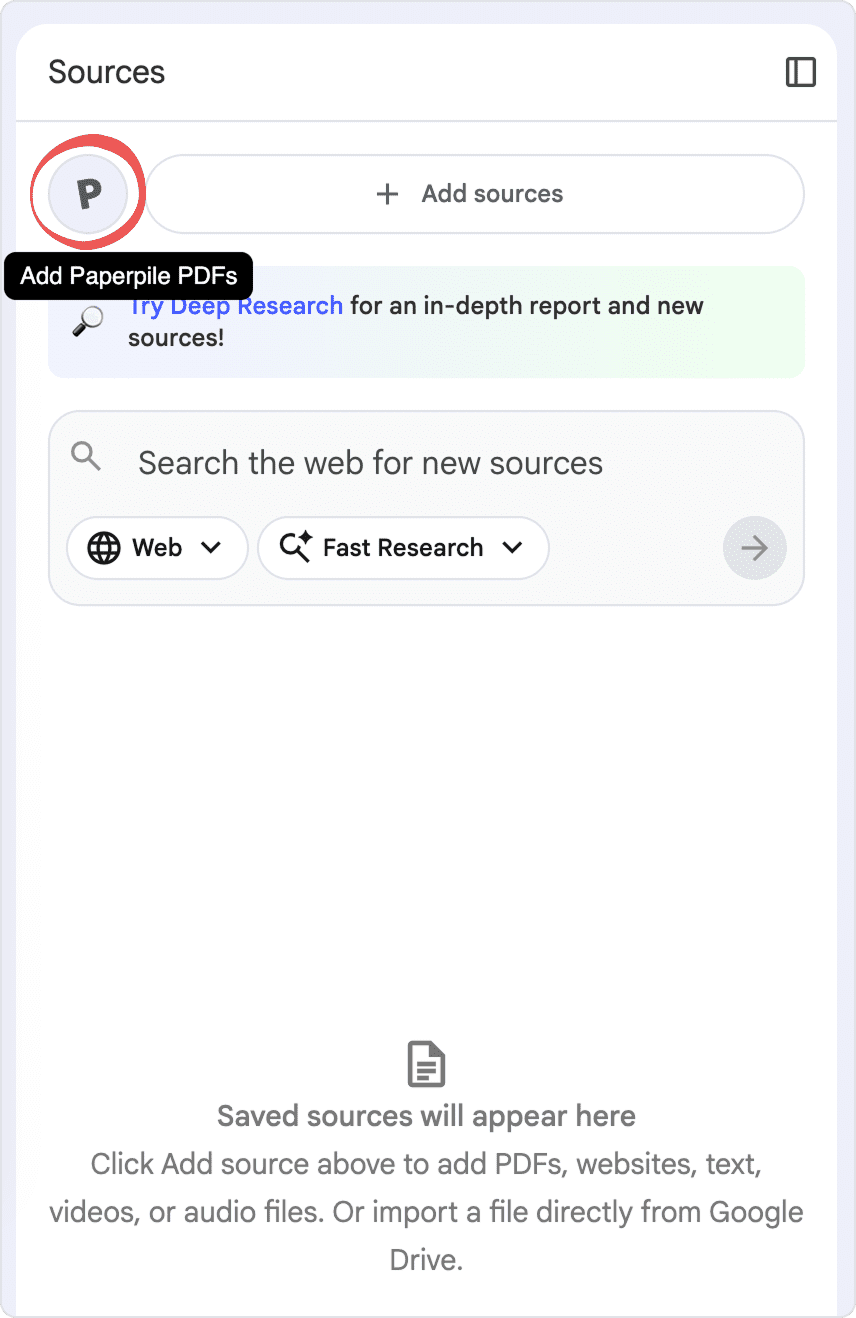
To add PDFs while working in NotebookLM, click the Paperpile button in the Sources panel on the left. This opens your Paperpile library where you can select additional PDFs.
Set a prompt in NotebookLM
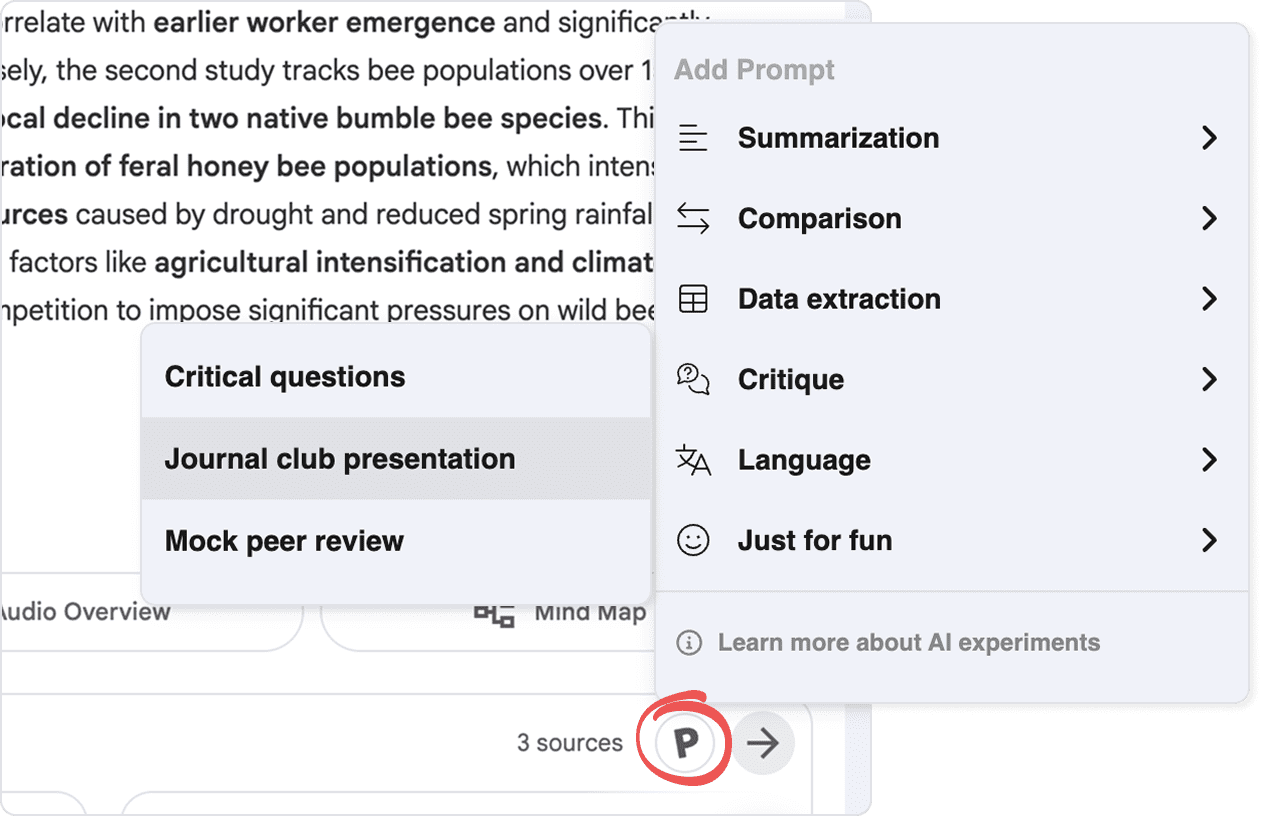
To use one of Paperpile's prompts in NotebookLM, click the Paperpile button in the prompt area and choose from the prompt library.
View citations in source PDFs
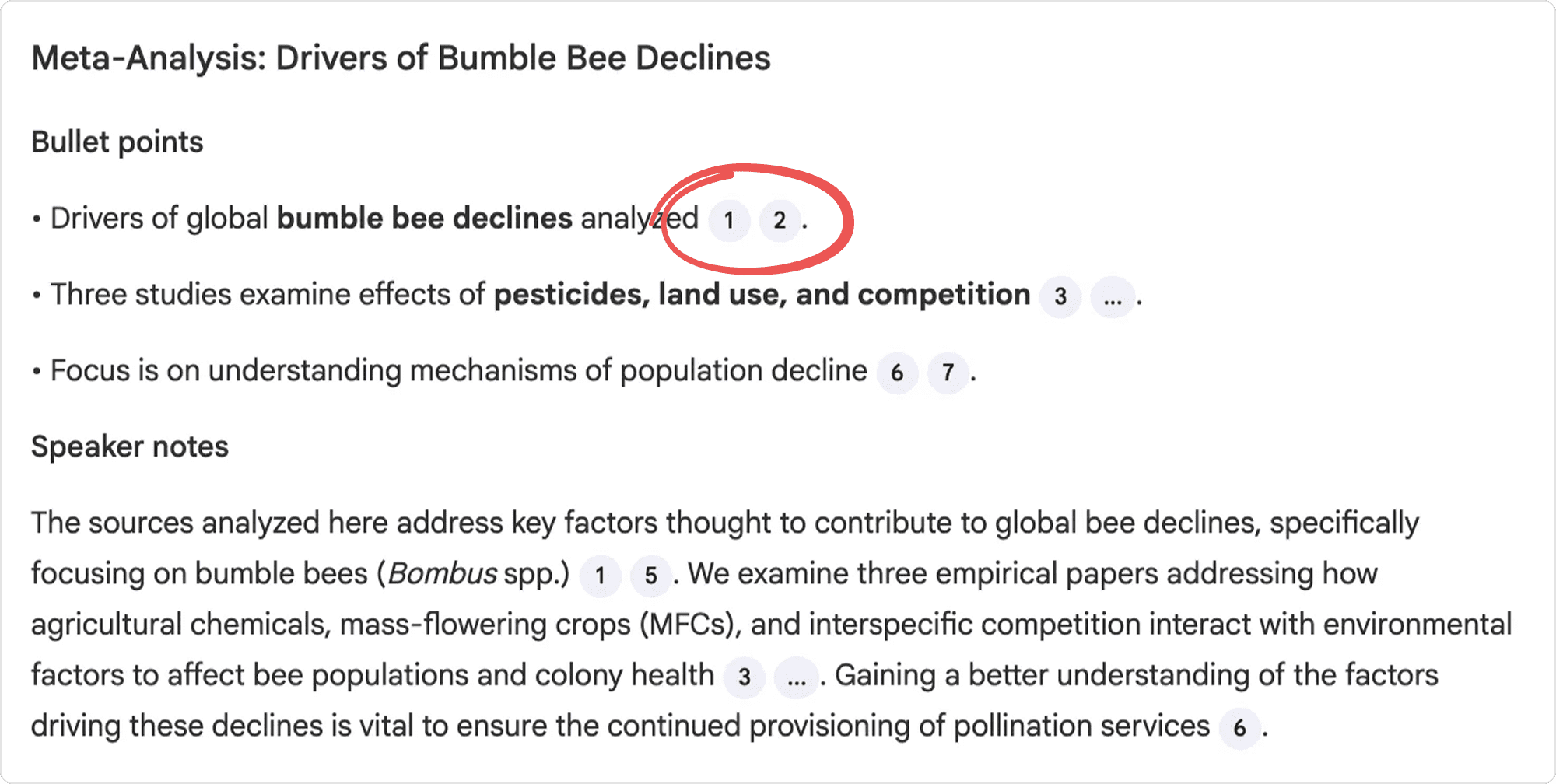
Hover over a citation chip in NotebookLM's response and click to view the quoted text in the source PDF.
Start Ask AI in the PDF viewer
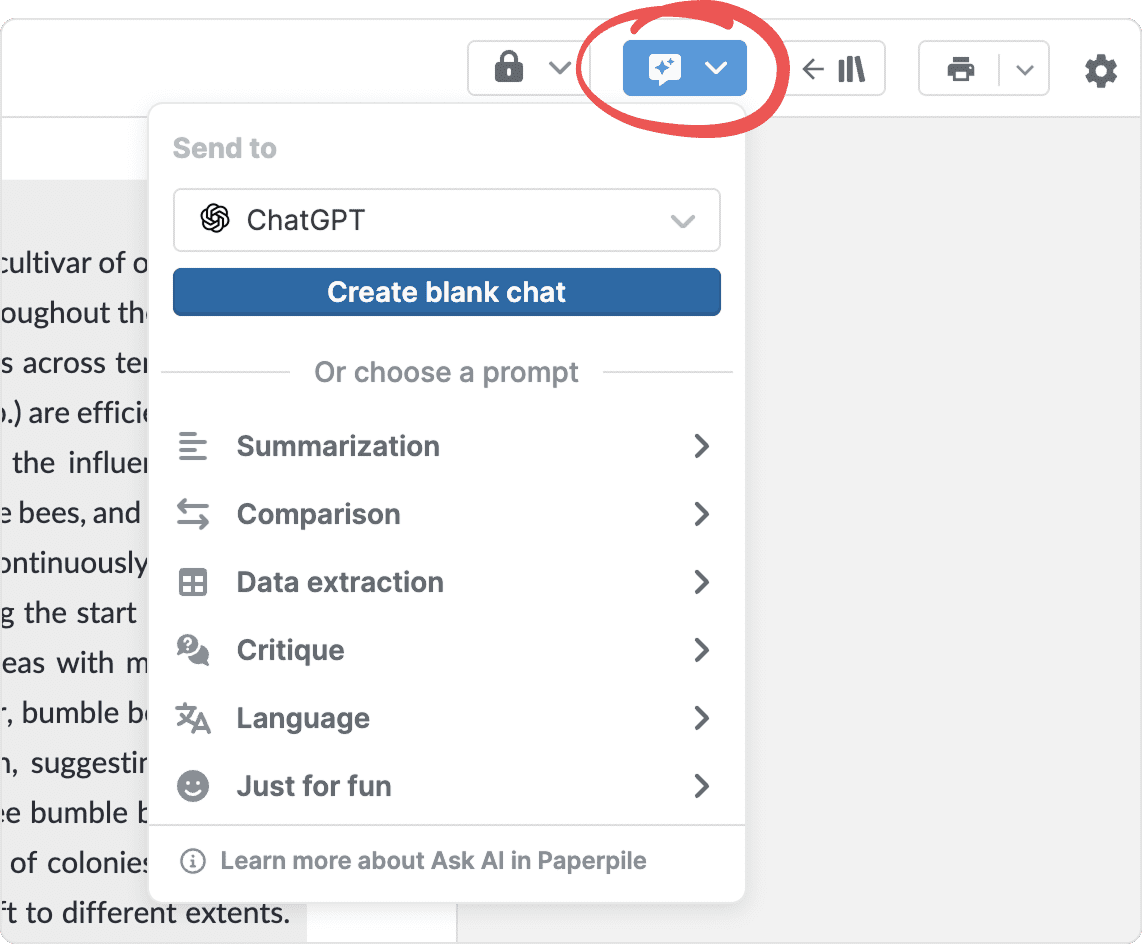
To send the PDF you’re reading to an AI assistant:
- Click the Ask AI button in the toolbar.
- Select your preferred AI assistant from the dropdown (ChatGPT, Claude, Gemini, Copilot, or NotebookLM).
- Choose a prompt from Paperpile's library, or click Create blank chat to ask your own question.
Ask AI opens a new tab with your chosen AI assistant and uploads the PDF. If you selected a prompt, it's automatically added to the chat.
How Ask AI works
When you send PDFs to an AI assistant, Paperpile opens a new tab and uploads the files to whichever account you're signed into.
This lets you leverage work or university accounts that have paid-tier AI features enabled. Many AI assistants also offer generous free tiers, though you may encounter rate limits or feature limitations.
The Paperpile extension inserts the Paperpile interface into your AI assistant's web application, similar to how the extension works with Google Scholar or Google Docs.
Troubleshooting
If you experience any persistent problem preventing you from using Ask AI, please share feedback using the beta testing form or contact our support team at support@paperpile.com.
Sign in to your AI assistant account
Make sure you're signed into your AI assistant account before using Ask AI. Paperpile will use whichever account is currently signed in.
PDFs aren't uploading
- Rate limits: Some AI assistants have quotas or rate limits that Paperpile can't detect. Try uploading a PDF directly in the AI assistant to see if an error message appears. If the assistant shows a quota or rate limit error, wait and try again later.
- Free accounts: ChatGPT and Claude have very restrictive limits on PDF attachments for free accounts. Try using Gemini, or upgrade to a Pro-level account for better PDF support.
Paperpile button isn't showing in my AI assistant
- First, try reloading the AI assistant page. The Paperpile button should appear.
- If that doesn't work, reload the browser extension (See Troubleshooting: Chrome extension).
- Make sure your extension is up-to-date (See “Updating the Chrome extension” at Troubleshooting: Chrome extension).
Known limitations
Claude PDF limits
- Claude allows you to upload approximately 10 PDFs per chat but often fails after submission when more than three PDFs are included. For best results with Claude, limit your uploads to three PDFs per chat thread.
Chrome only
- For now, Ask AI is only supported in the Paperpile Chrome extension.
- We plan to add support for Safari and Firefox in early 2026.
AI hallucinations
- AI models occasionally hallucinate details such as exact quotes, article links, DOIs, or specific facts. Always verify important information by following the links back to the source PDFs. Paperpile encourages AI assistants to link to primary sources to make verification easier.