Add notes and annotate PDFs
Add notes and annotations to PDFs to highlight important information, add comments, and organize your research. All annotations are saved automatically and synced across your devices.
View and navigate annotations
View all annotations in the left sidebar
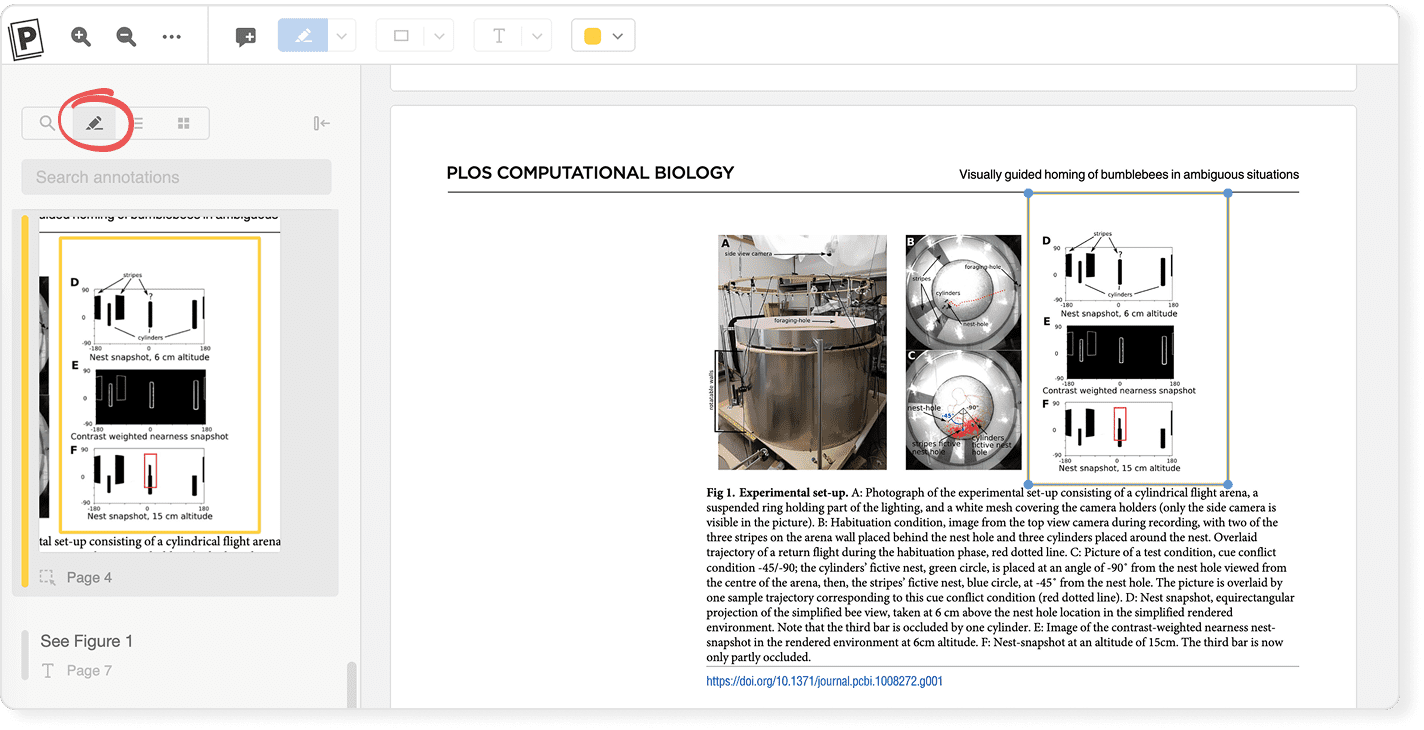
All your annotations appear in the left sidebar, including highlights, underlines, strikethroughs, shapes, text boxes, and sticky notes. Click any annotation in the sidebar to jump to that location in the PDF.
To view annotations in the left sidebar, click the pencil.
Search annotations

Search within your annotations by typing in the search box at the top of the left sidebar. This searches only the text of your sticky notes, markup annotations, and text annotations, not the entire PDF.
Show or hide all annotations in the left sidebar
To show or hide the left sidebar, click the sidebar button on the left or press Cmd+Shift+B (macOS) or Ctrl+Shift+B (Windows/Linux).
Show or hide comments panel
The comments panel on the right shows only sticky note annotations. This gives you a focused view of your comments and discussion without showing markup annotations like highlights.
To show or hide the comments panel, click the speech bubble on the right side of the viewer or press Cmd+Shift+M (macOS) or Ctrl+Shift+M (Windows/Linux).
Sticky notes
Sticky notes are comment annotations you can place anywhere on a PDF page. They appear as cards on the page and display their text in the comments panel on the right.
Add a sticky note

- Click the sticky note button in the PDF viewer toolbar or press M.
- Drag the note to place the note anywhere on the PDF page.
- Type your note text.
Edit a sticky note
Click on a sticky note in the comments panel to edit its text.
Move a sticky note
Click and drag a sticky note to move it to a different location on the page.
Delete a sticky note
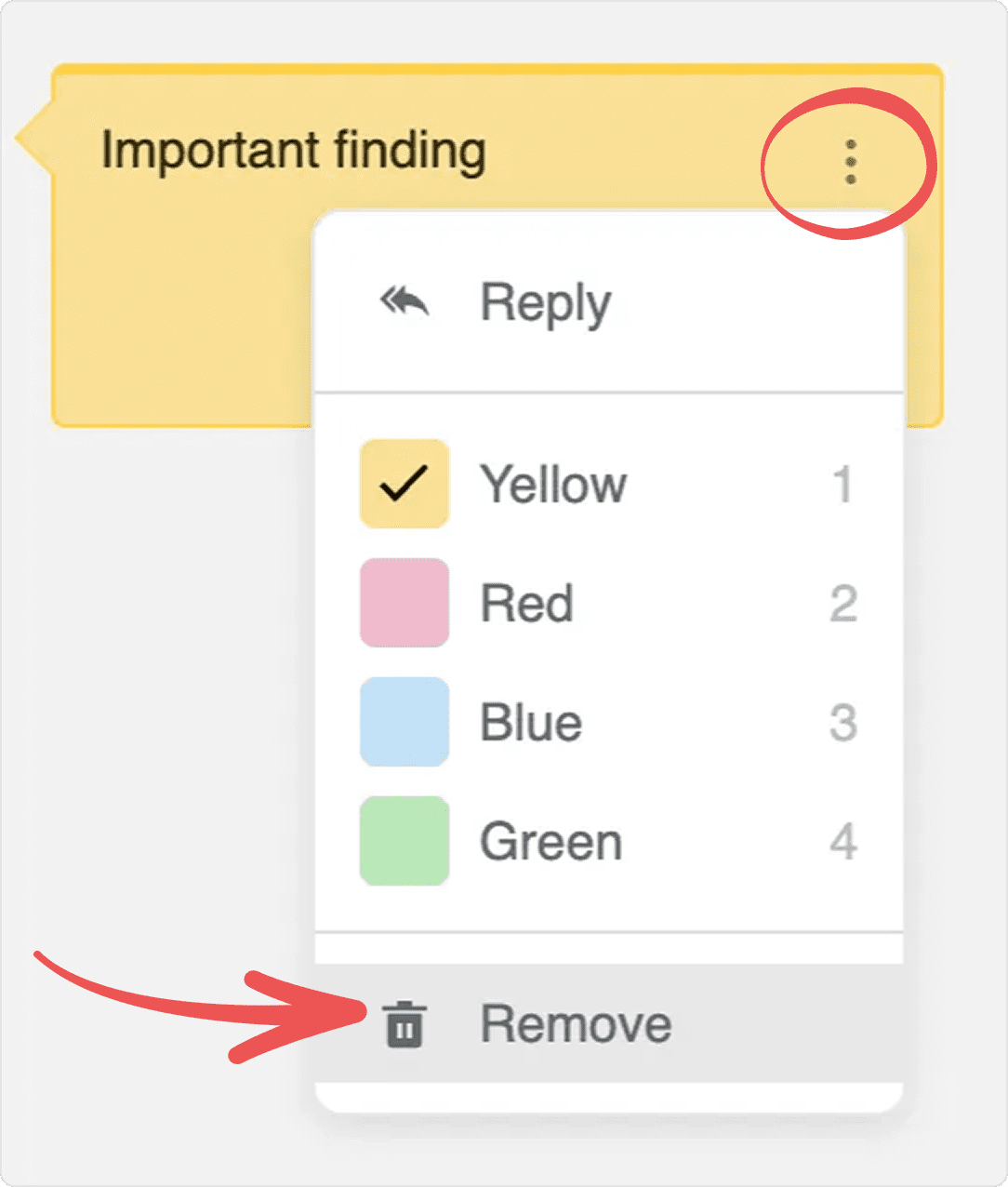
Find the sticky note in the comments panel, click its three-dot menu, and select Remove, or click the sticky note on the page and press Delete or Backspace.
Change color of a sticky note
Select the note and in the PDF viewer toolbar, click the color options button to select a color from the menu. You can also click the note’s three-dot menu and select the color you want.
Reply to a sticky note
Click the note’s three-dot menu and select Reply to add a threaded comment. Replies appear nested under the original note in the comments panel.
Add sticky notes to other annotations
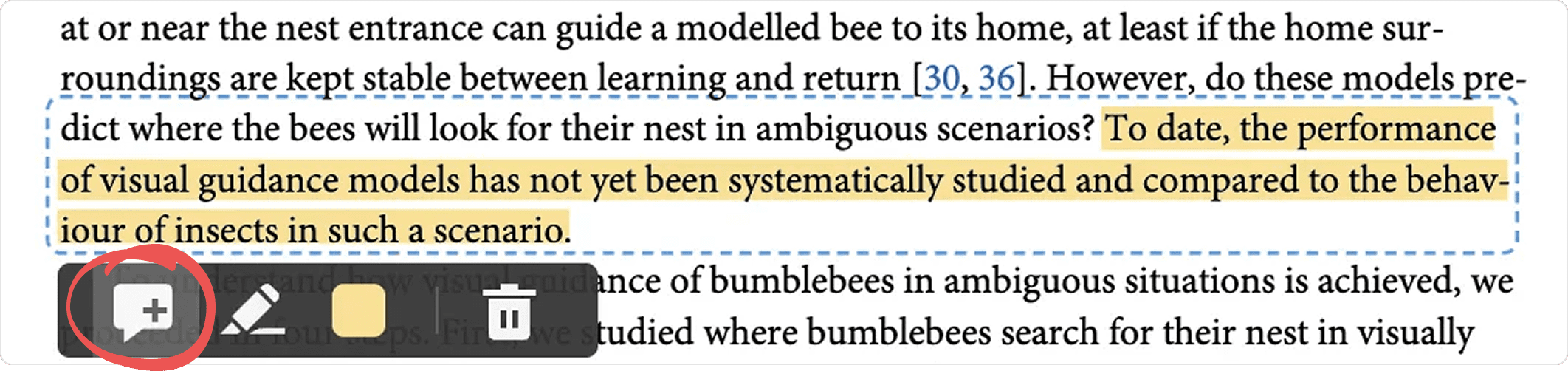
You can add a sticky note to any markup or shape annotation. Select the annotation on the page and click the sticky note button in the toolbar under the annotation to add a comment.
Markup annotations
Markup annotations let you highlight, underline, or strike through text in your PDFs.
Add markup annotations
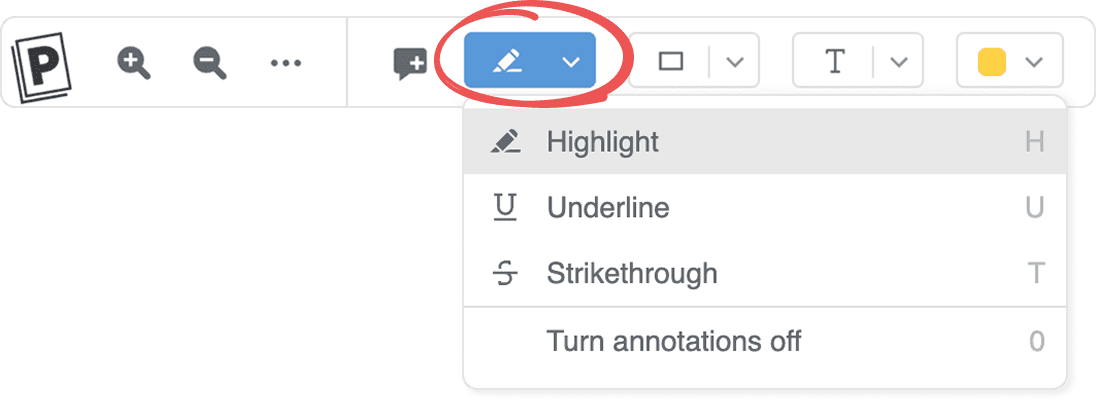
- Click the highlight button in the PDF viewer toolbar.
- Select the markup type (highlight, underline, or strikethrough).
- Click the color options button in the toolbar to choose the markup color.
- Select text on the PDF page to create the annotation.
Or you can select text on the PDF page and:
- Press H to add a highlight
- Press U to add an underline
- Press T to add a strikethrough
The annotation appears on the text and in the left sidebar with the marked-up content.
Change markup type
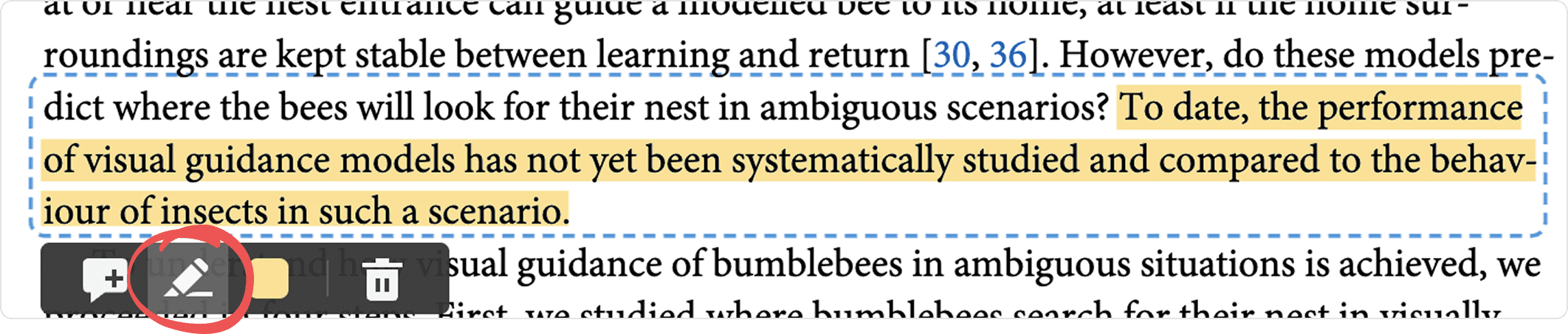
Select an existing markup annotation on the page and choose a different type (highlight, underline, strikethrough) in the markup annotation toolbar.
Change markup color
Select the annotation on the page and click the color button in the markup annotation toolbar to change its color, or click the color options button in the PDF viewer toolbar to change color.
Delete markup annotations
Select the annotation on the page and press Delete or Backspace, or click the trash button in the markup annotation toolbar to delete the annotation.
Add comments to markup annotations
Select a markup annotation on the page and click the sticky note button in the markup annotation toolbar to add a comment. See Sticky notes above for details.
Turn markup annotation mode on or off
Press 0 to turn off or turn on markup annotation mode.
Shape annotations
Shape annotations let you draw rectangles, ovals, arrows, or freehand shapes on PDF pages. The content of shape annotations appears in the sidebar and in exported summaries.
Add shape annotations
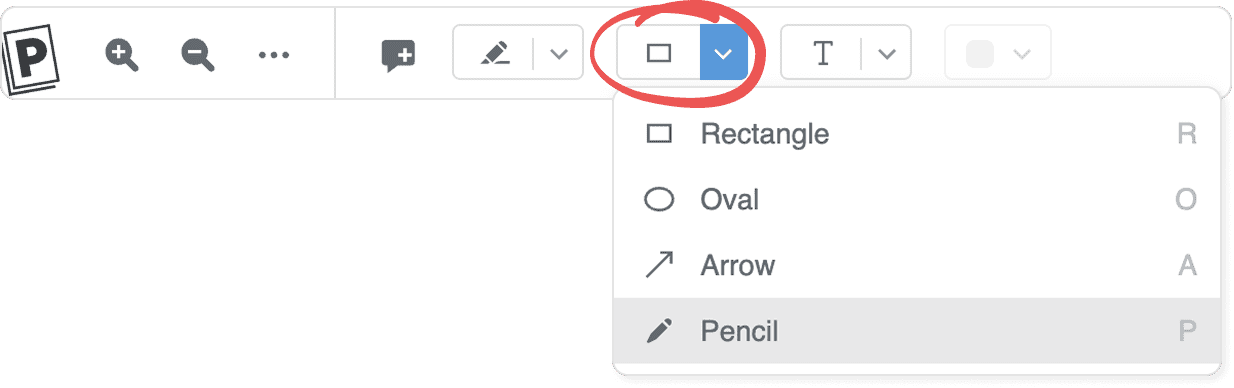
- Click the Draw button in the PDF viewer toolbar.
- Select a shape type (rectangle, oval, arrow, or pencil).
- Draw the shape on the PDF page.
Or you can click anywhere on the page and:
- Press R to draw a rectangle
- Press O to draw an oval
- Press A to draw an arrow
- Press P to draw freehand shapes
Delete shape annotations
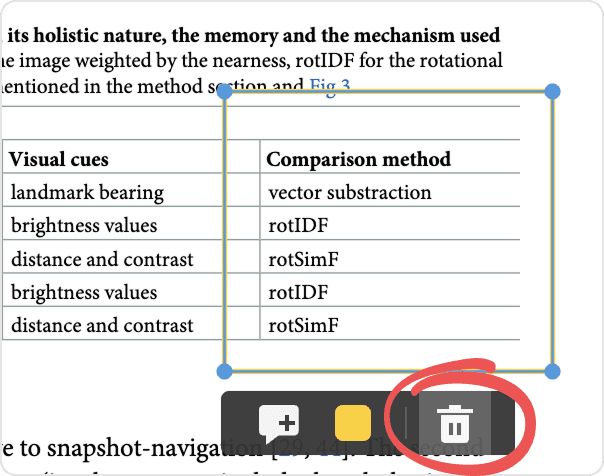
Select the annotation on the page and click the trash button in the shape annotation toolbar, or select it and press Delete / Backspace.
Change shape color
Select an existing shape annotation on the page and choose a different color from the shape annotation toolbar, or in the PDF viewer toolbar, click the color options button to select a color from the menu.
Add comments to shapes
Click a shape annotation and select the sticky note in the shape annotation toolbar to add a comment. See Sticky notes above for details.
Text annotations
Text annotations let you add text boxes directly on PDF pages.
Add a text annotation
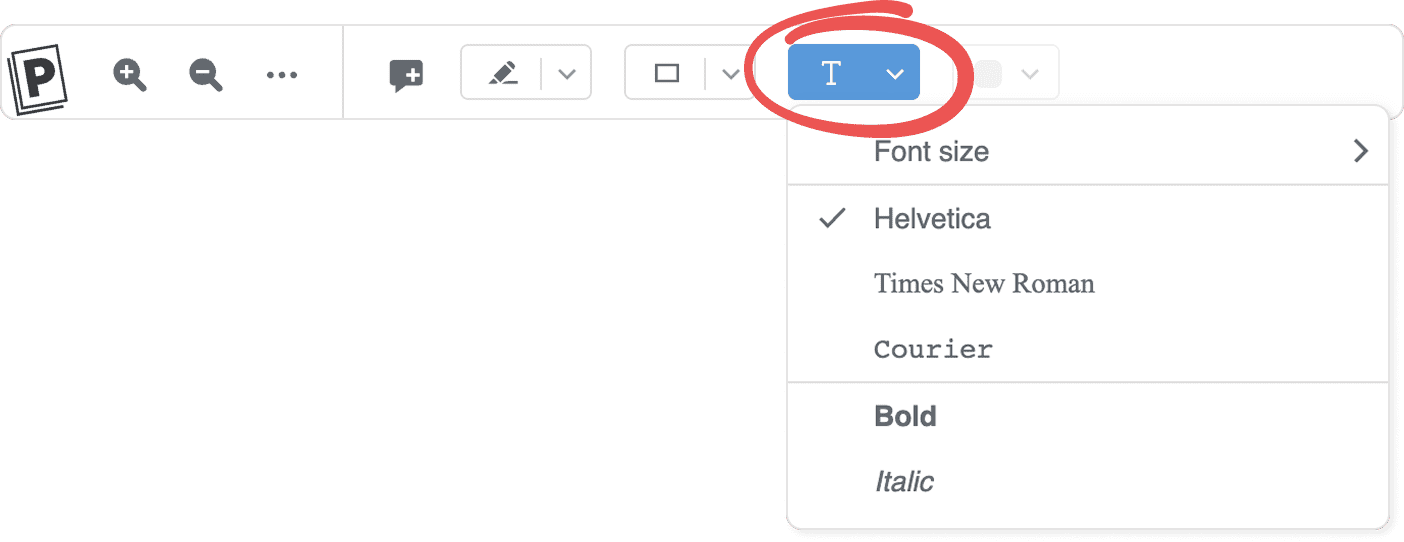
- Click the text button in the PDF viewer toolbar.
- Click on the PDF page to place the text box.
- Type your text.
Format text
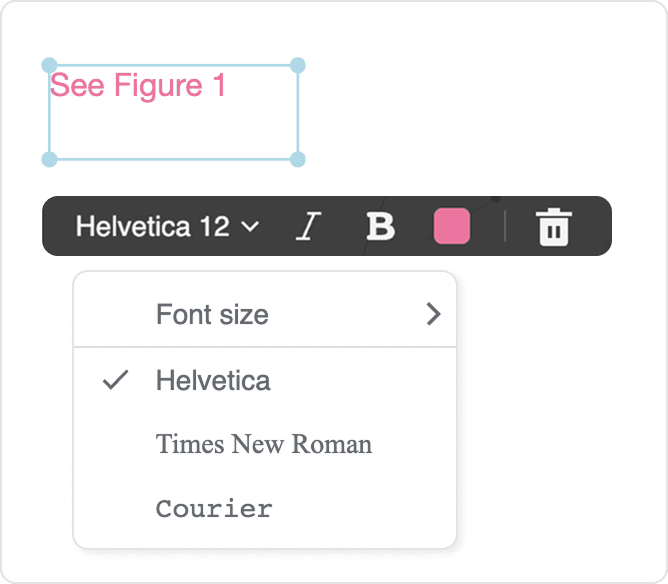
Use the text annotation toolbar to customize your text:
- Font: Choose Helvetica, Times New Roman, or Courier from the dropdown list
- Size: Select a font size from the dropdown list
- Bold: Click the bold button or select the text in the box and press Cmd/Ctrl+B
- Italic: Click the italic button or select the text in the box and press Cmd/Ctrl+I
- Color: Select a text color from the color options menu
Move a text annotation
Click and drag the text box to move it to a different location on the page.
Resize a text box
Click and drag the corners of the text box to resize it. Note that resizing may not work smoothly in all cases.
Delete a text annotation
Select the text annotation and press Delete or Backspace, or click the trash button in the text annotation toolbar.
Annotation color options
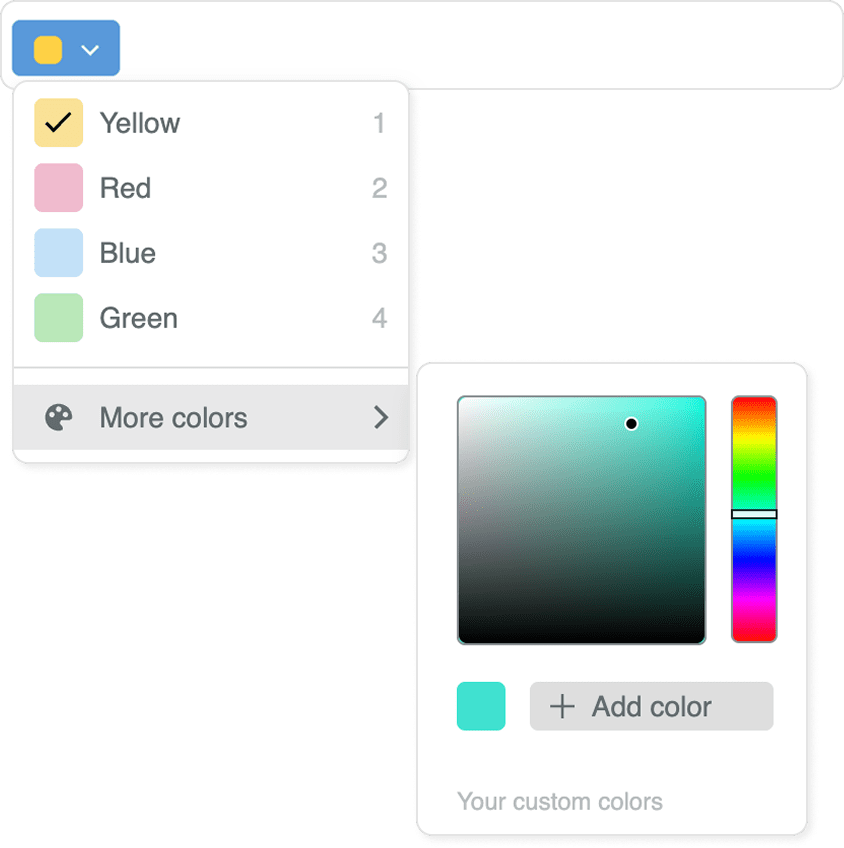
Click the color menu in the PDF viewer toolbar to change annotation colors. The default colors are yellow, red, blue, and green.
Click More colors to add custom colors from the color picker. To delete custom colors, click the trash button next to a custom color in the list.
Keyboard shortcuts for annotation colors
Select an annotation on the page, then press a number key to change its color:
- Press 1 for yellow
- Press 2 for red
- Press 3 for blue
- Press 4 for green
If you add custom colors, they are assigned keyboard shortcuts in the order you create them. For example, your first custom color becomes 5, the second becomes 6, and so on.
Edit annotations
You can edit annotations on the page using standard editing commands:
- Undo: Press Cmd/Ctrl+Z to undo your last annotation action
- Copy: Select an annotation and press Cmd/Ctrl+C to copy it to the clipboard
- Cut: Select an annotation and press Cmd/Ctrl+X to cut it
- Paste: Press Cmd/Ctrl+V to paste the annotation elsewhere on the PDF